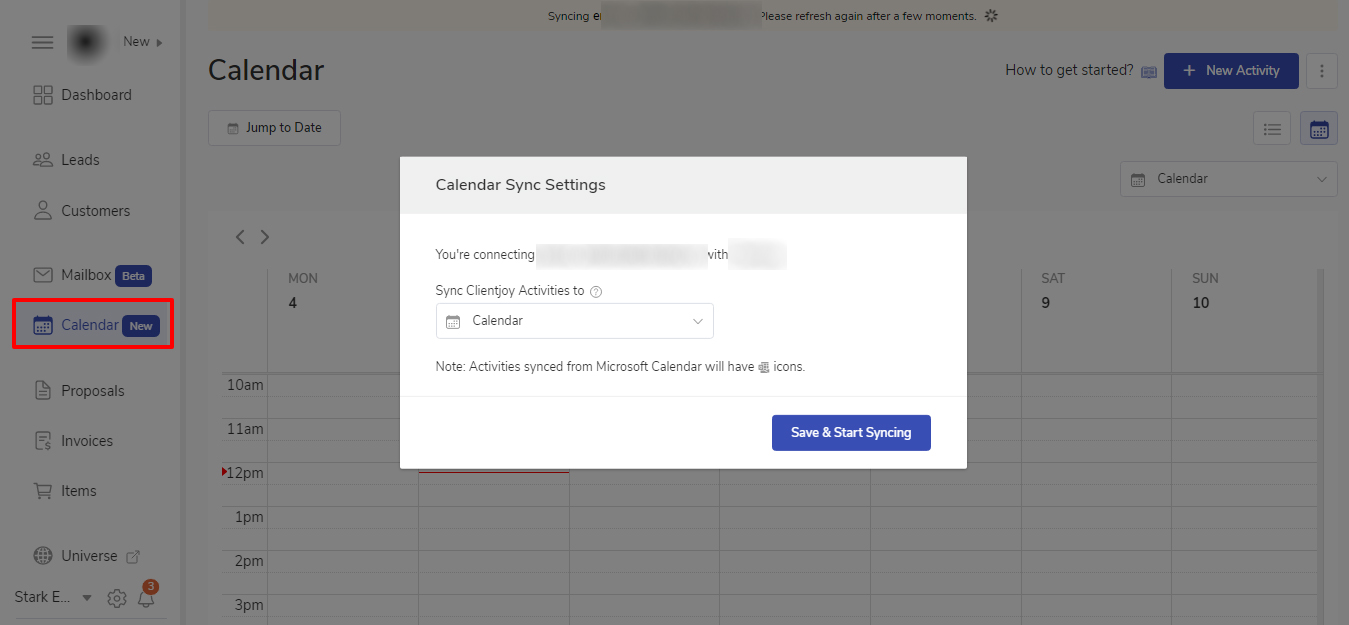
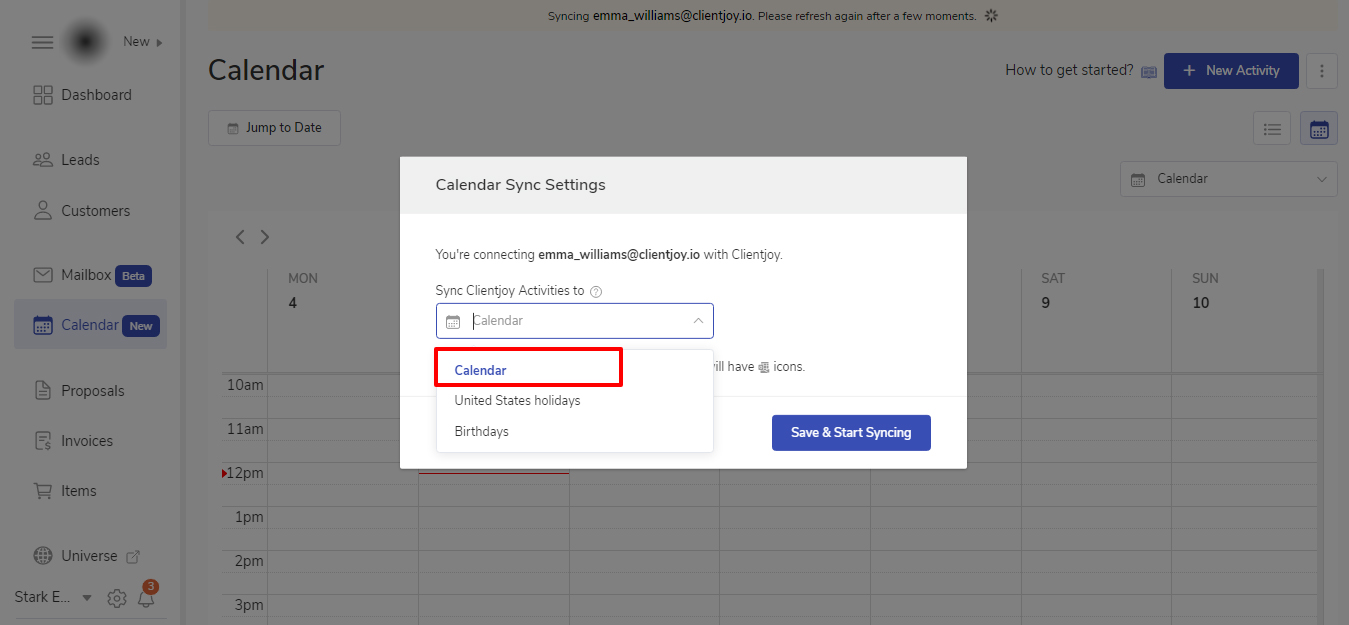
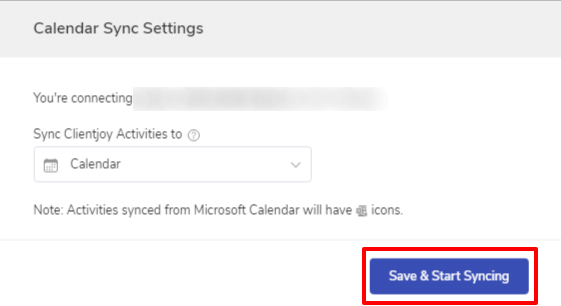
Note  : This modal window will open every time you open the Calendar module until you select a Calendar to sync from your connected account.
All your activities created in your connected Calendar will be synced in popCRM and vice versa in a few minutes. All the activities created in popCRM before syncing will also be seen in your Calendar along with the synced activities.
You can see the activities of other Calendars from your synced account by clicking on the top right side.
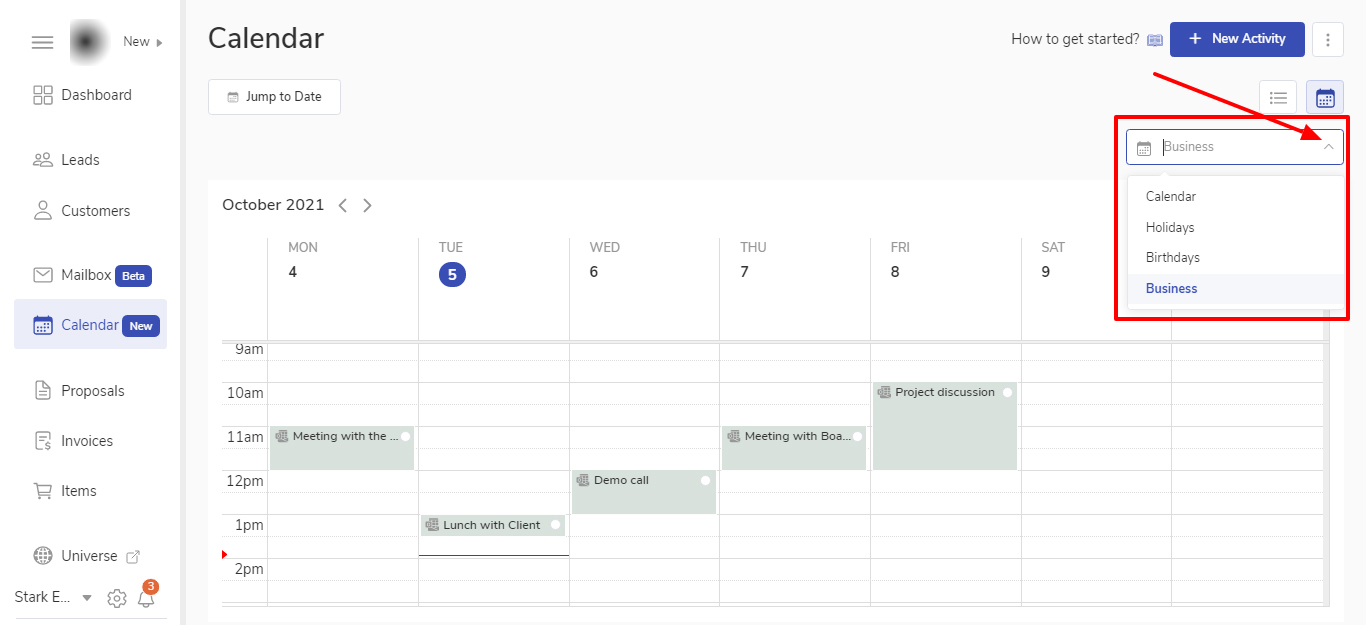
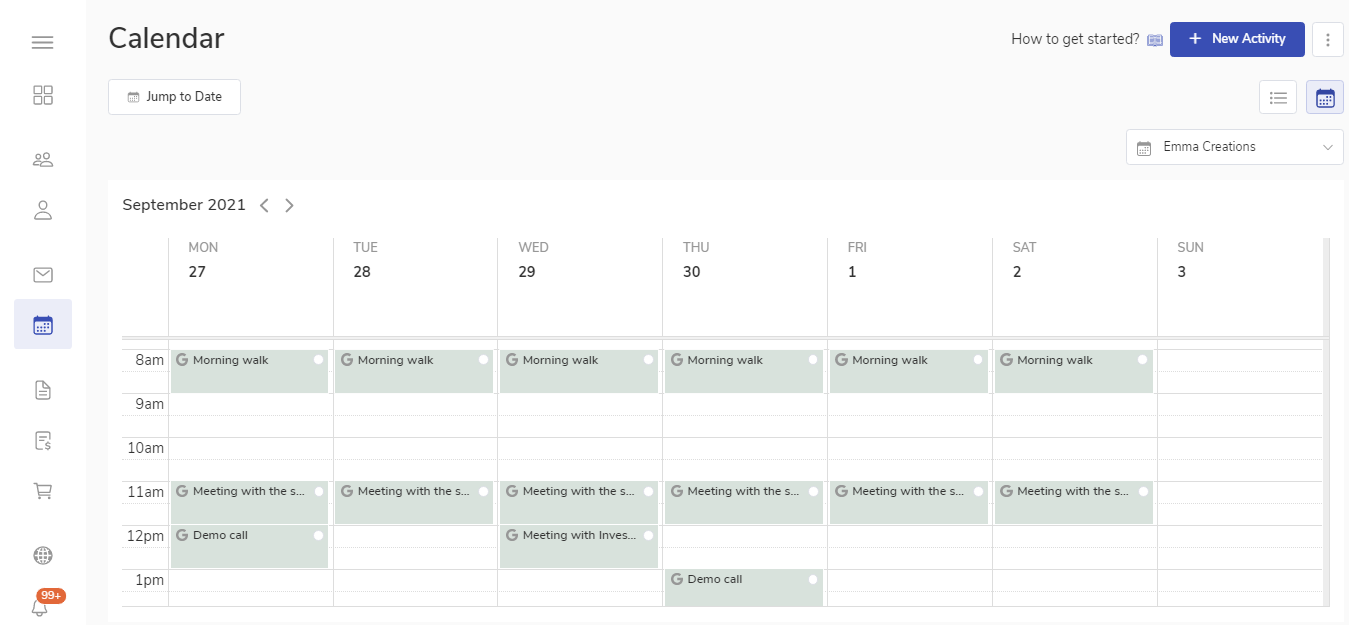
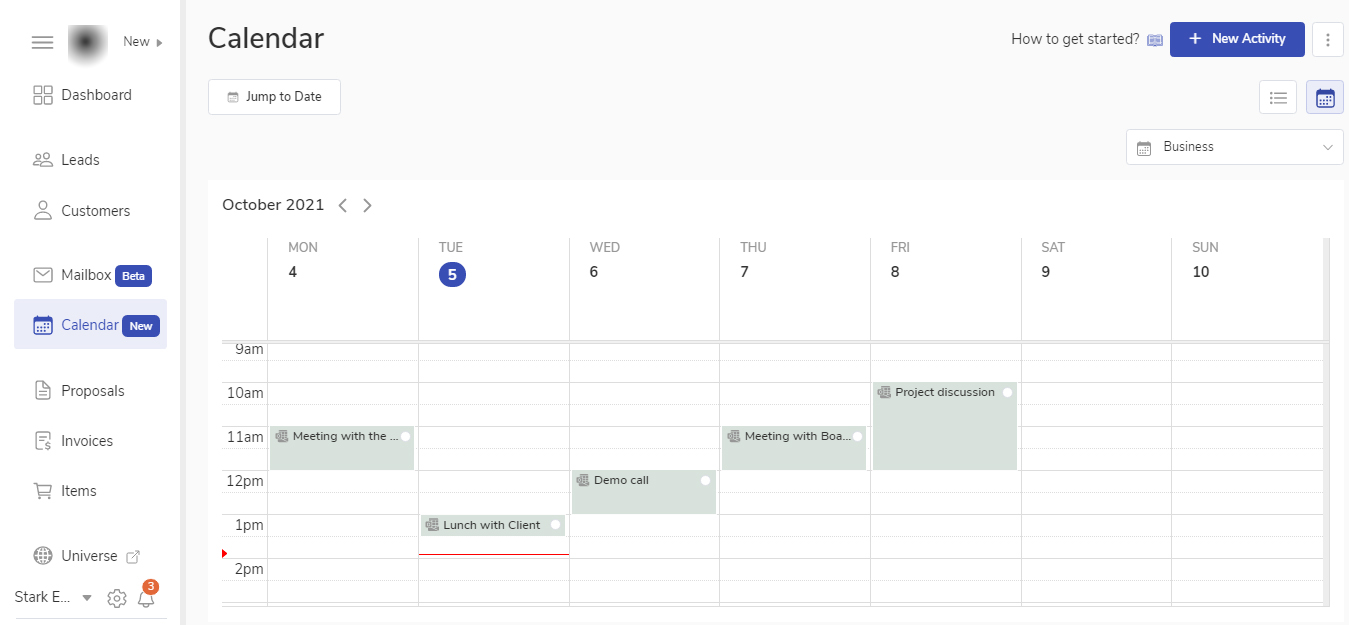
Note : All the activities from your account synced in popCRM will appear with the Google logo and those from Outlook will be seen with the Outlook logo.
-
Google account synced will look like this: