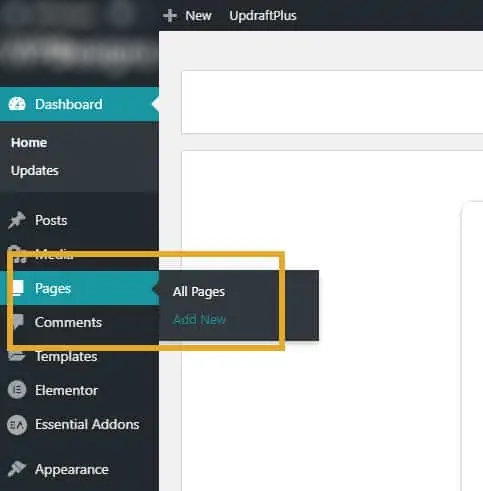
To create a new page on your website you will need to start from the WordPress Dashboard. On the left of the page you have the menu with lots of options and you will need to hover over Pages then select Add New.
Navigate to Pages then Add New
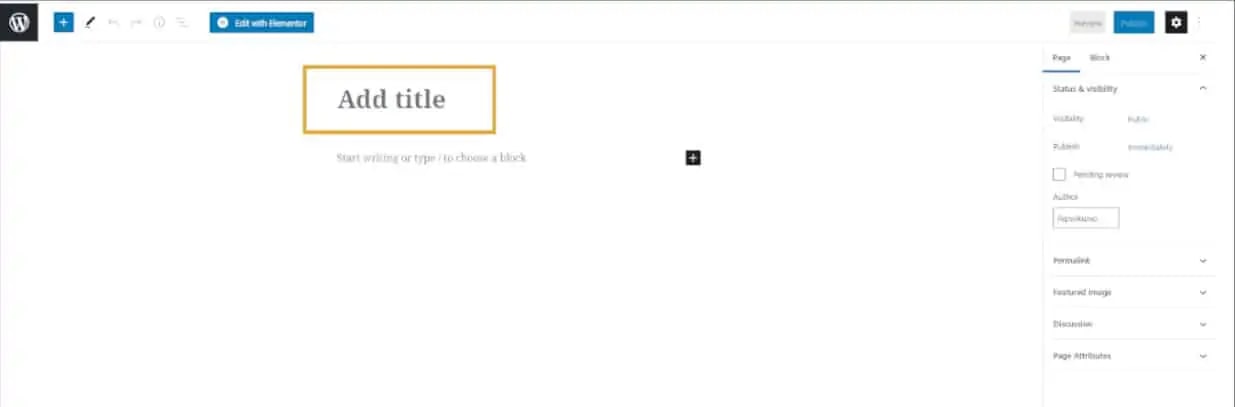
Once the page loads you will be able to add your new title and name it as you like.
Add your new page title
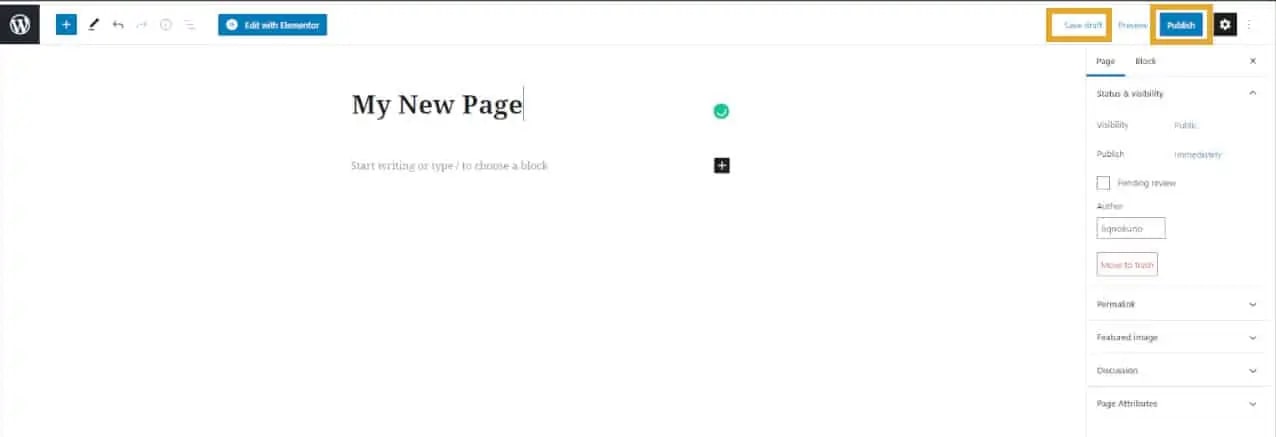
After you have added your new page title you have the choice whether you want to publish the page straight away or save it as a draft.
If your site is already live and online then I would recommend save it as a draft and work on it through there, if it is still being built and not viewable to the public then you can jump straight in and publish it.
Save a Draft or Publish the Page.
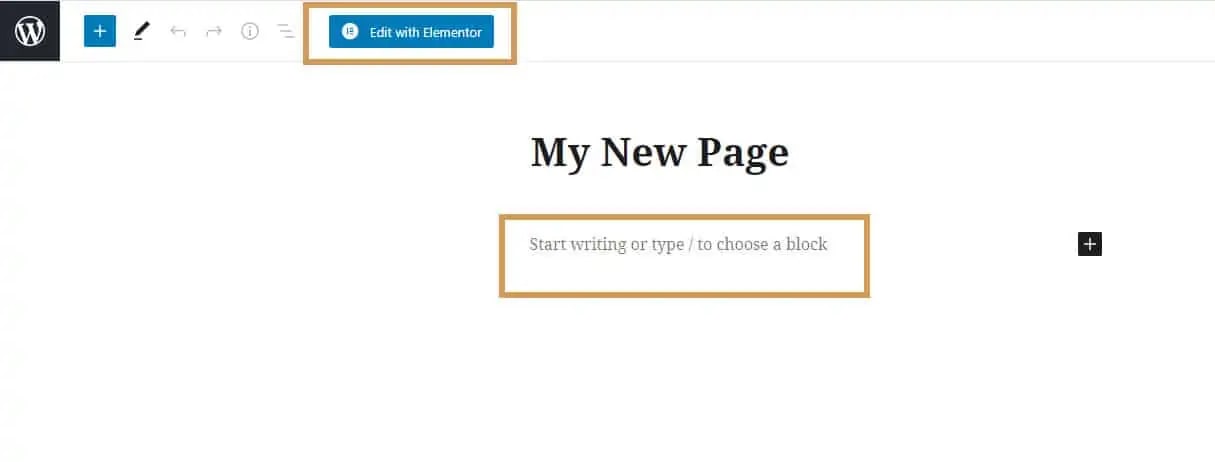
Whether you choose to create your page with Elementor by clicking on Edit with Elementor or start typing directly on the page and using the standard Gutenburg editor you have essentially created a page, but now it needs to have content added. Adding the content will take some time and it is always recommended to try and keep the same style and feel as you have on your other pages.
The simplest way to add content to your new page on your WordPress website is to use Gutenburg but it can be very restrictive in what you can achieve, I would highly recommend using Elementor.
Edit with Elementor or start with Gutenburg
Edit a Page
Editing pages in WordPress is simple and easy to do.
If you've created or edited the page in Elementor click the Edit with Elementor option
If you have not edited the page with Elementor it will miss this option.
If you've created or edited the page in Elementor click the Edit with Elementor option
When it comes to editing a page in WordPress you need to go to Pages and then hover over the page you wish to edit. If you have had the page edited in Elementor before then you can click directly on Edit with Elementor, if not then you can click the page title or on Edit.
Deleting a Page
If you no longer need a page on your website you are able to delete it. It is not a great thing to delete a page but it is sometimes needed.
From Pages you can hover over the page you wish to remove and click Trash. Once you have done that the page will disappear but it is not completely gone from, only visibly.
Click Trash to delete your page
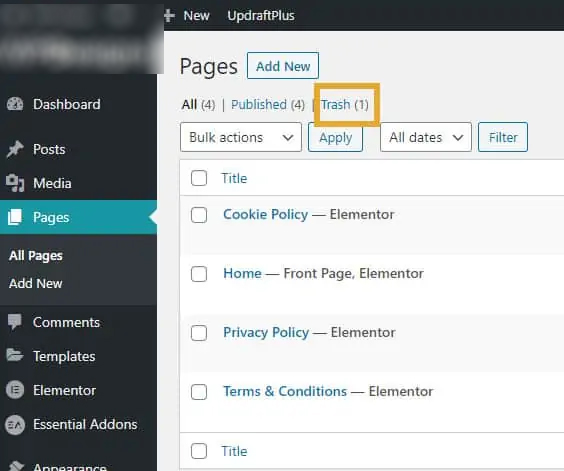
Go to the trash to recover or permanently delete your page
Your newly deleted WordPress website page has now been added into the trash, this contains all your deleted pages and there are similar trash folders for posts and products when you start working on them.
If you would like to gain access to this page again you can click on Trash to access your trashed pages.
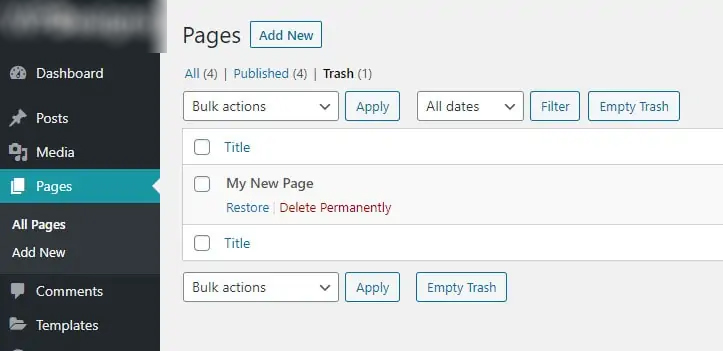
In your trash folder you can see the pages that have been deleted. You will have a couple of options to what you can do with these pages.
Restore – If you decide you need the page back you can easily restore it to how it was.
Delete Permenently – As it says, clicking this option will remove the page completely from your site and make it unrecoverable.