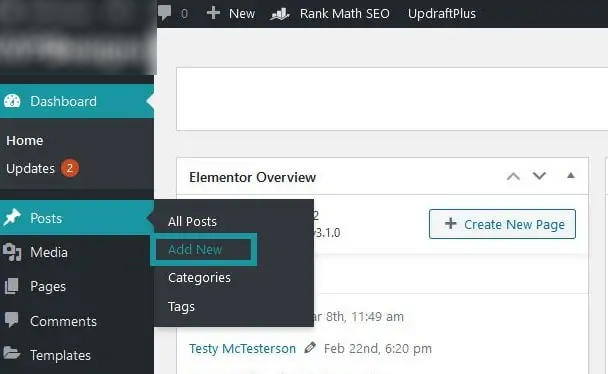
The Dashboard is where you go to do many things in WordPress, but you will need to navigate here to add your new post. Add /wp-admin to your website URL to get there if you don’t know-how.
Once on your WordPress dashboard, on the left-hand menu, you will see a tab labeled “Posts,” Simply hover over on it to see a dropdown menu with the option to “Add New.” When you click on add new, you’ll be taken to the new post creation page, where you can enter your chosen title. There are more options on the right-hand side that you can change or edit, such as permalinks, categories, tags, featured images, excerpts, and so on.
How to add new post
Overview of add post
How to Edit a Post
Editing pages in WordPress is simple and easy to do.
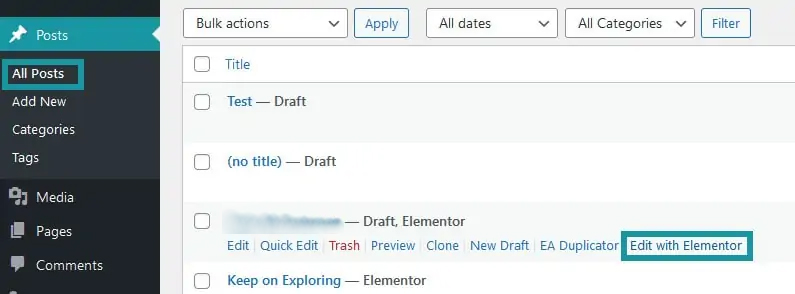
If you want to edit some of your posts with Elementor, it’s simple to do so. Simply go to your dashboard, then posts, and then all posts. Then, from the list of entries, pick the one you want to edit and press the edit with elementor link. If you don’t see the option to edit with elementor, simply click on the post’s name or title. Following that, you can see the elementor edit option here. Simply click on it. Here you can change the title of the post, as well as make the post draft and also to choose post layout. To do so simply press the gear icon in the bottom-left corner. Then you can also use all of the widgets from here like section, column, image, text editor , iconlist, share button etc.
Edit a post with Elementor
Trash a post
Editing pages in WordPress is simple and easy to do.
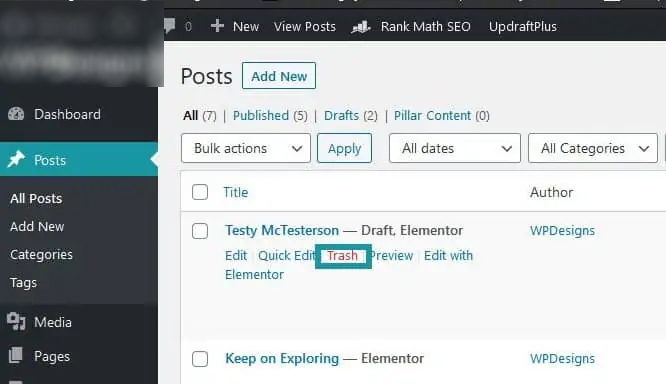
If you want, you can easily delete or trash a post. To do so, go to the dashboard and then press on the post tab. Here you’ll see a list of all the posts you’ve made. Then you must choose the particular post that you want to delete, where the trash option will appear. When you will click on trash, the post will be moved to the trash tab. If you want to remove the post permanently, go to trash, then click on delete permanently, and it will be removed from your website.
Delete or trash a post
Restore a post
Editing pages in WordPress is simple and easy to do.
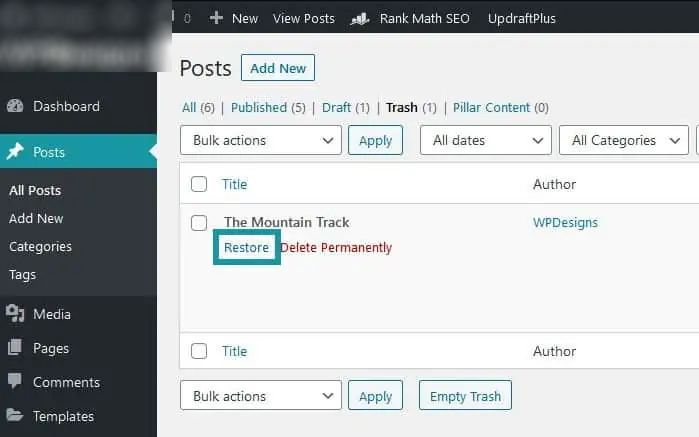
Simply go to Dashboard > Posts to restore a trashed post. Then, above the list of posts, you will get the trash option. Press on the trash tab, then the restores choice would then appear. Choose which post you want to restore and then click on restore. The post will be restored. However, if you have previously deleted the post permanently from this location, you will not be able to restore it.