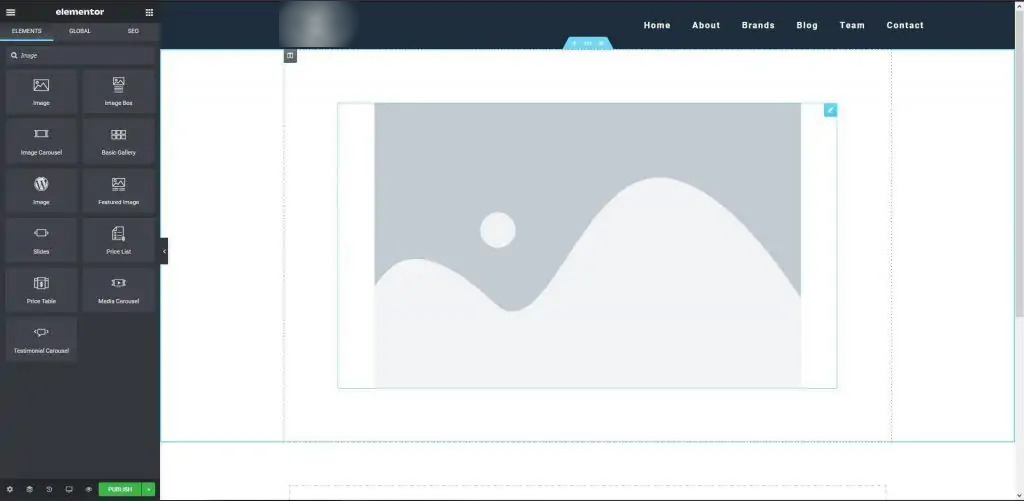
Go to the dashboard and then open a page with Elementor. The Elementor widgets will appear on the left-hand side after that. Simply type “image” into the search bar, and the image widget will appear. The widget can then be dragged and dropped onto the page using the blue highlight that appears as a guide to where it will be placed.
Drag the image widget into position on the page
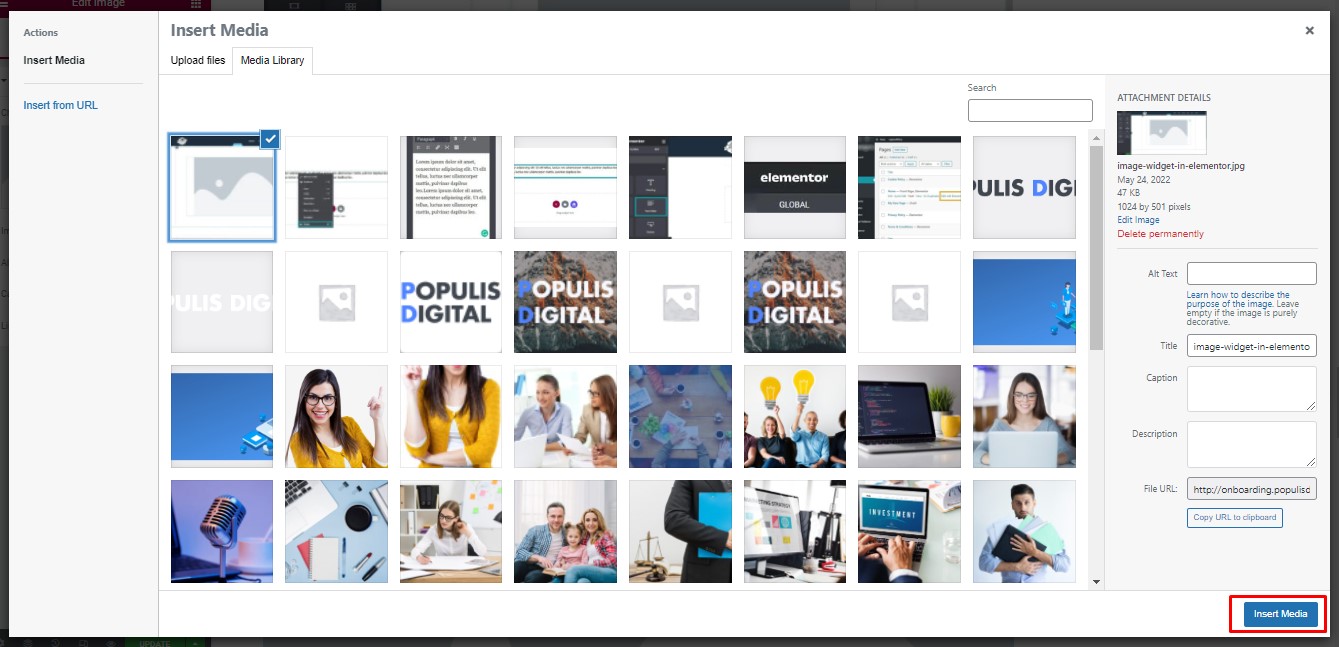
Once the image widget has been placed, click on the image widget and then open the media library by clicking on the image in the left-hand menu bar. From there, select your image and add the image. Your image will now be added to the page or post.
Select the image you would like to add and click "Insert Media"
How to Edit Images in Elementor
You’ll have three options for editing the image widget that you have added – content, style, and advanced.
If you would like to truly edit the image I would recommend using Gimp, PhotoPea, or Photoshop to get the images as desired (correct aspect, size, etc) before compressing and then uploading it to the site.
Content, Style, and Advanced
How to Delete Images in Elementor
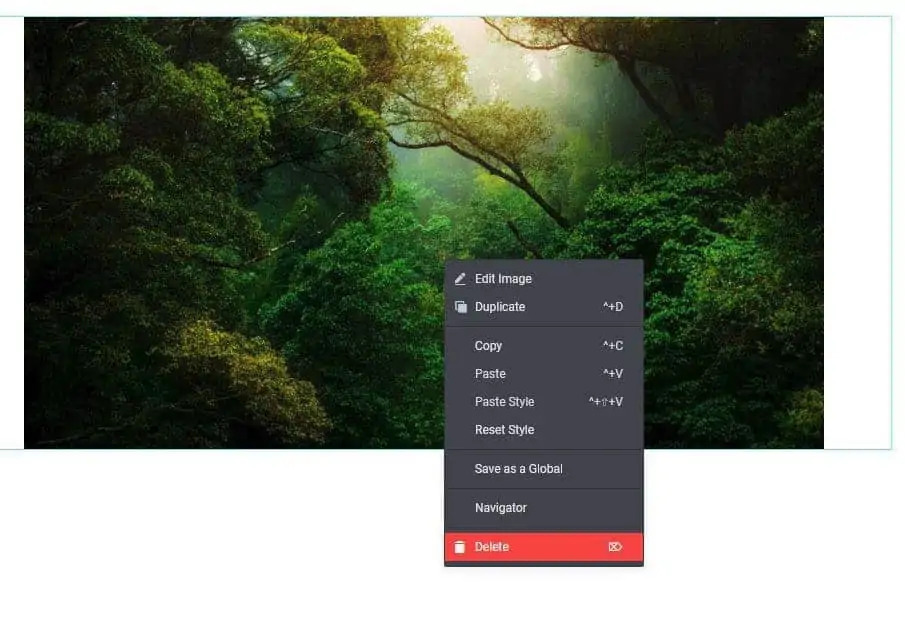
Deleting an image is easy; simply open a page or post with Elementor and find the image/ widget that you would like to delete an image, then right click and press deletefrom the page or post. Then, simply right-click on an image widget on a page you want to delete, and a menu will appear in front of you. Simply click the delete option to remove the image from the page or post.
Right click and select delete to remove the image widget