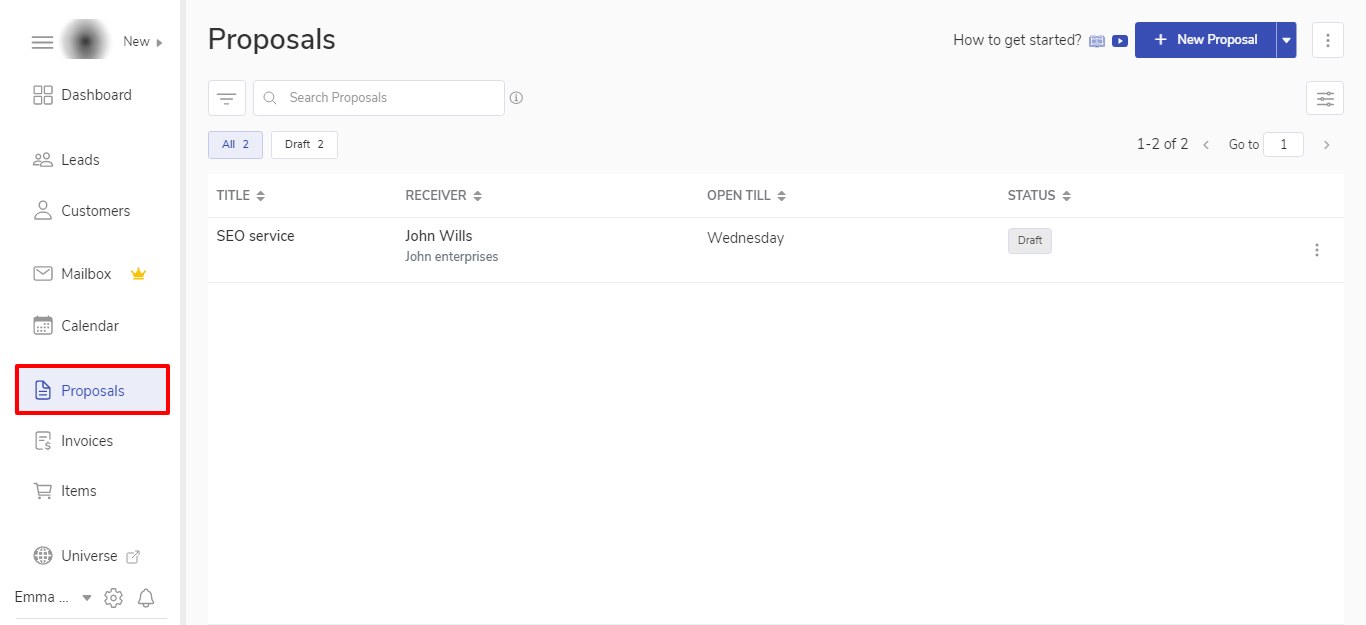
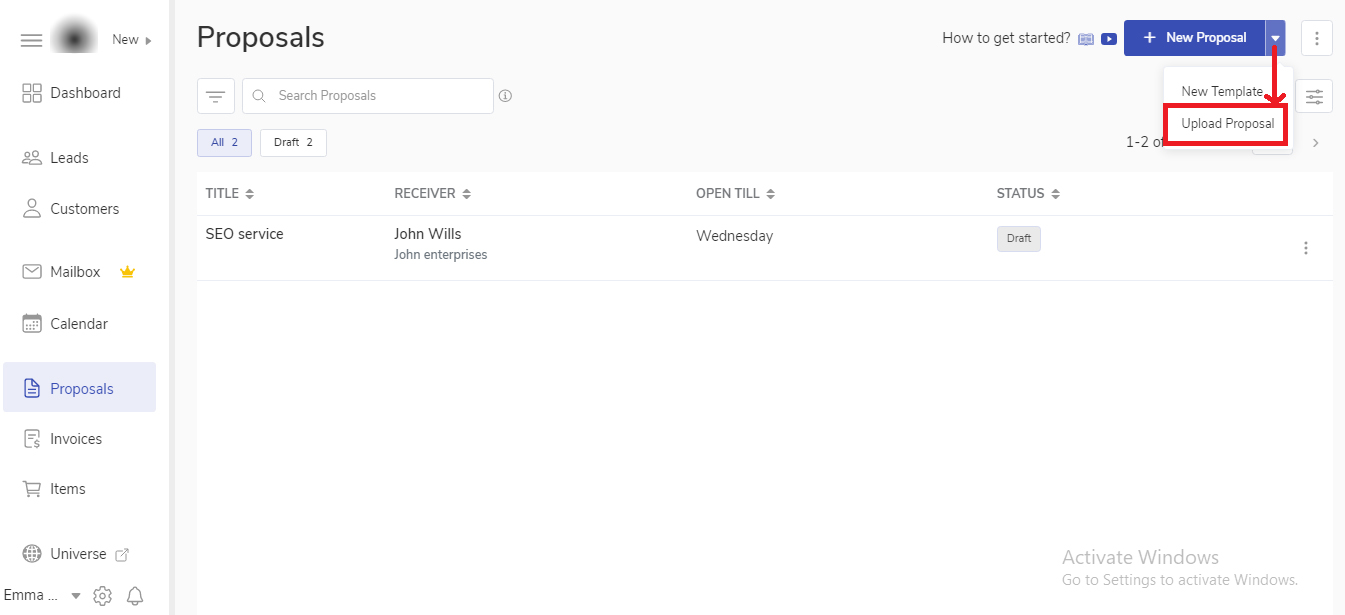
Click on the dropdown option beside + New Proposal and click on Upload Proposal.
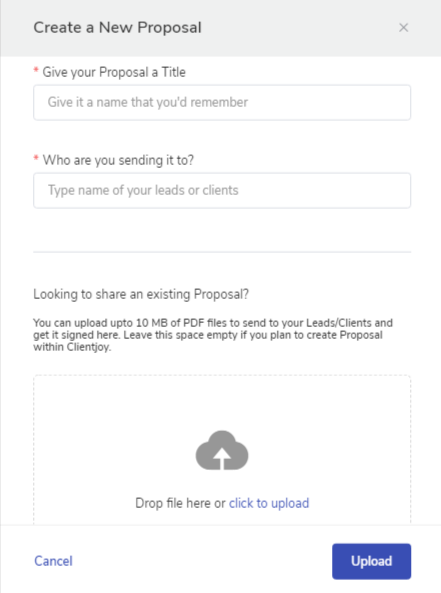
This will open up the modal window where you can enter the Proposal name, the receiver of the Proposal, and drag and drop your PDF file to upload.
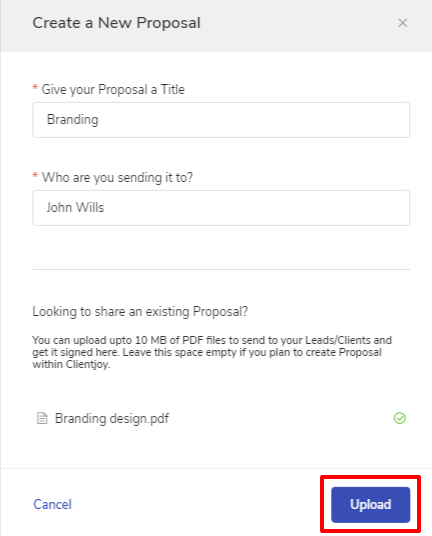
Enter the Proposal title, choose the receiver and upload the PDF file.
Click on Upload.
Your PDF file of the Proposal is uploaded in popCRM.
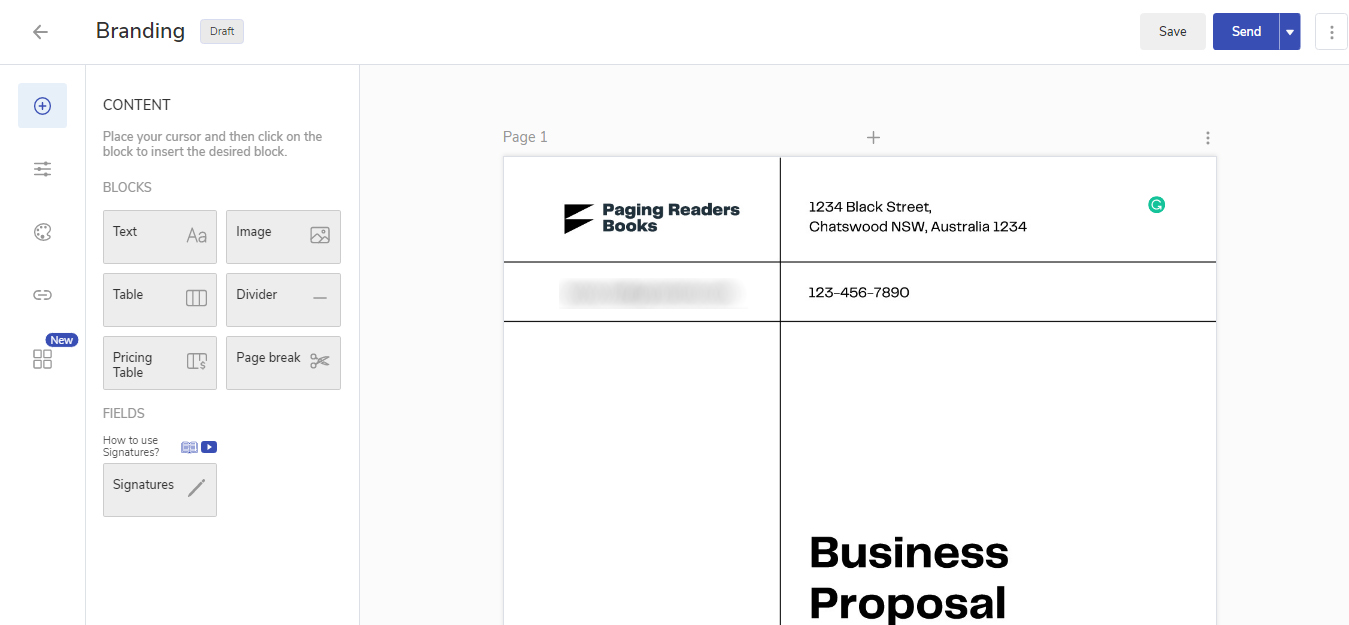
✍️ Note: You will not be able to update the text or images of the PDF uploaded. All the PDF pages will be added as page backgrounds so if you wish to add pages in between, add text boxes, images, etc. you can do that.
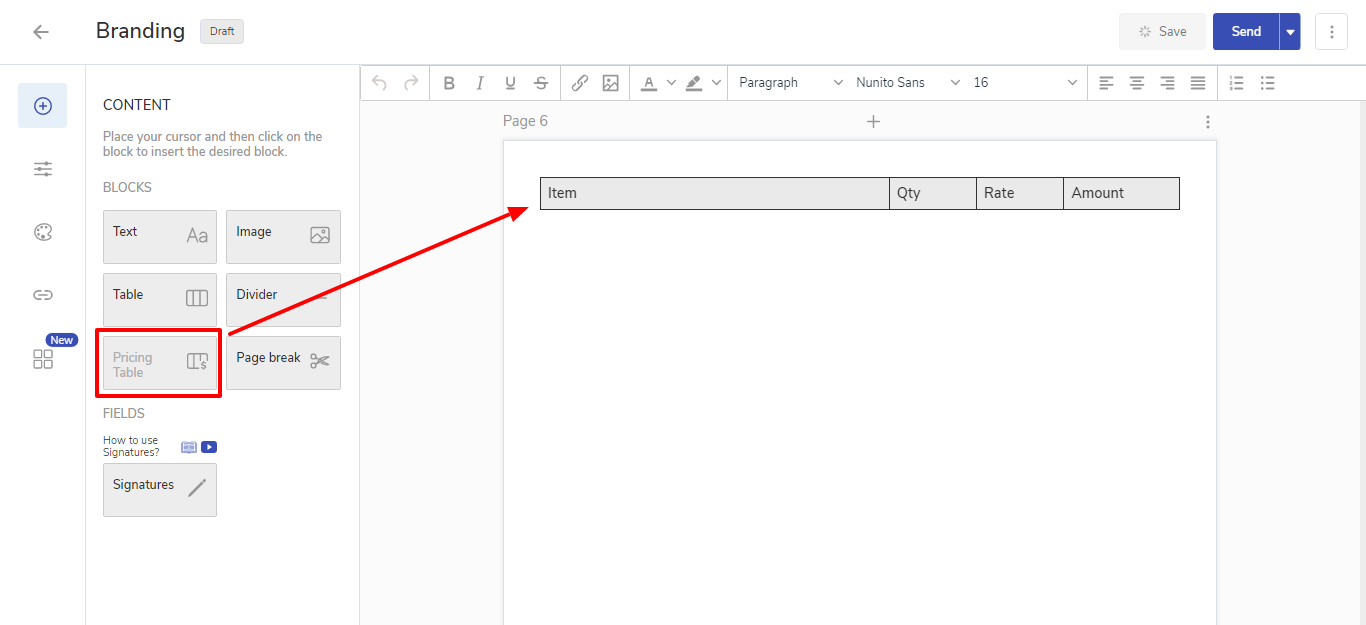
You can also add a pricing table to this Proposal. You can choose to display the pricing table or keep it. It will be useful when converting this Proposal to an Invoice.
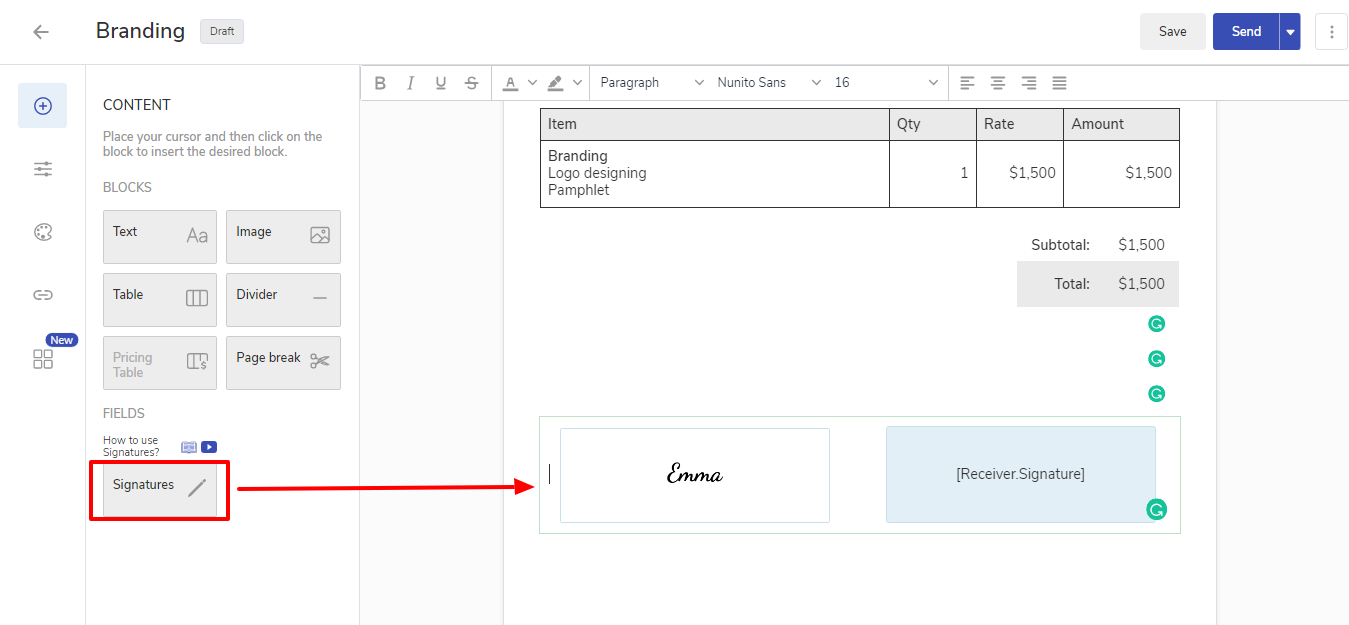
If you wish to get this proposal eSigned then add a signature box in the Proposal.
That’s it 🙌 Your uploaded proposal is ready to be sent to your customer.
💡 Tip: You can also schedule your proposal if you wish to send this later.
FAQ
1) Do I have to upload the PDF of the Proposal every time when I want to send it to my Leads/Customers?
You can upload the proposal once and save it as a Custom template to send it to other Leads/Customers.
2) What is be the maximum file size to upload the PDF?