How to create a reusable Custom template for Proposals?
1) What is a Custom template?
It is a document designed for your business that can be reused repeatedly for your processes.
2) Why you should use Custom templates in Proposals?
Creating a Custom template can save a lot of your time. You can use the saved template to create a new proposal.
Capabilities :
Create Proposal Template from scratch
Save Proposal as a Template
Edit/update the saved Template
Create a Proposal from a Custom Template
Search a Template by category or name
Preview the Template
3) How to create a Custom Template from scratch?
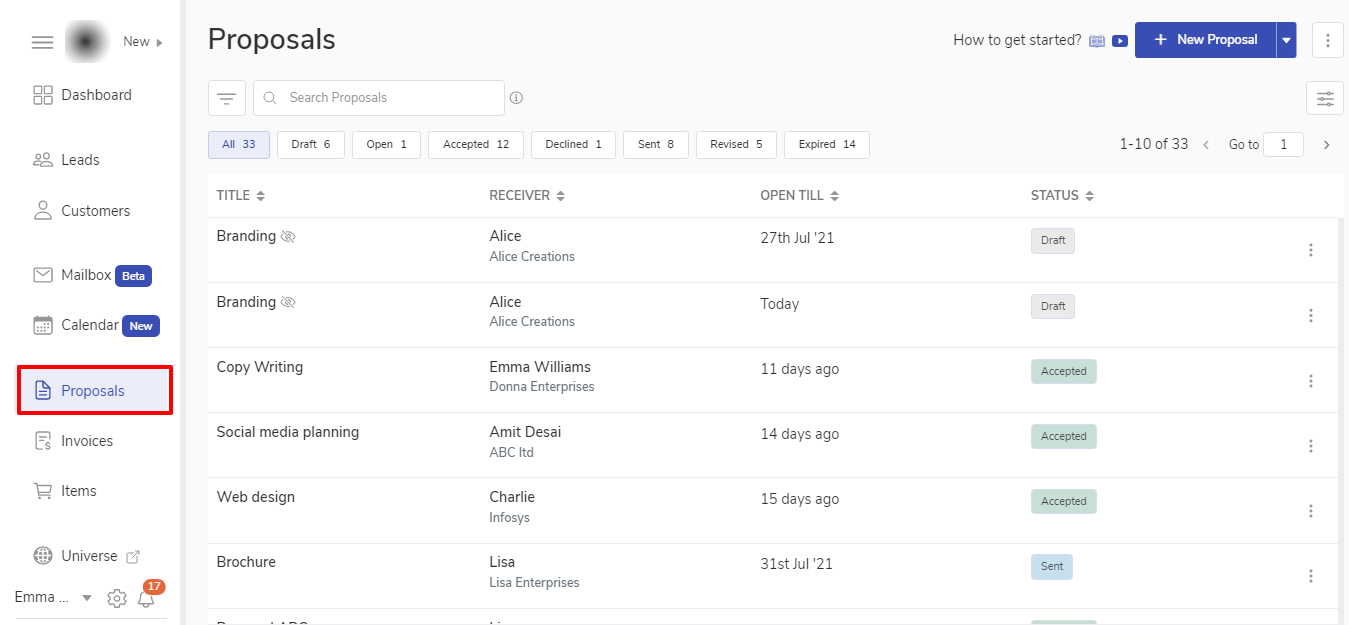
Go to the Proposal module from the sidebar.
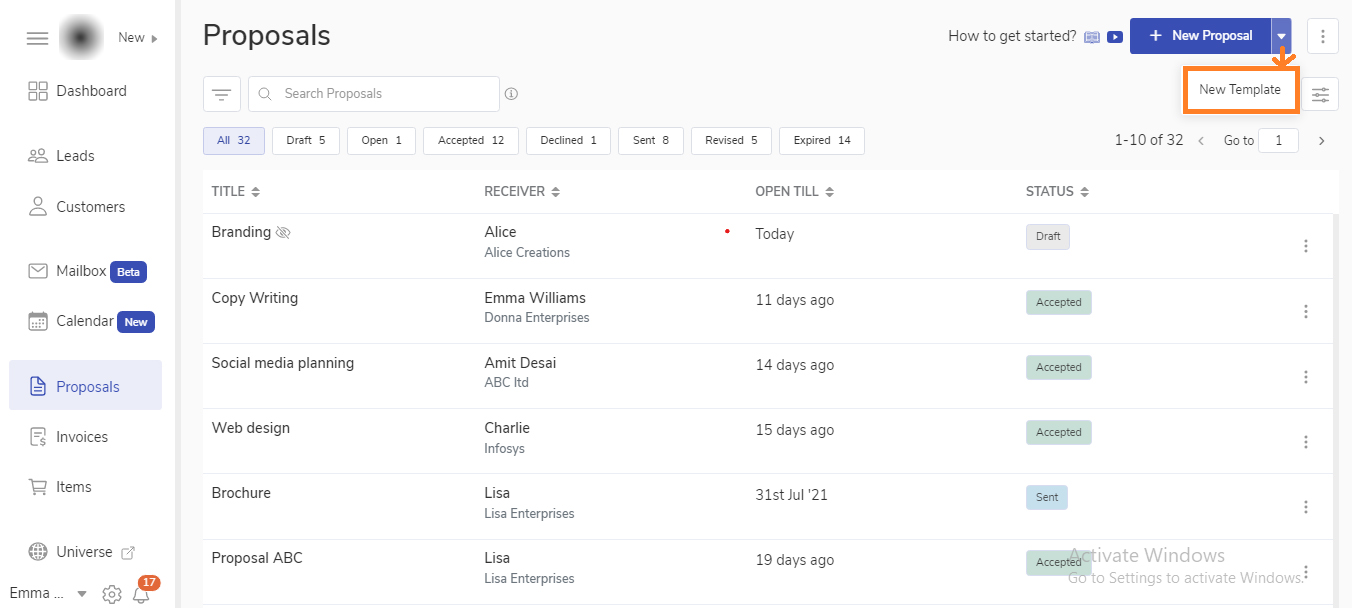
Click on the drop-down besides Add new proposal and click on New template
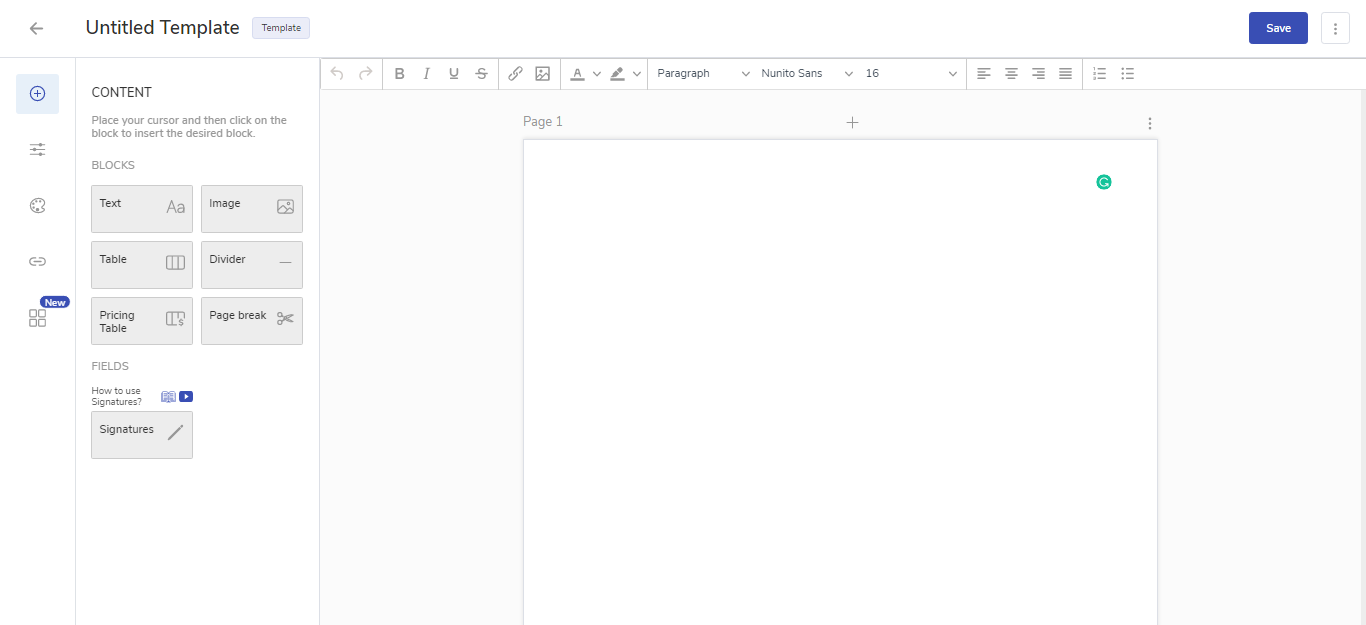
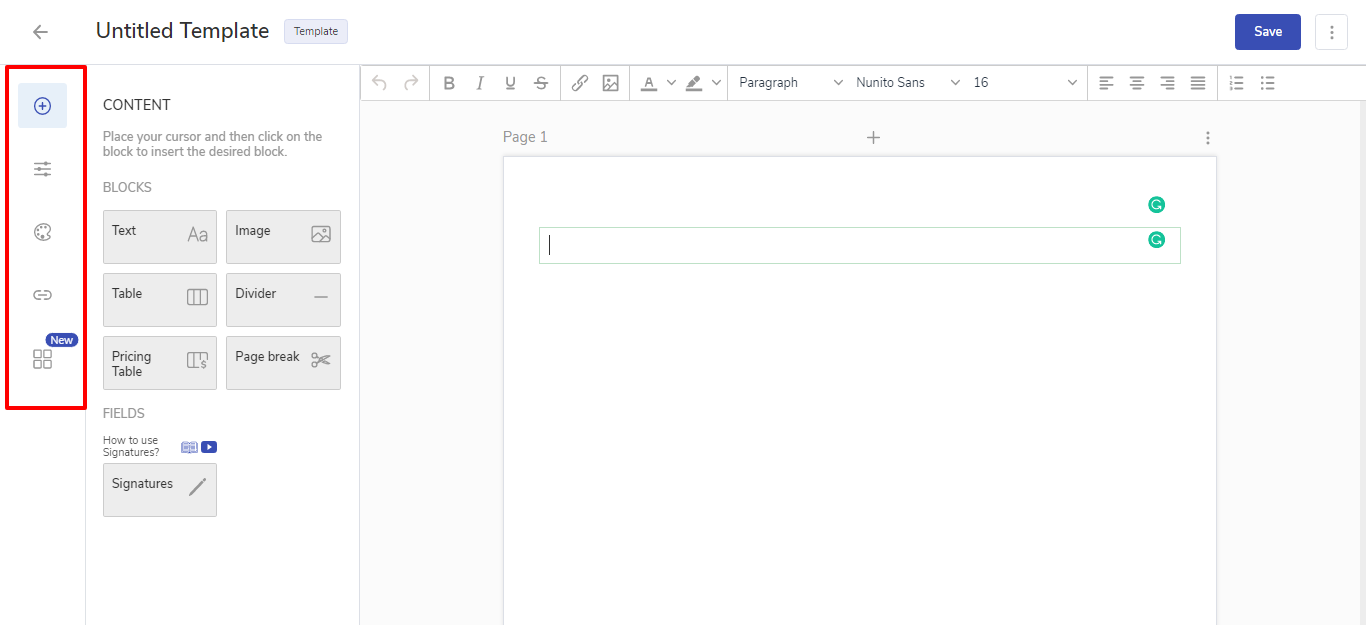
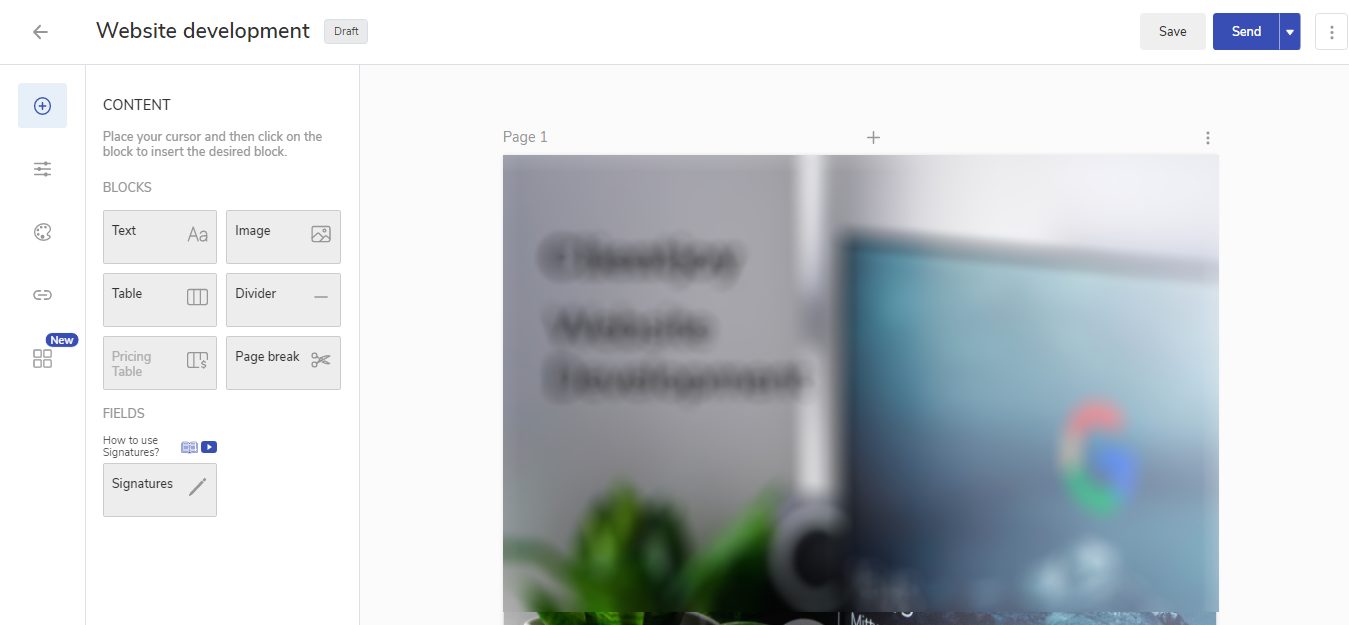
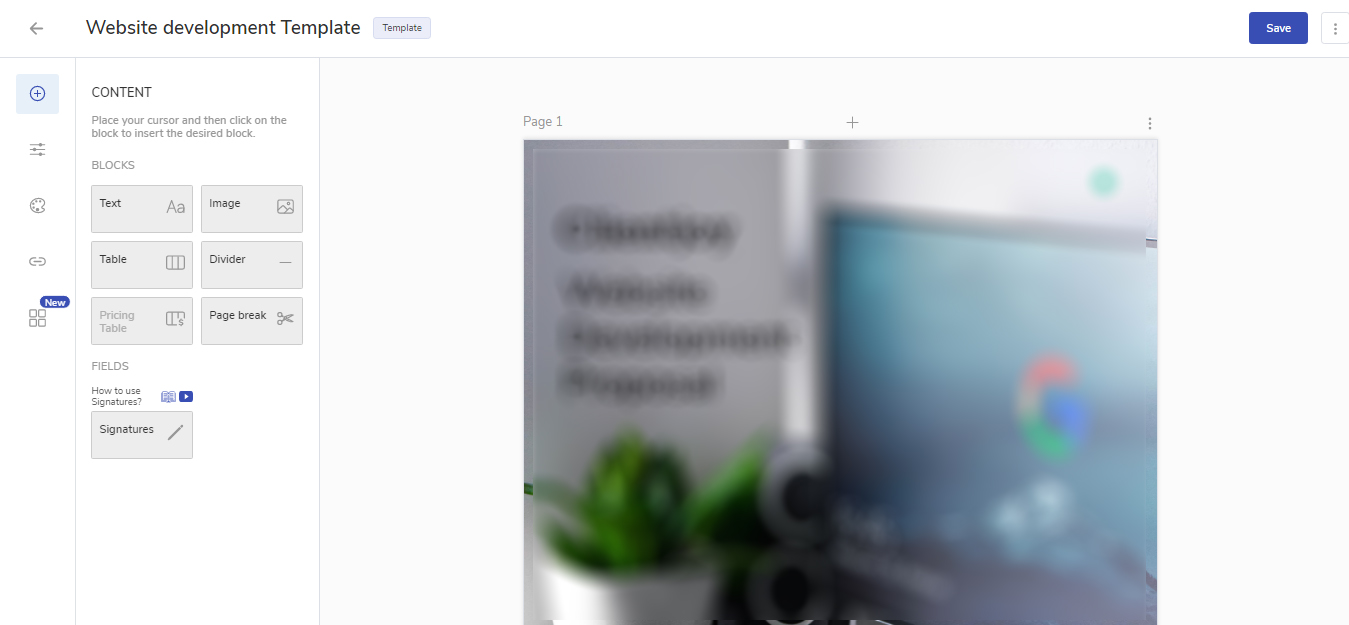
This will take you to the Template editor.
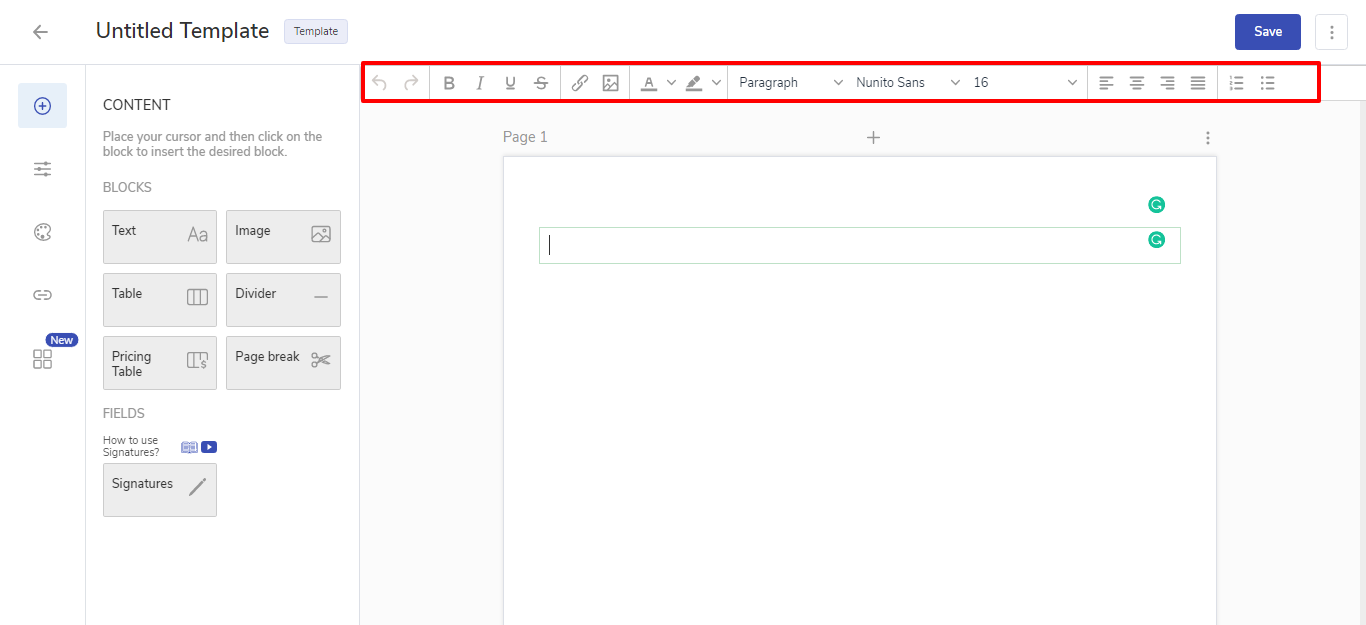
You can create attractive Proposal templates here using Images, Tables, Fonts, merge fields, signature placeholders, etc available in the editor.
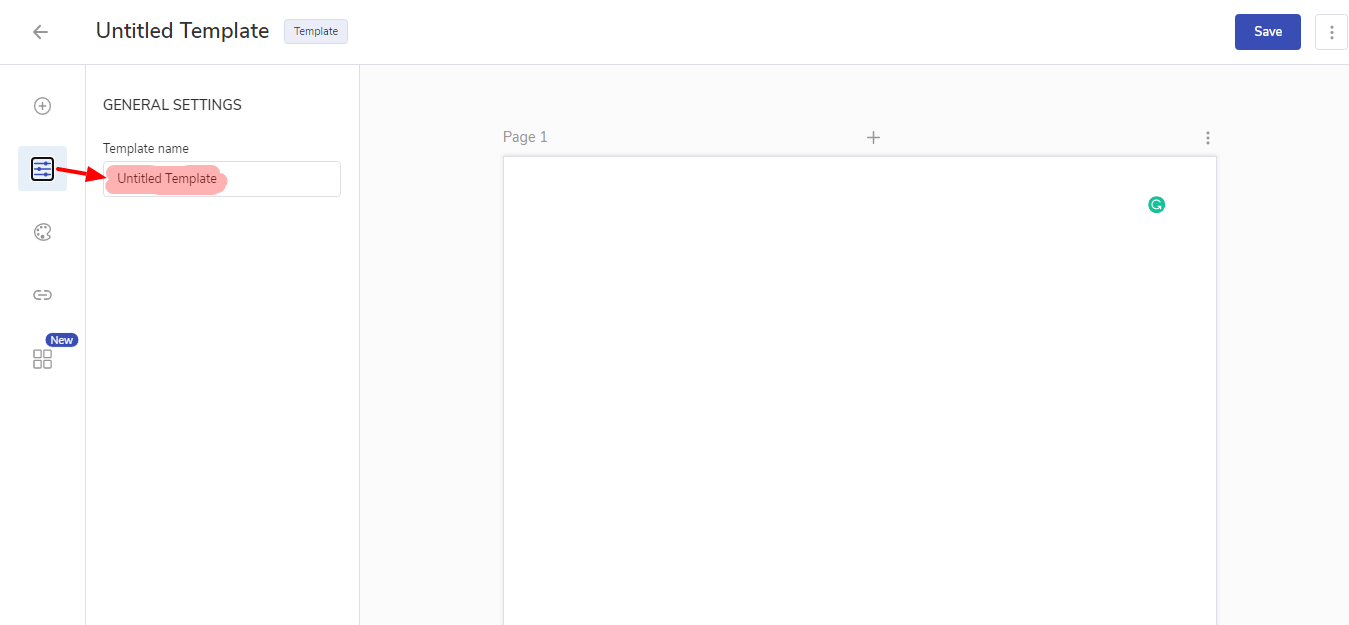
Give a name to your template from the settings option in the sidebar.
Every time you make a change in the template, you don’t need to manually save it. We have the autosave functionality which will keep saving your Proposal template every few seconds.
Note: Alternatively, you can also create a new template by going into the proposal editor and clicking on the templates menu from the sidebar. Click on the All under saved templates. Click on Create new template.
4) How to create a proposal from a custom template? or
5) How to apply a custom template to an existing Proposal?
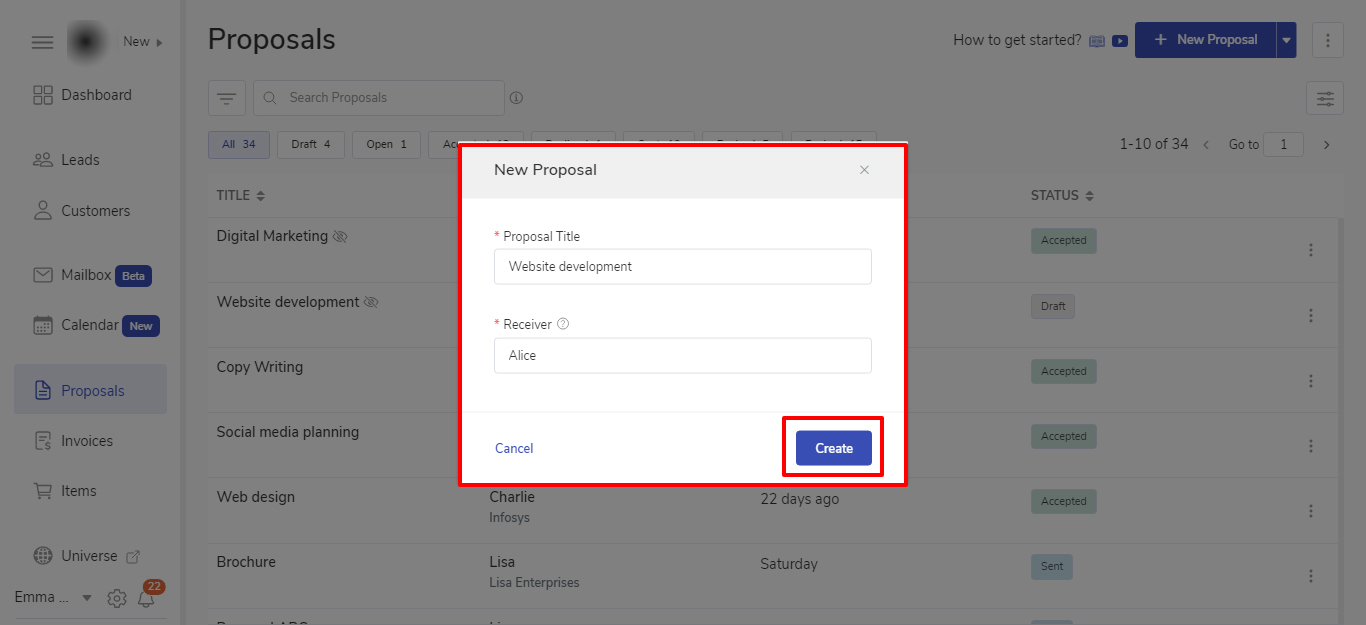
Go to the Proposal module from the sidebar and click on the new Proposal button.
Choose a receiver and click create.
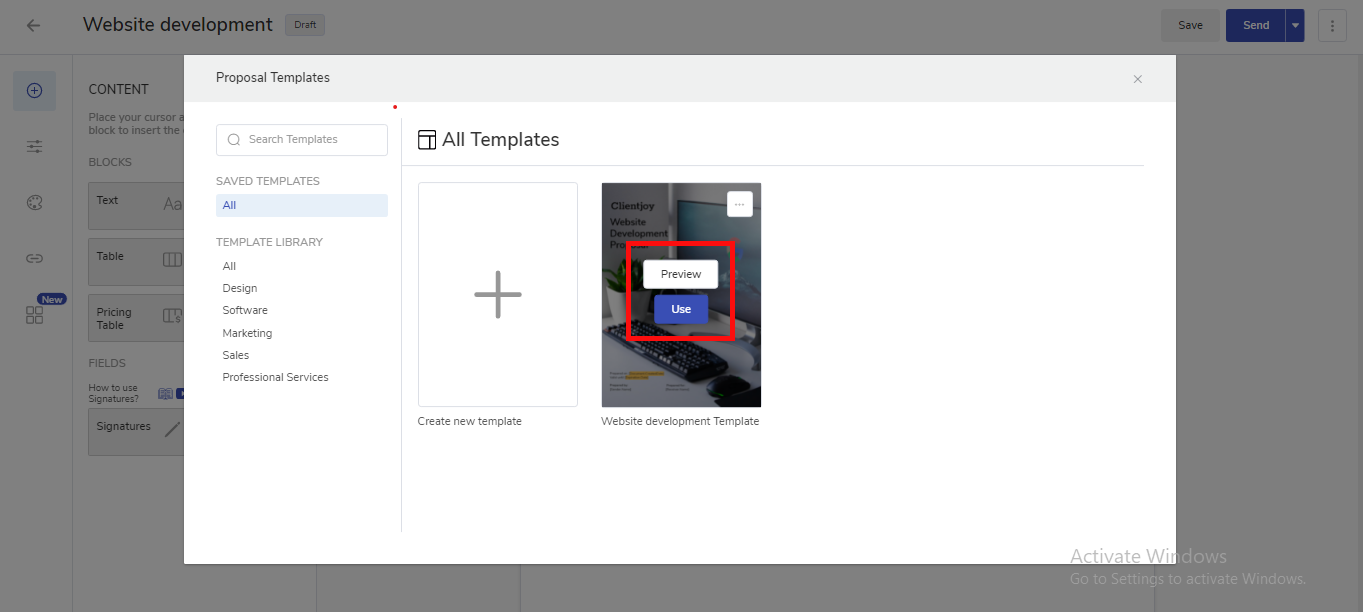
When you create a new Proposal, the templates modal window will open automatically to choose a template. (You can find your custom templates in Saved Templates)
If you are updating an existing proposal then templates can be accessed from the sidebar in the Proposal editor.
If you wish to preview the template before using it, click on Preview.
To use the template, click on Use.
6) How to save an existing Proposal as a Template?
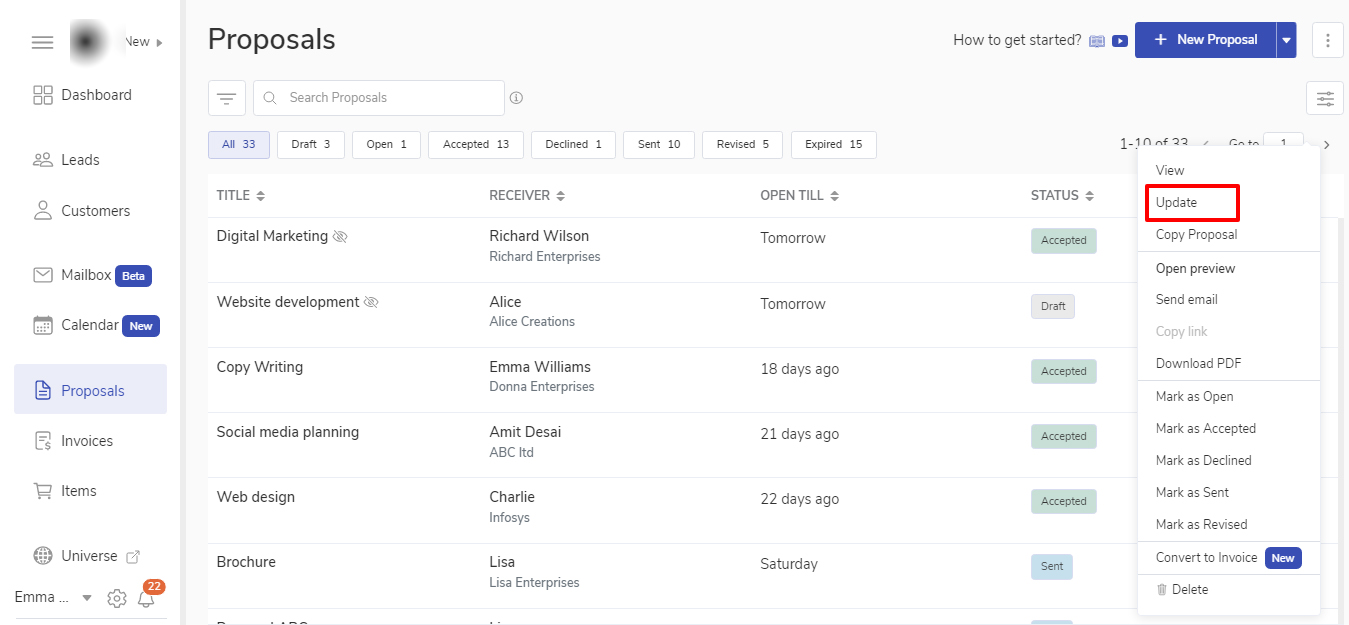
Find the proposal which you wish to save as a Custom template. Click on the three ellipses icon and choose the update option.
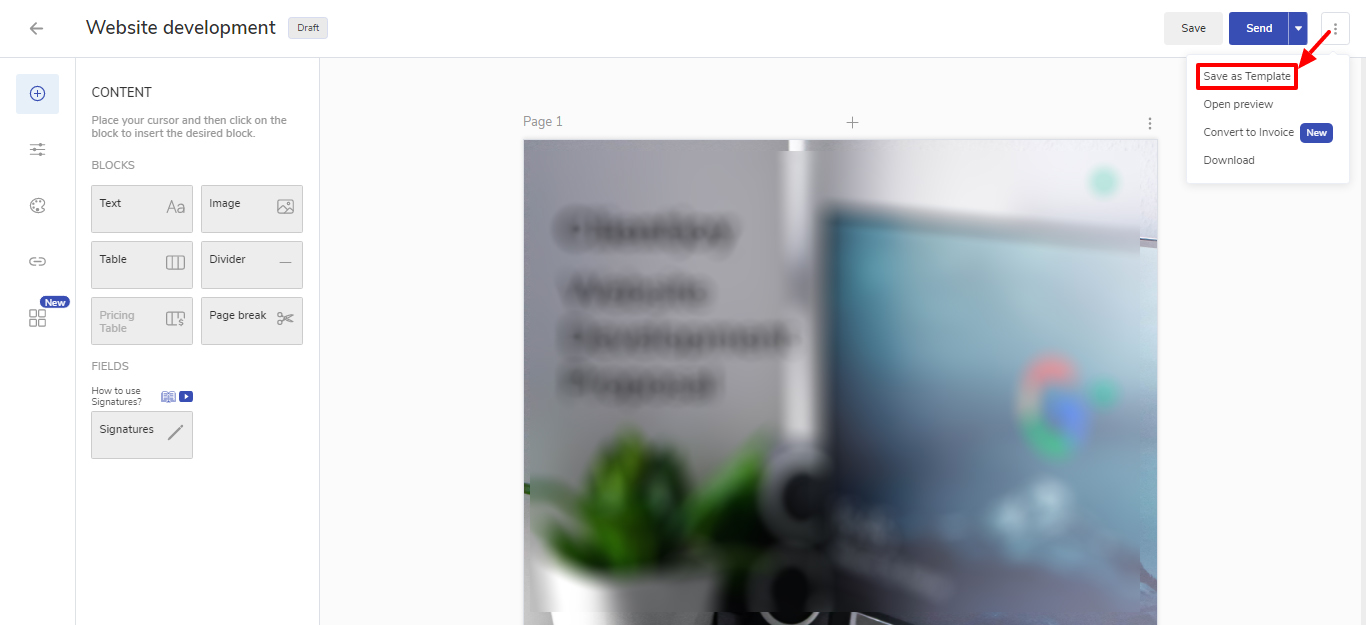
To save it as a Custom template, click on the three ellipses icon on the top right side.
Click on Save as a template.
That’s it! Your template is saved. The name of the template will be “<Your Proposal Name> Template”
You can find it under the saved templates in Templates modal window.
7) How to modify an existing template?
To modify an existing template, you need to follow the below steps.
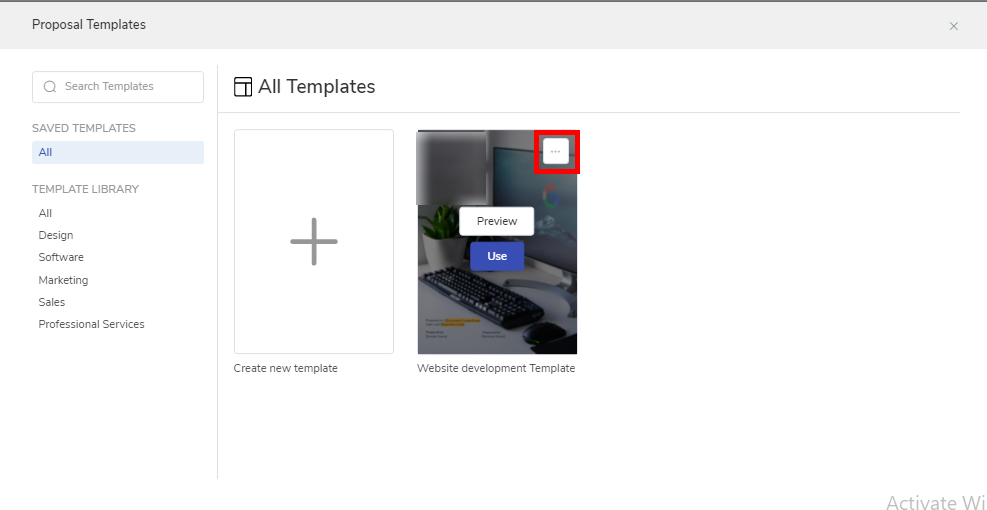
Click on All under Saved templates
Click on the three ellipses icon on the template which you wish to modify
Click on Update.
This will open up the template editor, where you can make the necessary changes.
Once the changes are done, you can save the template and use it whenever you want to send the proposal.
Let popCRM help you in saving a lot of your time and giving you time to utilize it in doing something productive.