Click on the + New invoice button. This will take you to New invoice snippet.
Type the receiver name and click on Create to create an invoice
To know more please refer to How can I create an invoice?
Adding Items on items table.
Refer to the article link
2. Update/edit the invoice:
How to access it?
Navigate to Dashboard.
Click on the Invoice module.
Select the invoice from the invoice list which you want to update. Click on the ellipsis icon and choose Update from the list.
Modify the invoice and click on save
Filter Invoices
How to access it?
Navigate to Dashboard.
Click on the invoice module.
On the left-most part of the window, there will be a filter button along with the search bar.
Click on that button to open the filter options.
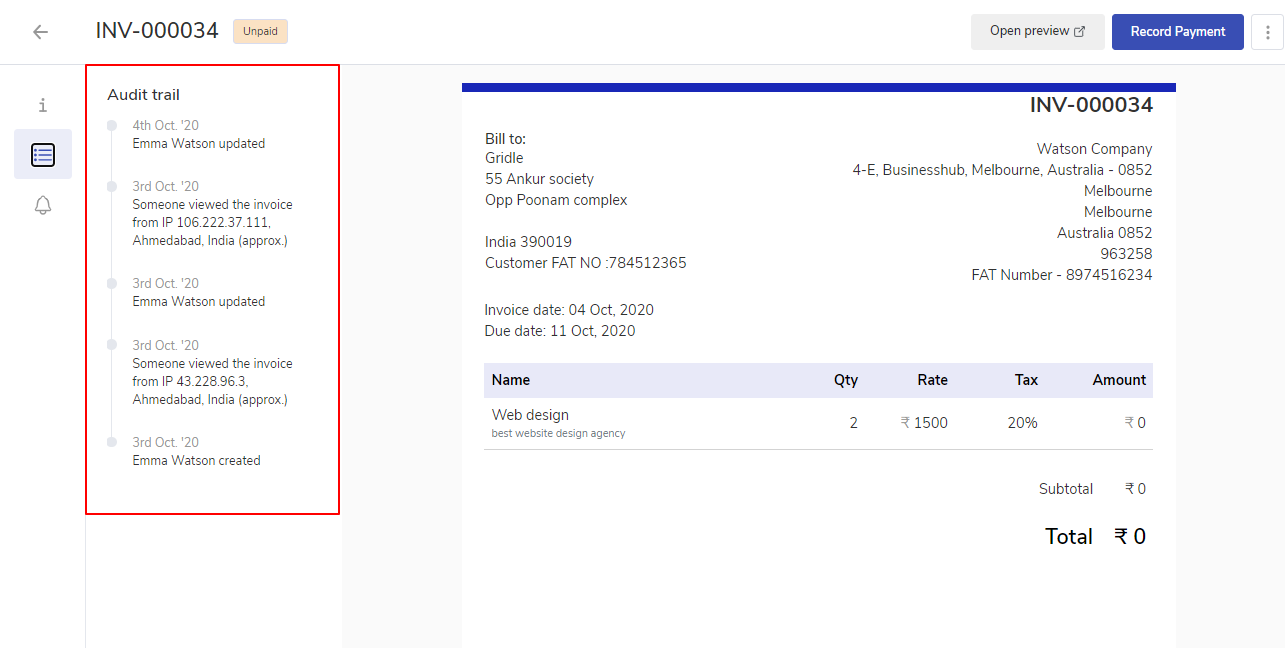
3. Tracking
Navigate to the Invoice listing page.
Click on the invoice whose audit trial you want to check.
In the left menu, there are three different icons available click on the audit trail icon to check the audit trail.
4. Reminders
There are three types of reminders that can be configured and sent:
Automatic before the Due Date
Automatic on Due Date
Automatic after the Due Date
Manual Reminder
To configure invoice reminders, navigate to the Settings, choose Invoices from the Customer management section. Navigate to the Reminder settings section.
5. Online Collection:
popCRM has integration with four different payment gateways which are – Stripe, PayPal, Instamojo, and Razorpay. It is very easy for you to enable these for your clients.
1) You need to connect your invoices with the preferred payment gateway by simply clicking on it and recording your API details and enabling it for all invoices by default.
2) When your client will open the invoice they will be able to see the enabled payment option. Customers can simply click on the Pay button to make the payment.
3) Once the payment is successful the status of the invoices will be changed to paid from sent or overdue which will automatically record the payment with the invoices.
6. Recording payment
There are two different ways of recording payments in an invoice.
Manually recording a payment when payment was made through offline channels like a direct bank transfer.
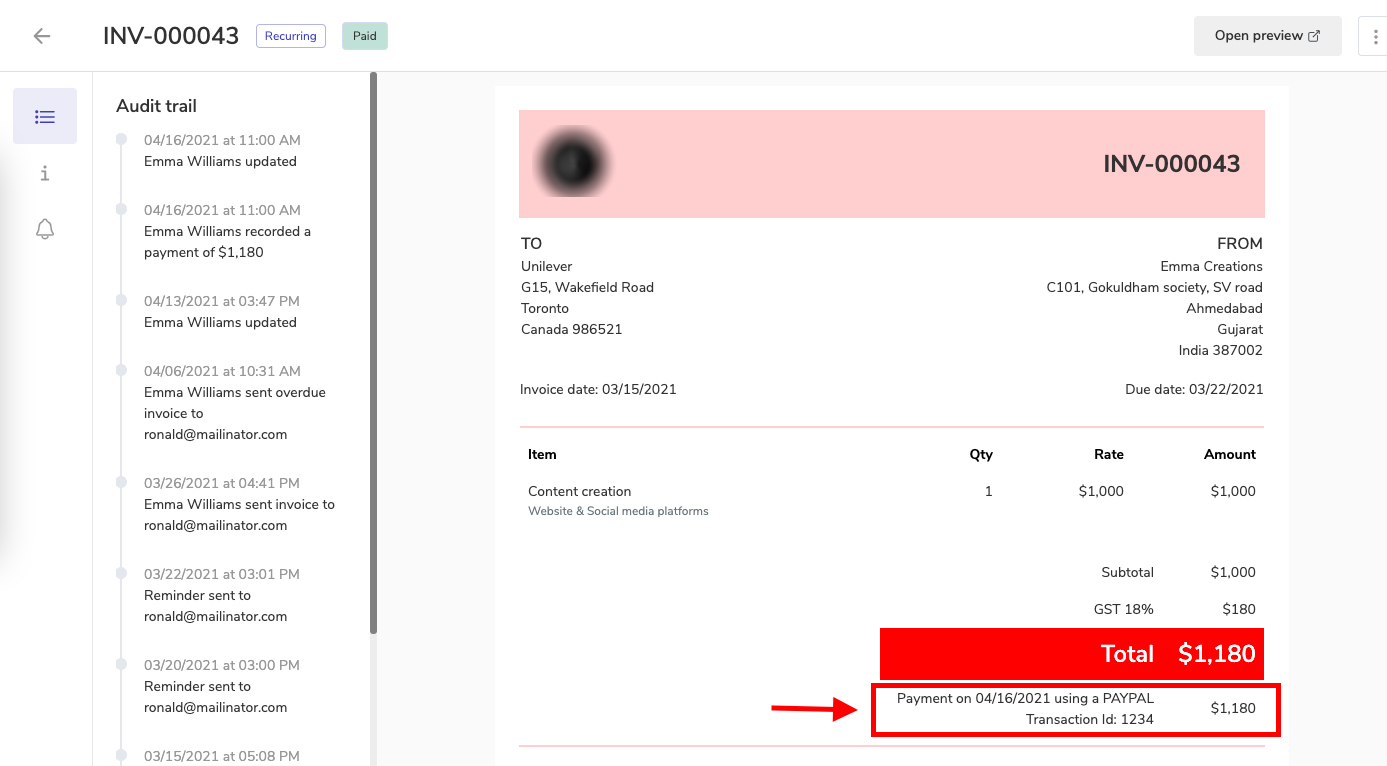
Automatically when customers make a direct payment using the Payment Gateway (Stripe, PayPal, etc.) linked to popCRM Invoice.
Please note : Payment Details will be seen on Invoice such as Payment mode, transaction id, date and time.
7. How to copy an Invoice?
Why create a new Invoice every time when you can make changes in the previous one and send it to the next Customer.