A proposal is sent by the Agency to a Lead indicating the products or services that are to be sold and on what terms and conditions.
You can use it for making any document that needs to sign. Agencies use it for sharing information about your company, your team, portfolios, estimates, quotes, etc.
Proposal Lifecycle in popCRM
Proposal lifecycle has the following phases:
1) Create a Proposal – You can create awesome proposals with popCRM using it’s time-saving readymade templates.
2) Sending Proposal to Client– You can send the proposals to your client’s email. You can also get the shareable link of the proposal for sharing it on private chats.
3) Audit Trail – popCRM allows you to check whether the client opened your email or opened the proposal link.
4) Reminders – You can pre-configure when the reminder should go and what email content should be sent in the reminders.
5) Acceptance or Rejection of the Proposal – popCRM allows your client’s or Leads to accept the proposal by digitally signing them. They can also reject the Proposal while mentioning the reason for the rejection.
6) Convert to the Invoice – You can convert your accepted Proposals to Invoice directly. [Coming soon]
7) Duplicating a Proposal – Why create a new proposal every time when you can make changes in the previous one and send it to the next Lead?
How to Create a Proposal?
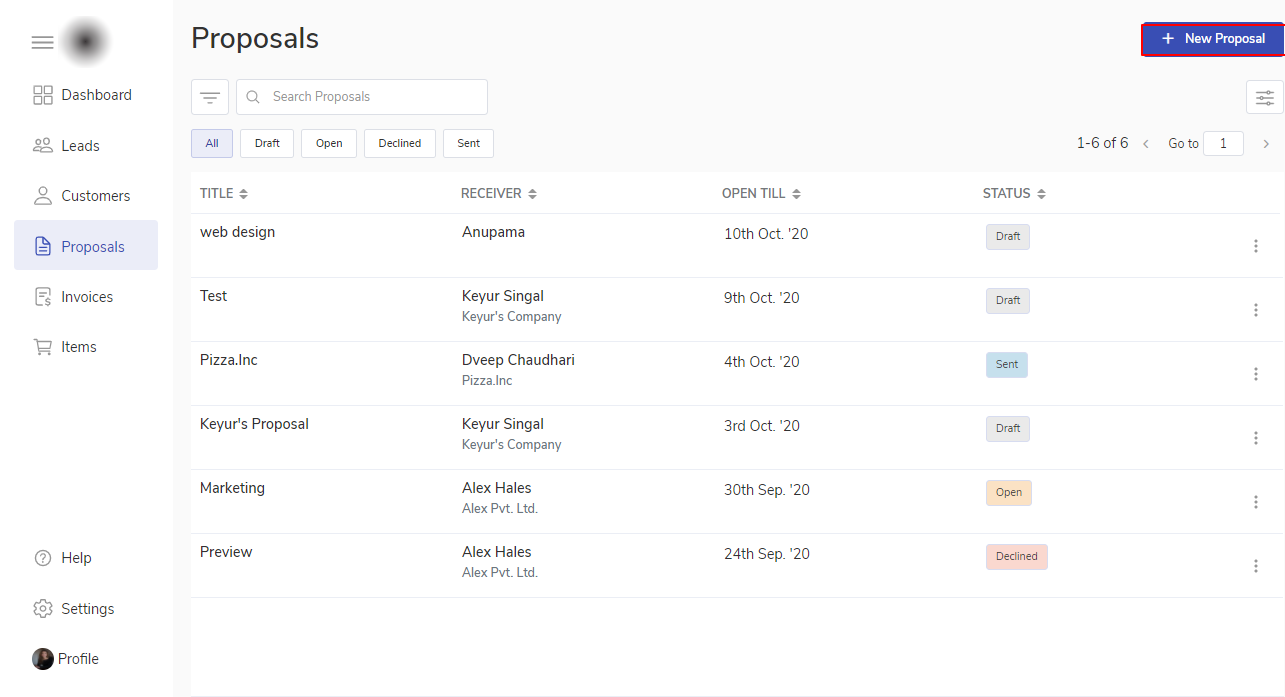
Navigate to the proposal. Click on +New Proposal
Next, add the proposal Title and select a receiver.
Click Create.
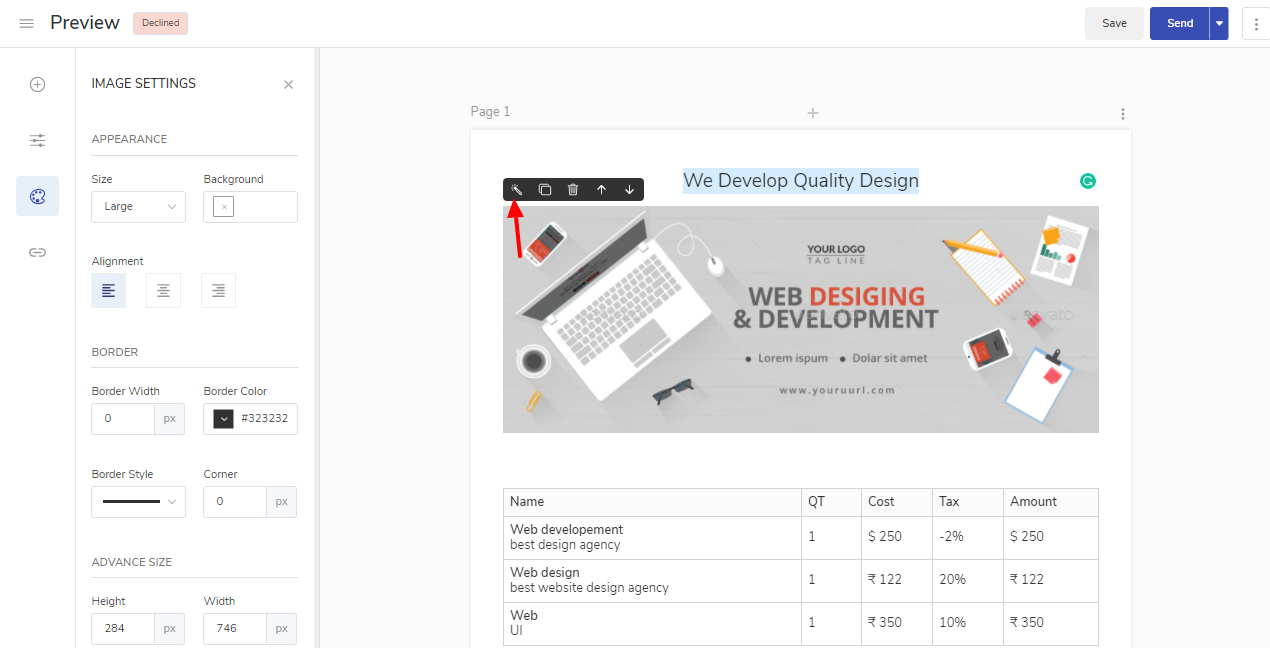
This will take you to the proposal editor page.
Using Proposal Editor
In the left menu, we have options to add a design block, formatting options, available merge fields, etc.
From the adding block section you can add the desirable block to the proposal :
Text: In order to add text to your proposal you can simply click on Text block.
Image: To insert the image on the proposal you can make use of an image block which will further give you an option to upload pictures from the device or directly from the URL
Table: If you have content in the form of a table you can make use of a table block.
Pricing Table: If you want to add the items table on the proposal you can use the pricing table block.
Divider: is a line used for separating sections.
Page: you can add, remove, and re-order pages. You can also set default formatting for the whole proposal e.g. Font color, Font, or page background.
You can format the properties of each block to design it.
Our proposal automatically saves information. It’ll save you from accidentally losing your Hard work.
At the top of the proposal, we have a toolbar that can be used to format the text everywhere e.g. in text blocks, in tables, etc. You can make the text bold or italics, align paragraph left-right, or center, change the font style, or font size.
Using Merge fields
You can also insert dynamic data in the proposal through merge fields e.g. Name of the Receiver’s Company, Client’s website link, etc. Navigate to the merge field option from the left menu to make use of it.
Note: On proposal doc for using a merge field option start typing with “[“
Proposal Preview
You can Preview the Proposal, this will show you how the proposal will look to your Client or Lead. You can also download the PDF of the proposal for your use.