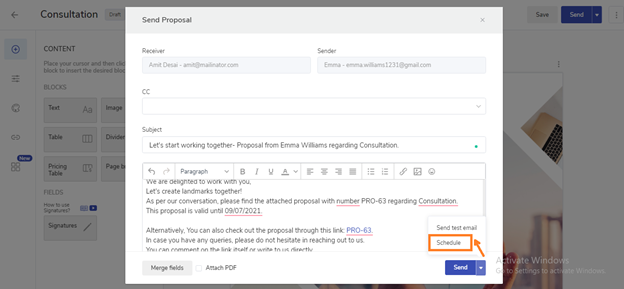
Once the Proposal is created and ready to be sent, click on Send.
This will open up the email template. Click on the dropdown option beside Send and Click on Schedule.
Choose the date and the time when you want to send the Proposal. Click on Set schedule. It’ll show you the scheduled date and time on the send email button.
That’s it. 🙌 Your Proposal email is scheduled to be sent.
2. How to reschedule or remove a schedule?
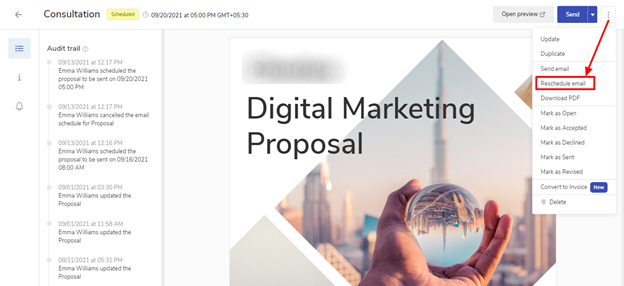
To reschedule your Proposal, Click on the three ellipses icon and click on Reschedule email.
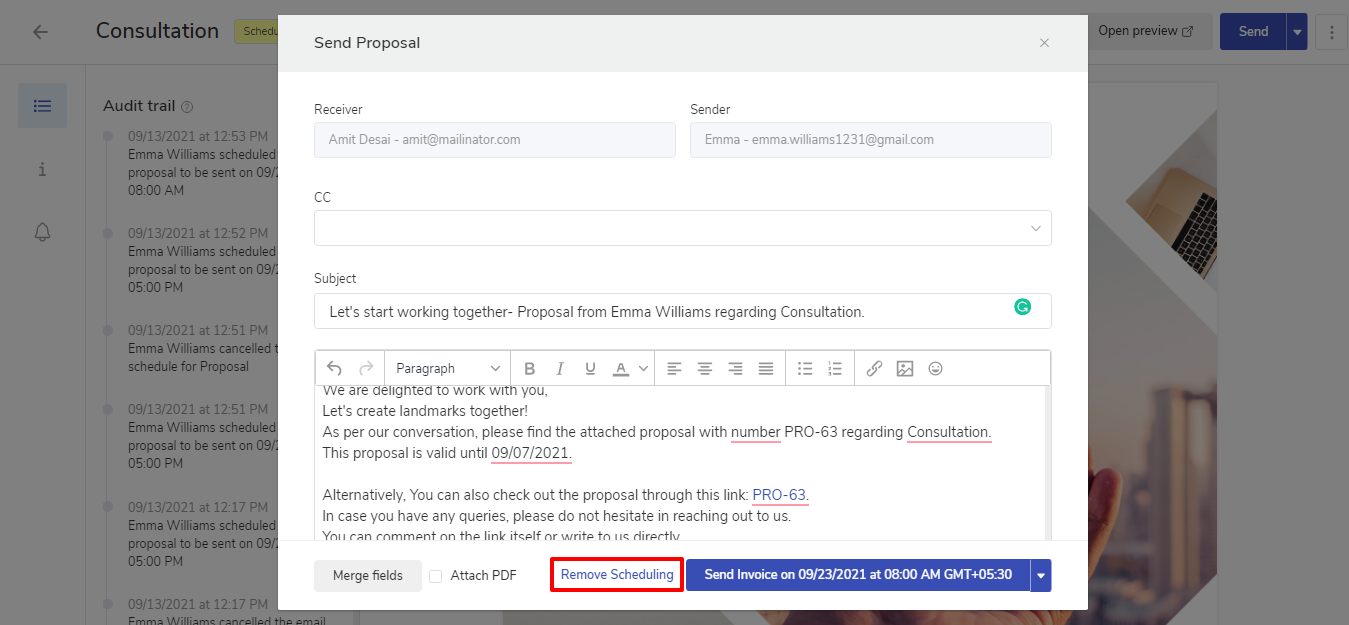
This will open up the email template. Change the date and time when you want to send the Proposal email.
Your Proposal email is rescheduled. Now it will be sent on the revised date and time.
Note🗒️: You can also remove the Scheduling by Clicking on Remove Scheduling.
FAQ
1) How will I know if a scheduled Proposal is sent to my lead/customer?
You will receive a notification when your scheduled email will be sent to your Lead/Customer.
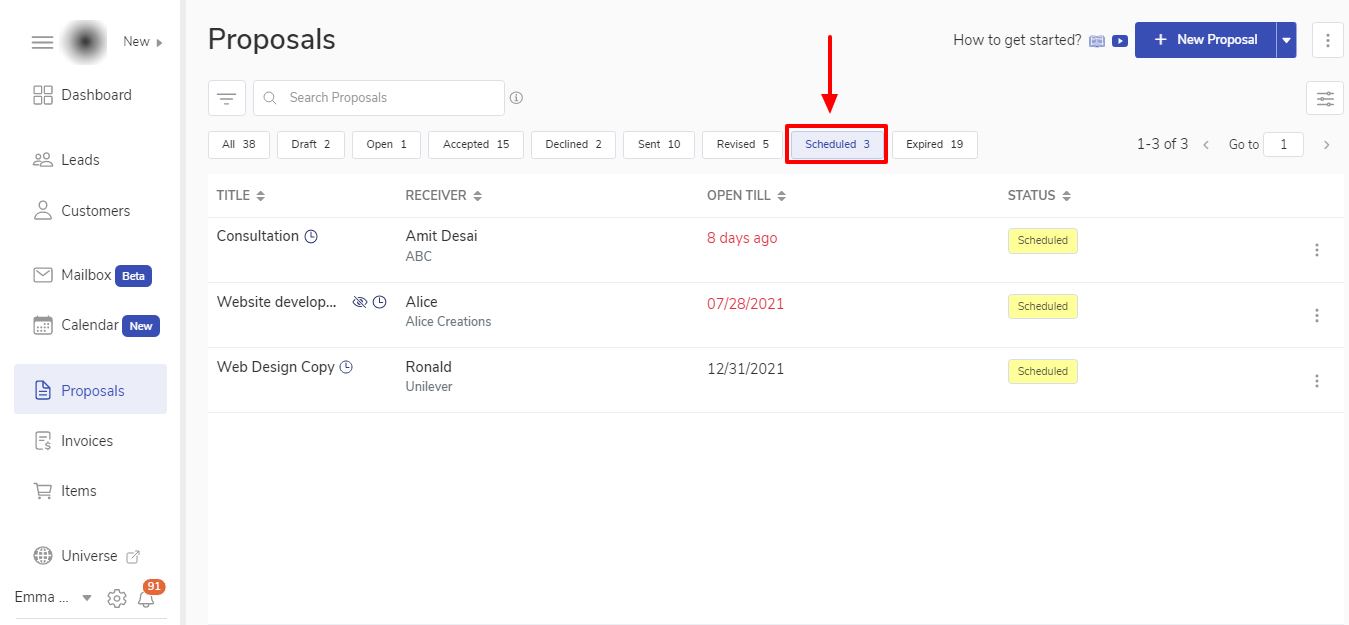
2) How do I find all the scheduled Proposals?
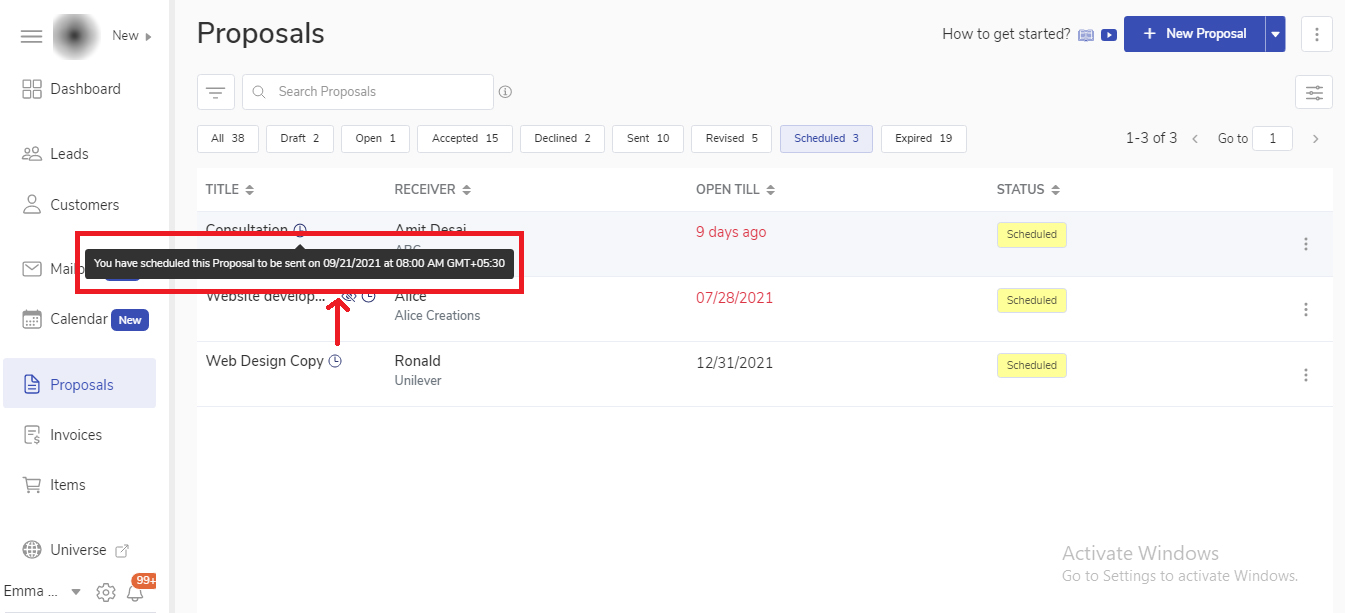
You can apply the filter by selecting scheduled and you will be able to see all the proposals which are scheduled.
You can hover over the clock icon to check the date and time of the scheduled Proposals