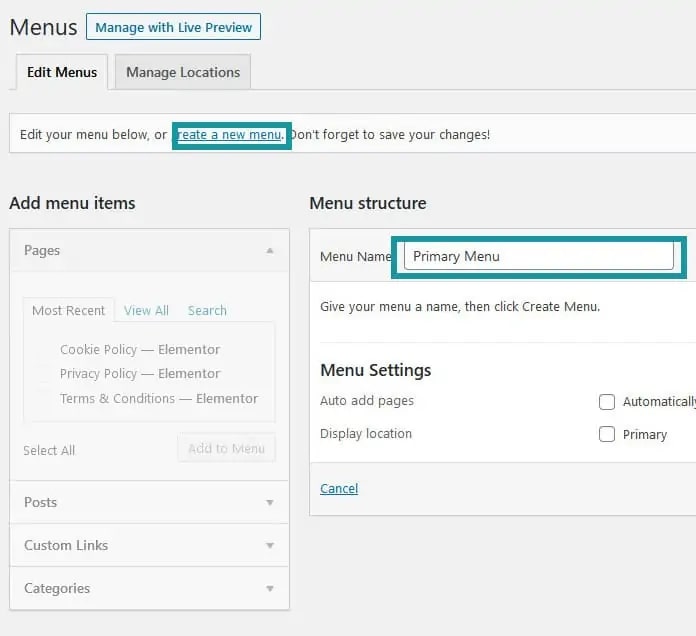
To add the pages or menu items, go to Dashboard>Appearance > Menus. After that, you’ll get the option to create a new menu. Click on it and add the name of the menu. I generally name my first menu “main menu,” and then the following menus depend on the location.
Setting up a name for the menu
How to Add Items to Your WordPress Menu
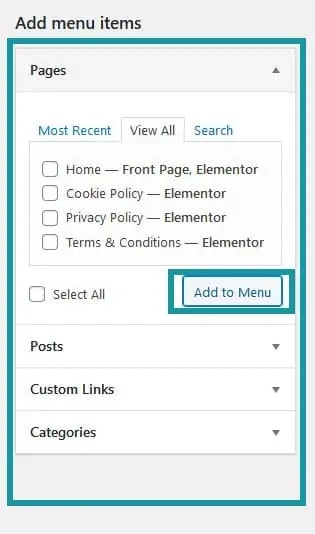
After that, you can choose the menu items you’d like to add; these could be anything from standard pages, product categories, tags, blog post categories, and custom links. There are many other menu items possible, but we’ll stick with these for now as they cover most use cases. The first thing you’ll likely add to the menu will be pages; these are fairly straight forwards.
Add Menu Items
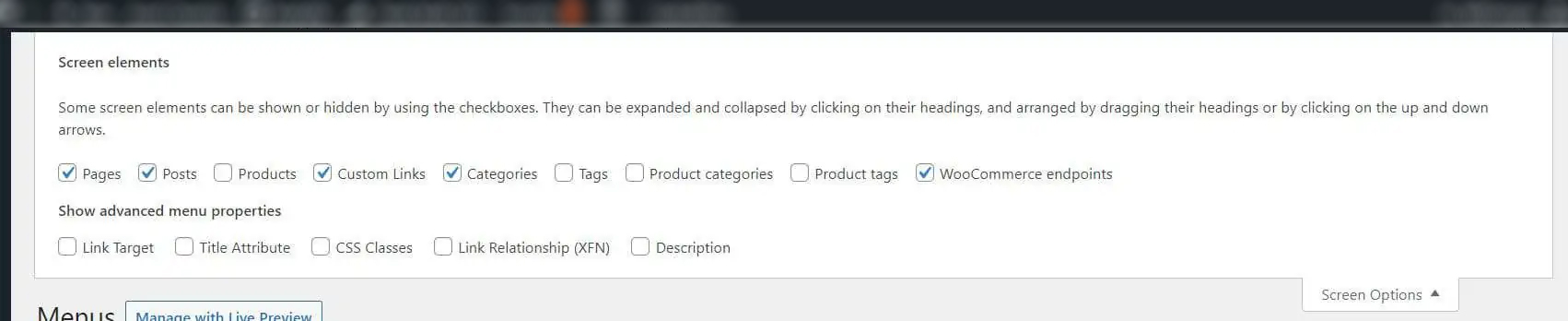
You can select the menu items from the box on the left of the screen and scroll through to find what you’re looking for; if you cannot see it, then it is worth checking at the top of the page under “screen options” to make sure the type of thing you are looking for has been enabled. Once you have found what you need, you can click the checkboxes of the pages you’d like.
If you can't see what you need, check the screen options
You can add as many menu items as you like into your menu, but they will likely need to be moved around to gain some hierarchy and organization on the site; otherwise, there will be too many items on the top line, and it will become unclear and crowded.
Tick the boxes that you need in the screen options
How to Move Menu Items
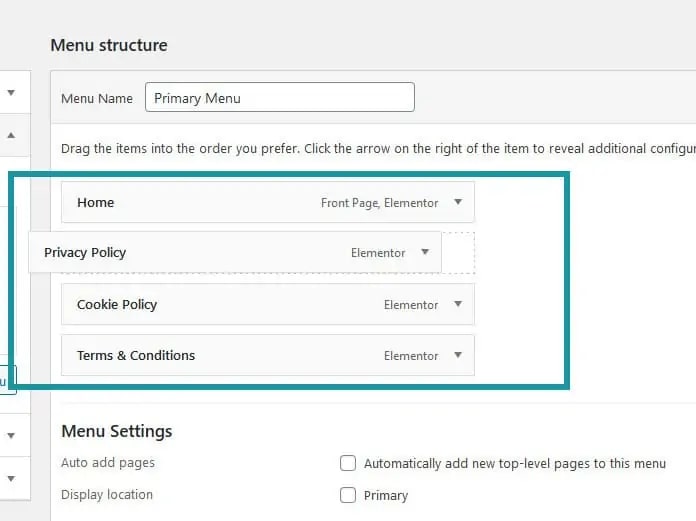
To manage the order of menu items, click and hold the item that you’d like to move, then drag and drop it where you’d like. Once you’ve added in what you need, you can hit save to save the menu.
Easily move menu items
How to Create a Dropdown Menu
When creating your menu, it is likely to have several layers. Any of the navigational menus that are nested into another menu are known as Drop Down Menus. When you hover over the main menu item, and menu items that are below will “drop-down.” Navigation menus of parent and child menu elements are known as drop-down menus or nesting menus. When you hover your cursor over a parent item, a sub-menu will appear underneath it for all child items.
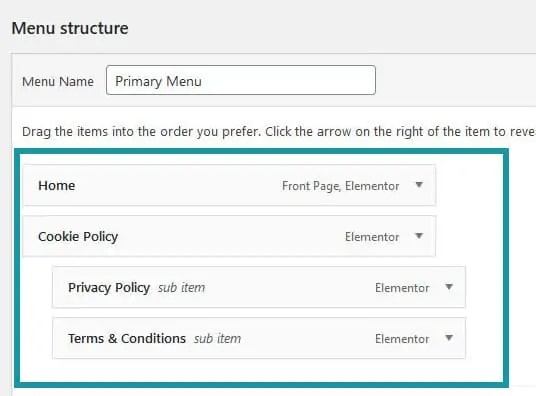
To create a dropdown menu, drag a child item below the parent item, then drag it to the right slightly.
Creating sub menu
How to Delete a Menu Item
If you would like to remove/delete any item from your menu using the menu editor, you’ll need to find the menu item you wish to delete. In the top right corner of the item/box menu, press the arrow icon to extend it, and click on Remove. You will then have immediately deleted the menu item/box. To update the changes and confirm the deletion – click the Save Menu button.