The payment method variant (a type of card) is not included. This basically includes Bank transfer – IMPS, RTGS, NEFT, etc.
Adding or updating a new payment method?
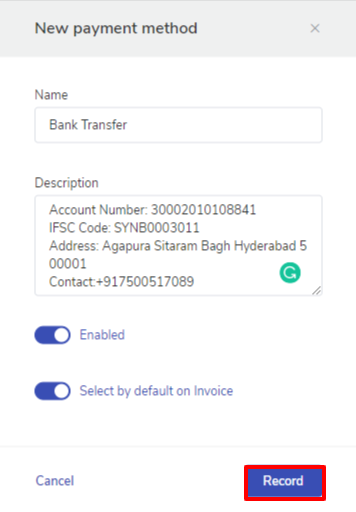
Before going to the steps for how to add payment method let us see an example – I want to add my Syndicate bank account details
Account number: 30002010108841
IFSC Code: SYNB0003011
Address: Agapura Sitaram Bagh Hyderabad 500001
Steps to be followed to add the payment method :
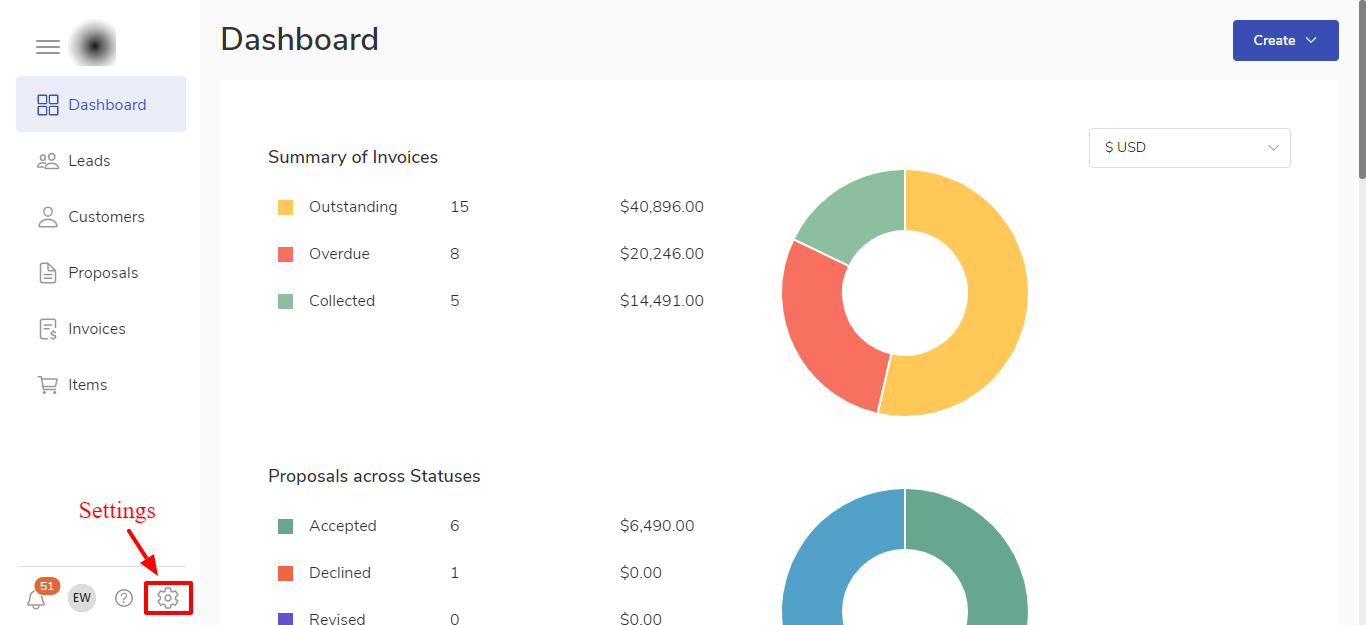
Navigate to Dashboard.
Select the Setting option from the menu.
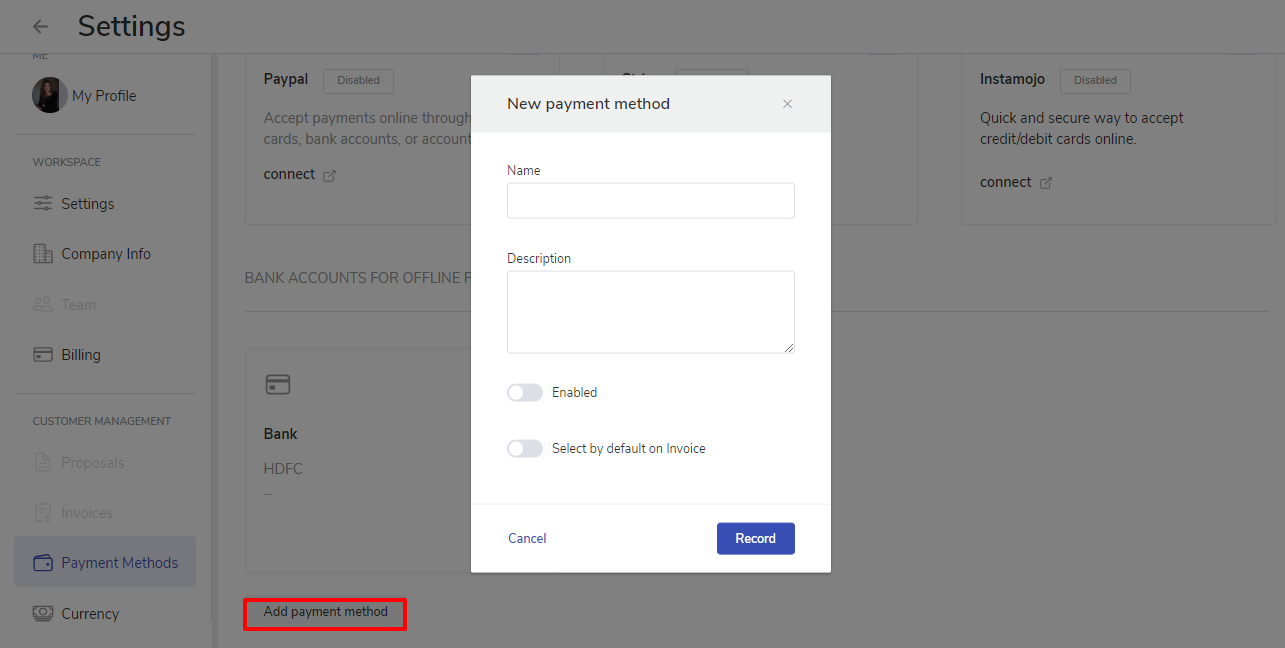
Choose Payment Methods from the Customer management settings.
Scroll down and select Add payment method.
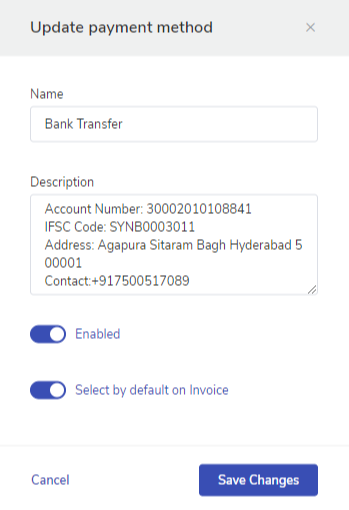
Name: Enter the name of the payment method. Example- Bank Transfer – RTGS, IMPS, NEFT.
Description: Here you can mention the details required for the offline payment method. For example – If it is a bank transfer so in the description you can mention details of the account number, IFSC code, Address, and Contact number.
Enable: You can mark this toggle on before saving the payment method so that it can be made available for your customer to pay the invoice.
Select by default to invoices: You can mark this toggle on so that the enabled payment method is set by default for all the invoices you are creating.
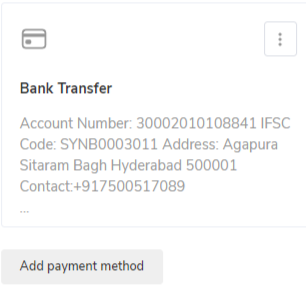
Record: Click on a record to save the payment method.
Steps to be followed to update the payment method:
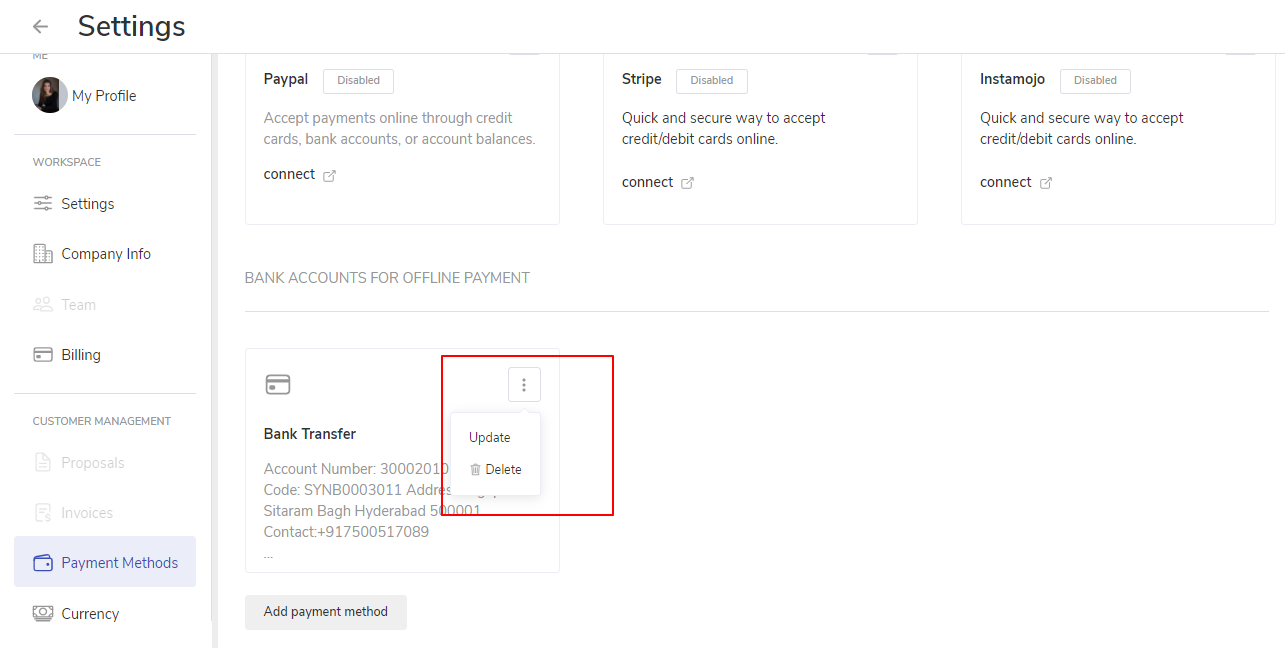
Click on the ellipsis icon.
Select the Update option.
It will take you to the Update payment snippet where you can update the recorded information.
Once done click on Save changes.
NOTE: When you choose an offline payment method for an invoice, its details are automatically inserted in invoices and PFFs.
Steps to record offline payment method :
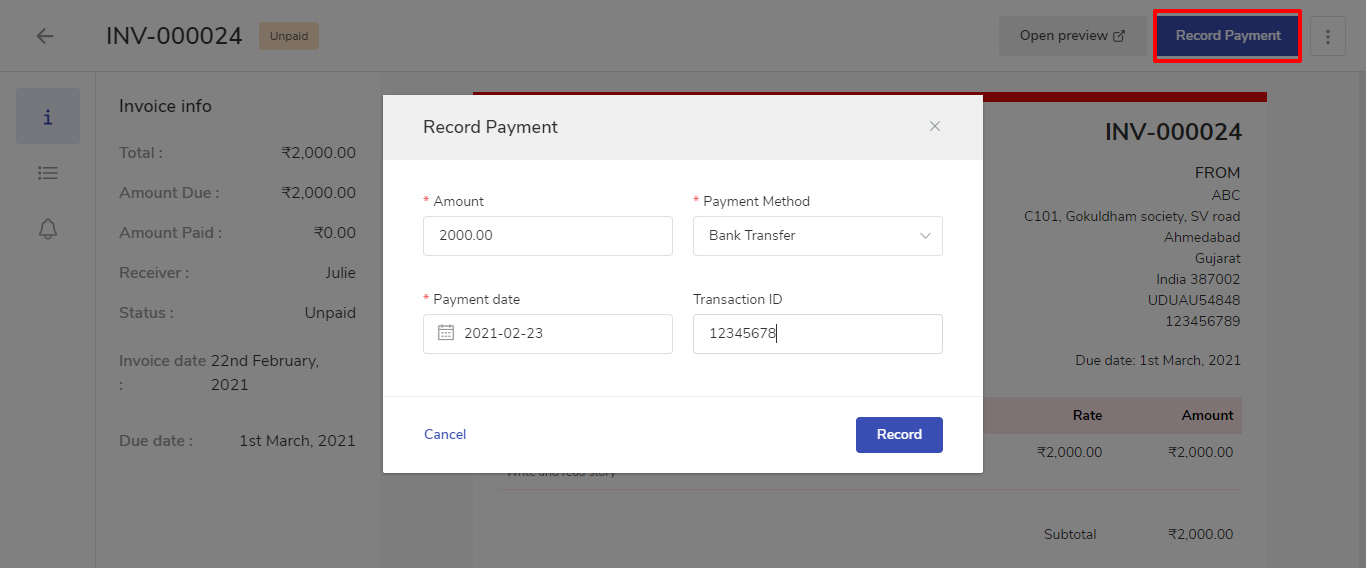
Click on the invoice number for which you have received the payment.
At the top, you will get an option to Record payment.
From the payment method drop-down list select Bank transfer
In the Transaction ID field enter the Transaction ID of the payment received.
Click on Record
Note: As soon as the payment is recorded the invoice status will be changed to paid.