Add/edit/remove modules, lessons and courses in LearnPress
Add/edit/remove modules, lessons and courses in LearnPress
COURSE
In this section, we will show you how to create courses.
CREATE A COURSE
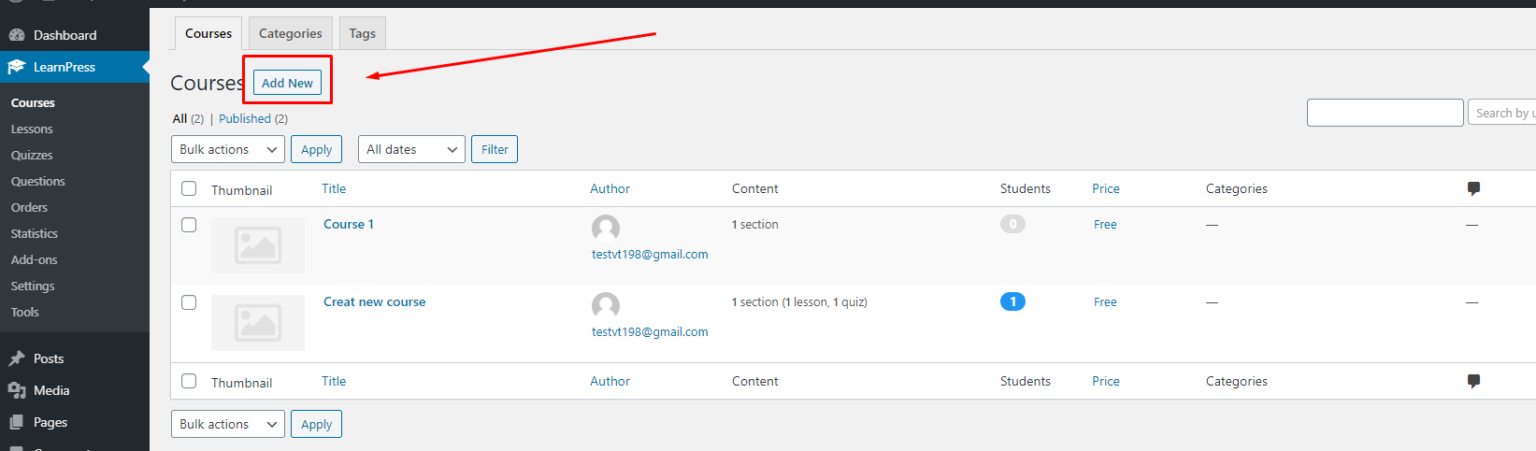
To create a course, you can go to your Dashboard => LearnPress => Course => Add New
There are three sections in a course: Course overview, course curriculum, and course settings.
COURSE OVERVIEW
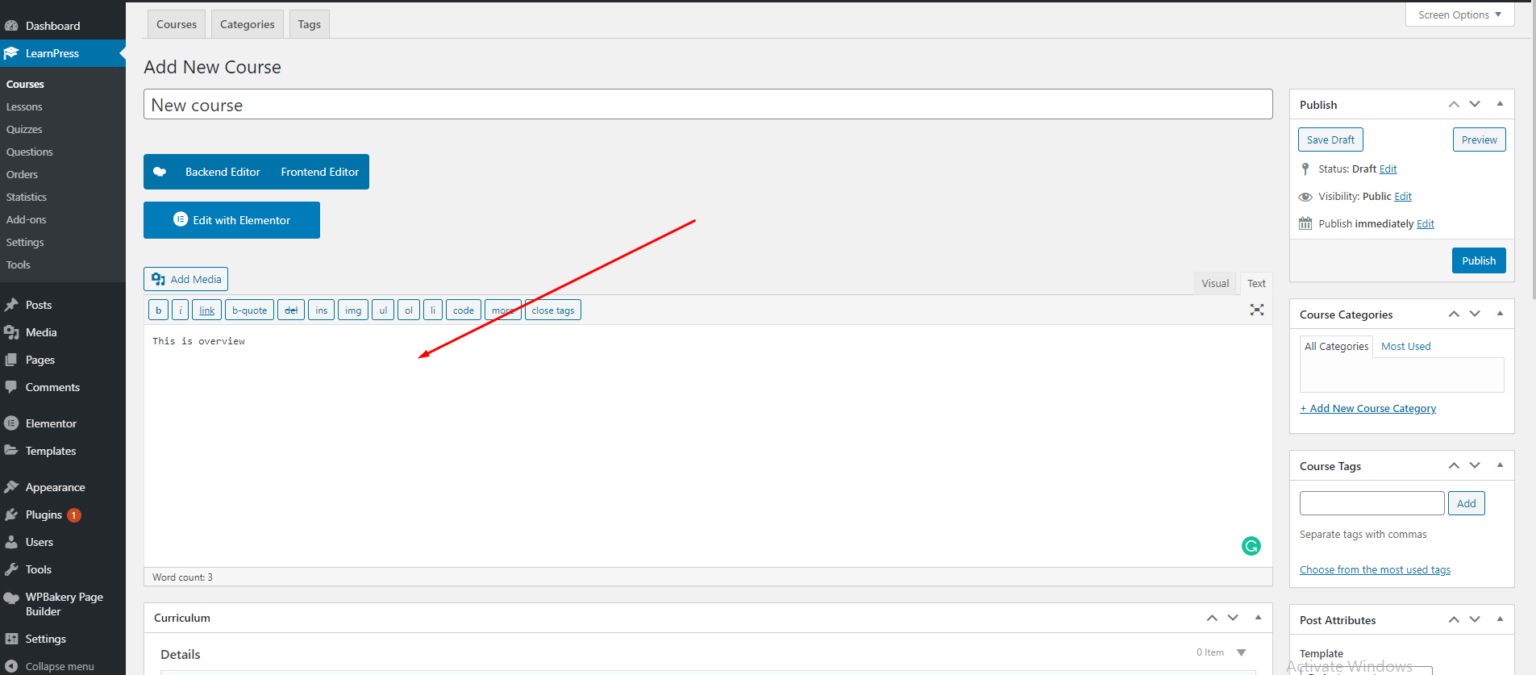
In the Course Overview section, you can set the name and description for the course, what you wrote will be displayed in the Overview tab on the single course page.
You also can edit the Course Overview with Elementor.
In the Course Overview section, you can set the name and introduction to the course, what you wrote will be displayed in the Overview tab on the single course page.
You also can set the publish date of the course, students only can see the course content and enroll in the course when it is published.
A course can be assigned to one or many categories in the “Course Categories” area.
You should choose the “Featured image” for all courses, the featured images will be displayed on the Courses page and single course page. If a course doesn’t have the “Featured image”, our system will display the default image.
And you should preview your course before you publish it.
COURSE CURRICULUM
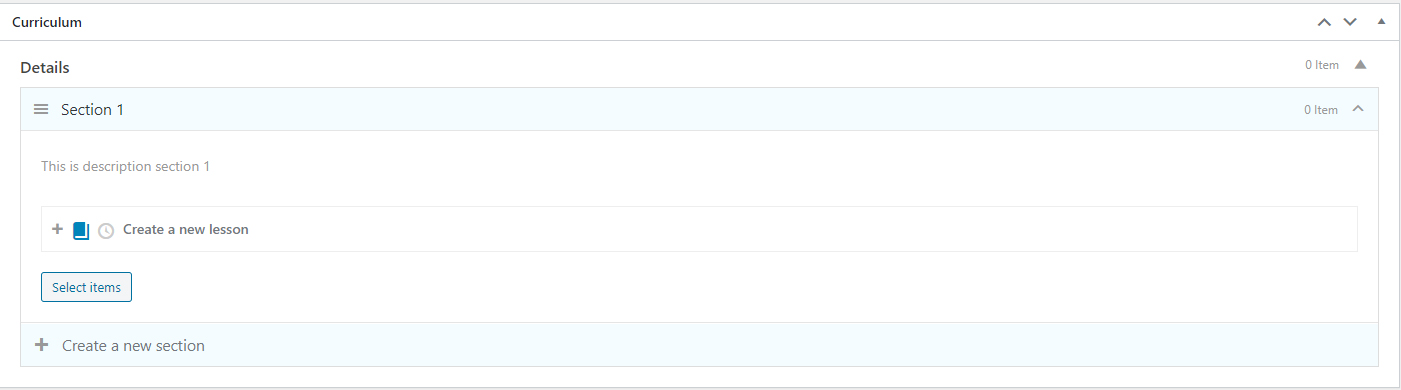
All the sections, lessons, quizzes of the course will be displayed here.
You are able to create sections, lessons, quizzes in the Curriculum.
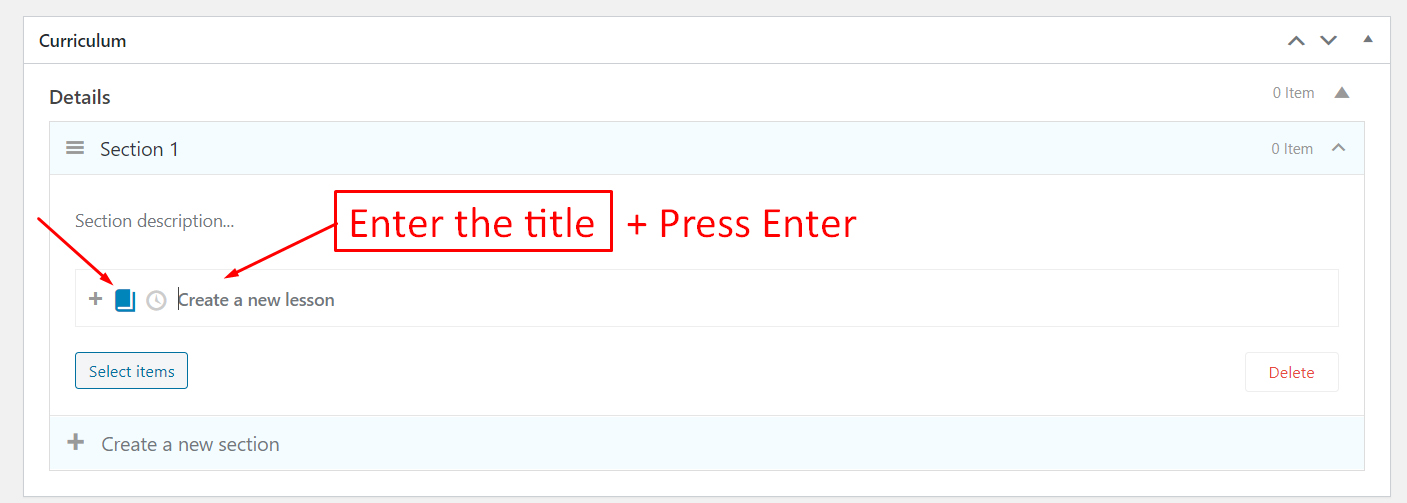
To create a section, you just need to enter the title for the section, then press “Enter”, the section will be created.
The section is only added to the course after you update the course.
To create a lesson, you just need to enter the title for the lesson, then press “Enter”, the lesson will be created.
The lesson is only added to the course after you update the course.
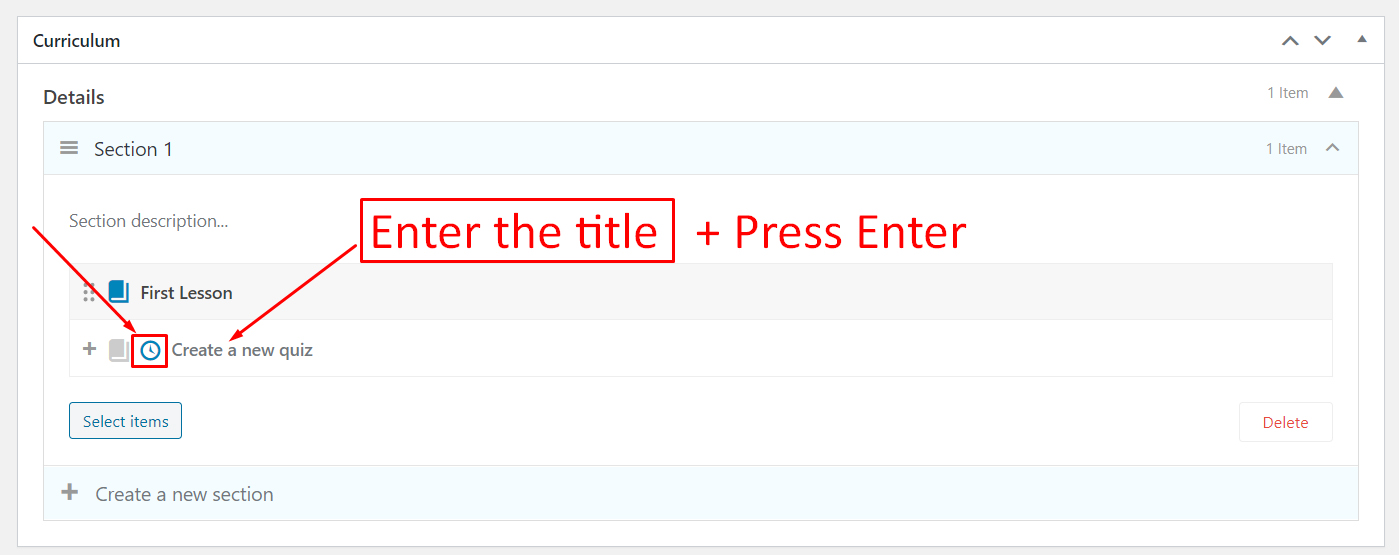
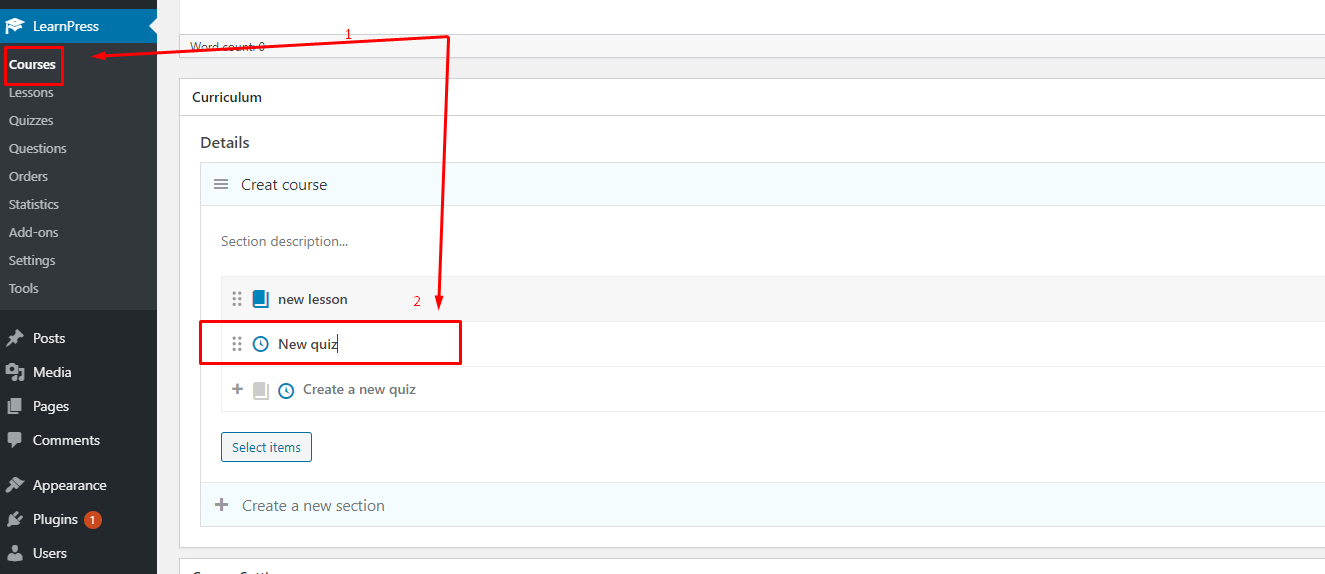
To create a quiz, you just need to enter the title for the quiz, then press “Enter”, the quiz will be created.
The quiz is only added to the course after you update the course.
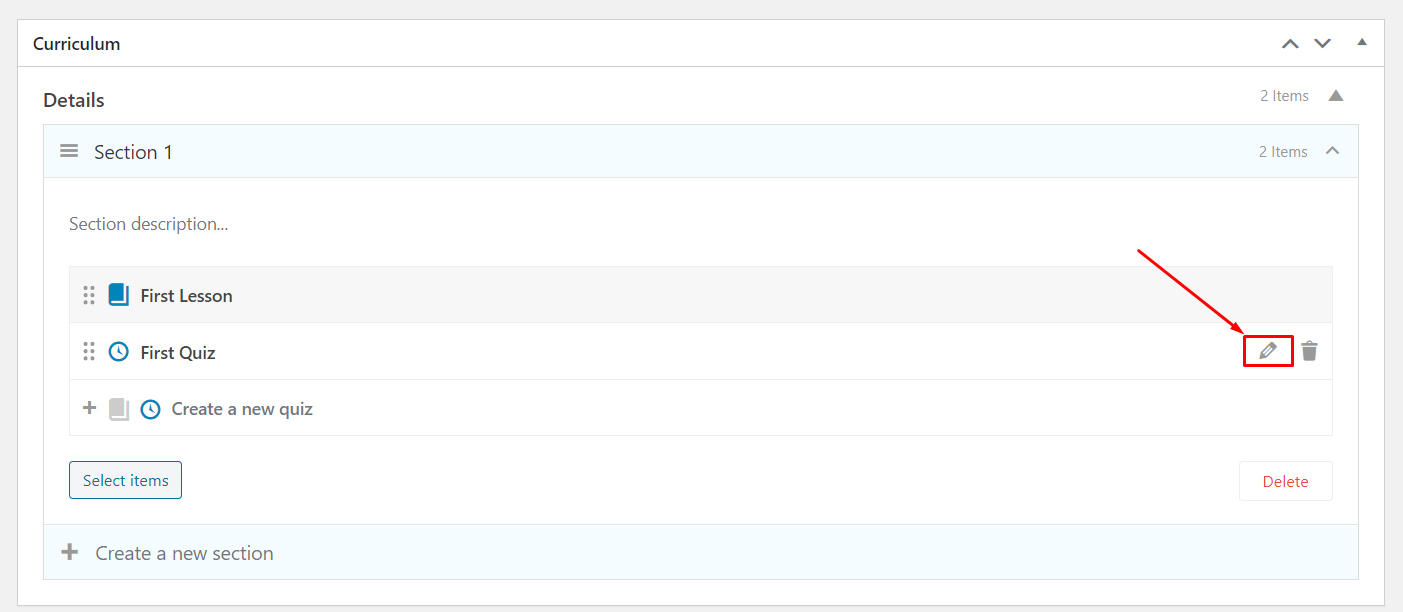
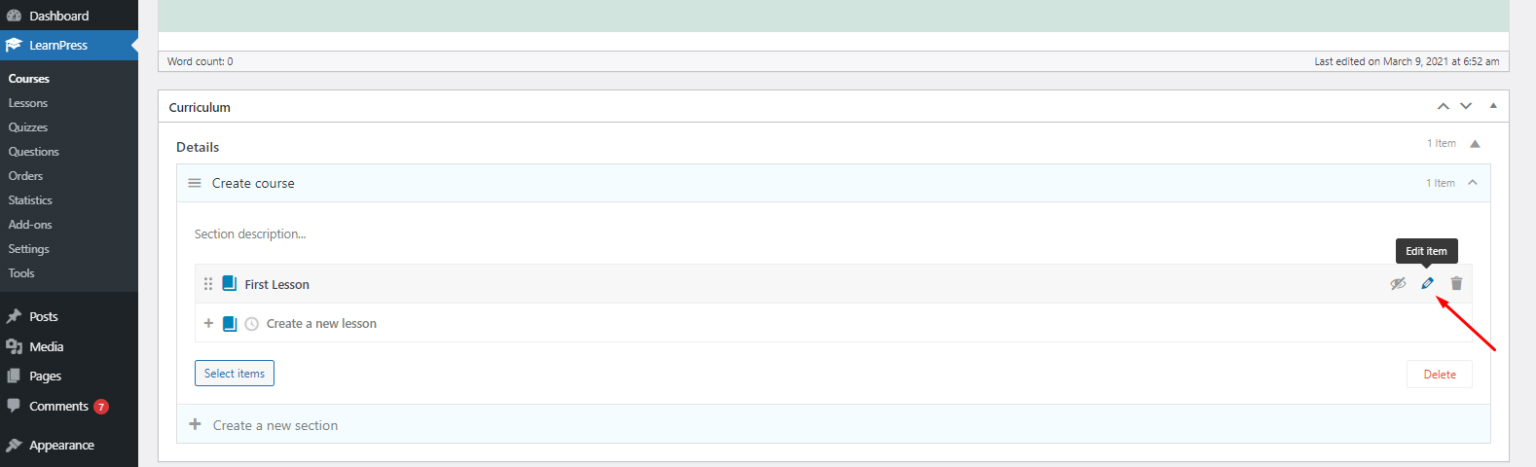
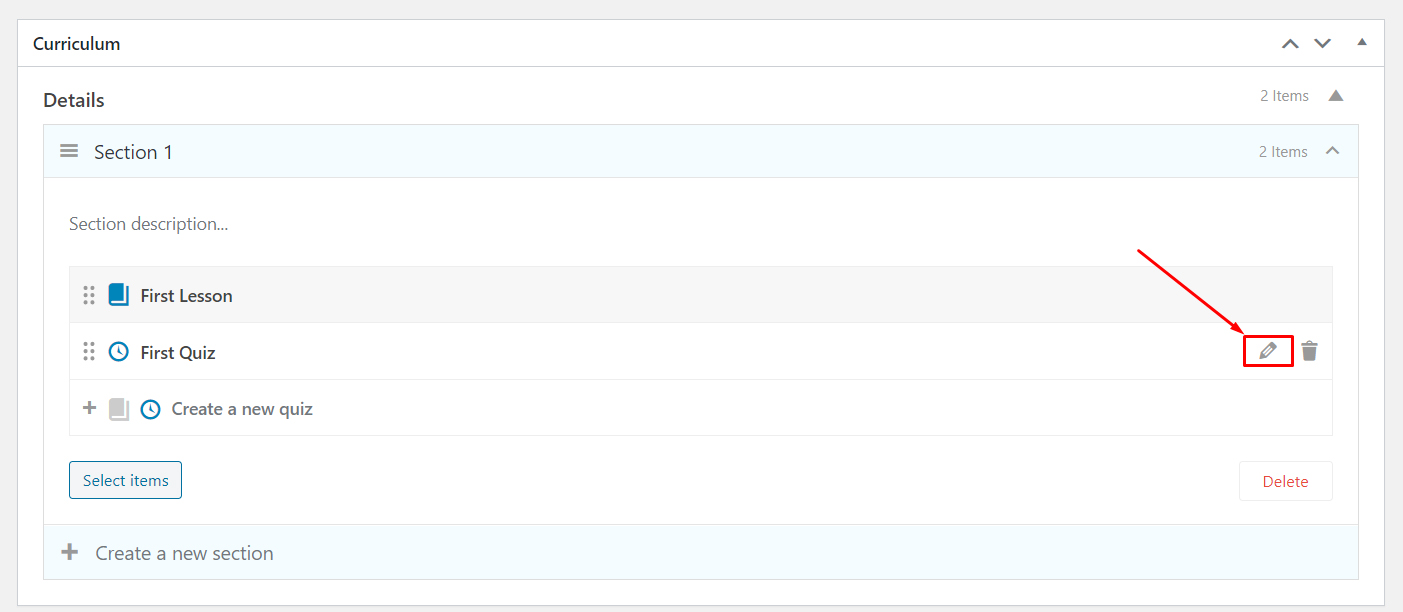
To edit the items in the course, you can hover the item then click the edit icon (pencil icon), it will open the edit page in the new tab.
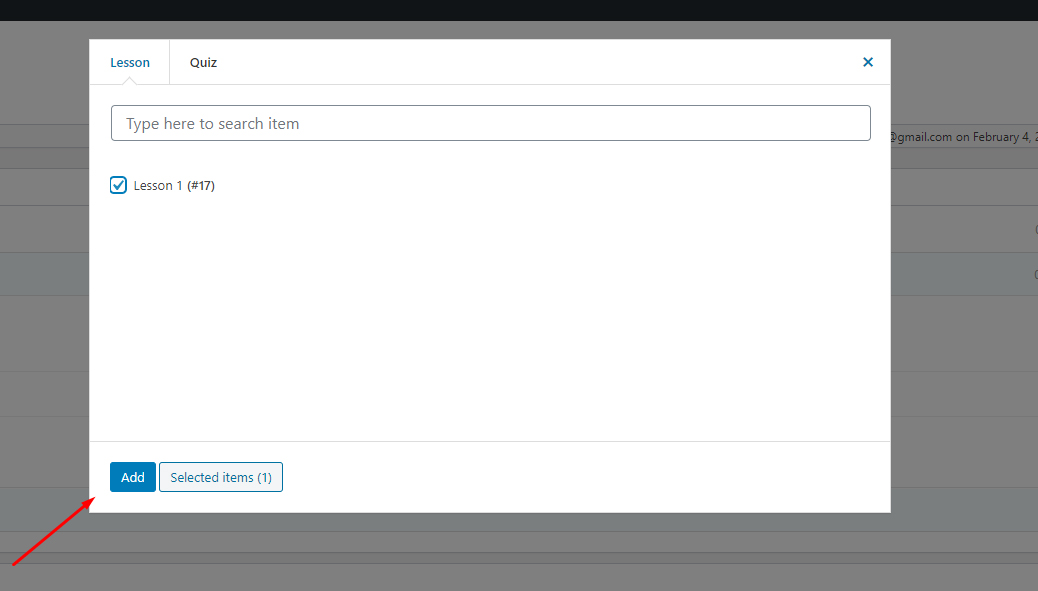
You can click on the “Select items” button to select the items (lessons, quizzes) you want to add to the course. Please note that you only can add the course items that have not been assigned to any course.
The items are only added to the course after you update the course.
LESSON
In this section, we will guide you on how to create lessons, set their preview-ability, and add them to the course curriculum.
CREATE A LESSON
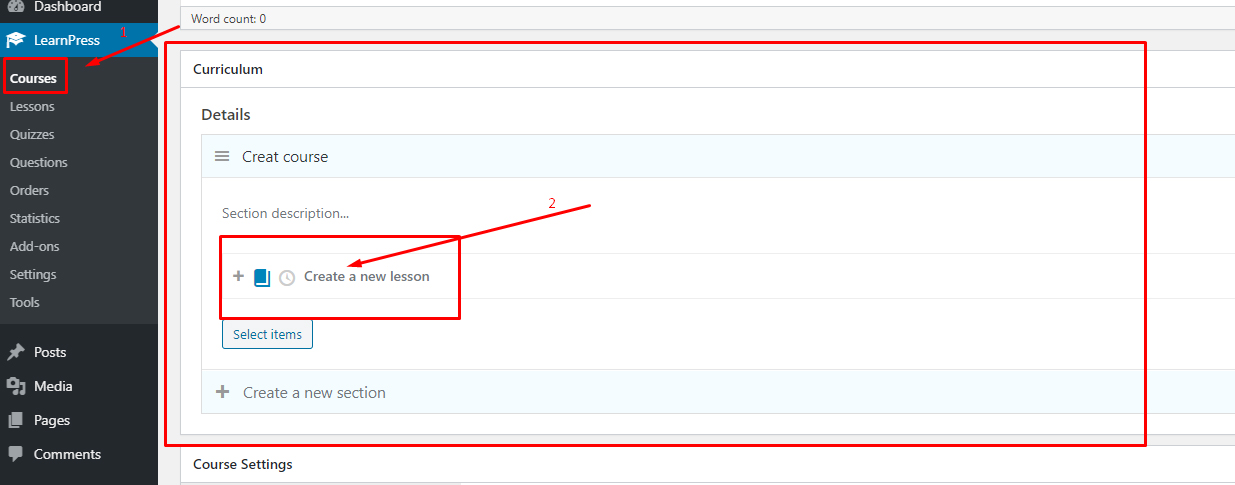
Way 1: You can add new lessons while editing a course. When you edit a course, scroll to Curriculum, write the title for the lesson and press Enter => Create a new lesson. You can see the below picture:
Then click the edit icon (pencil icon) to edit the lesson in the new tab.
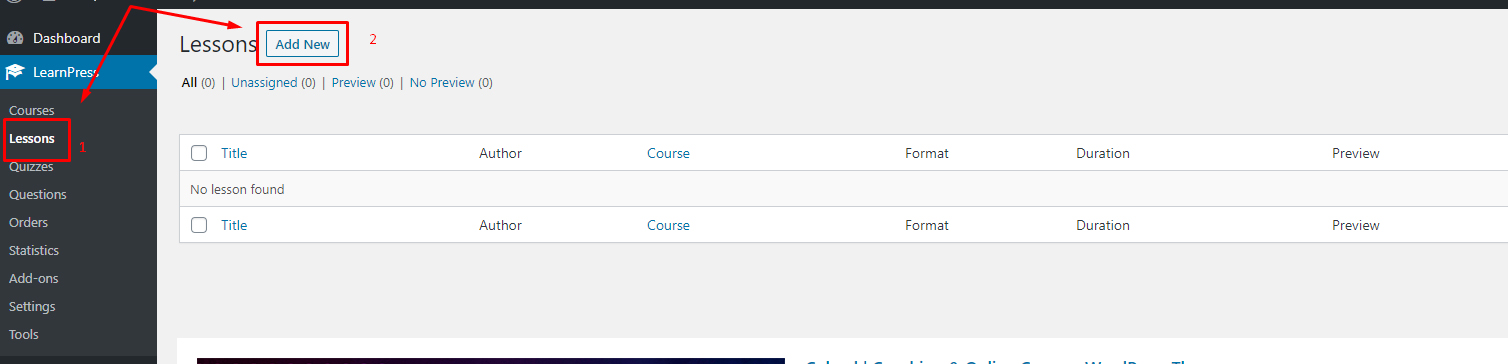
Way 2: Please go to Dashboard => Learnpress => Lessons => Add new. You can see the below image:
LESSON INTERFACE
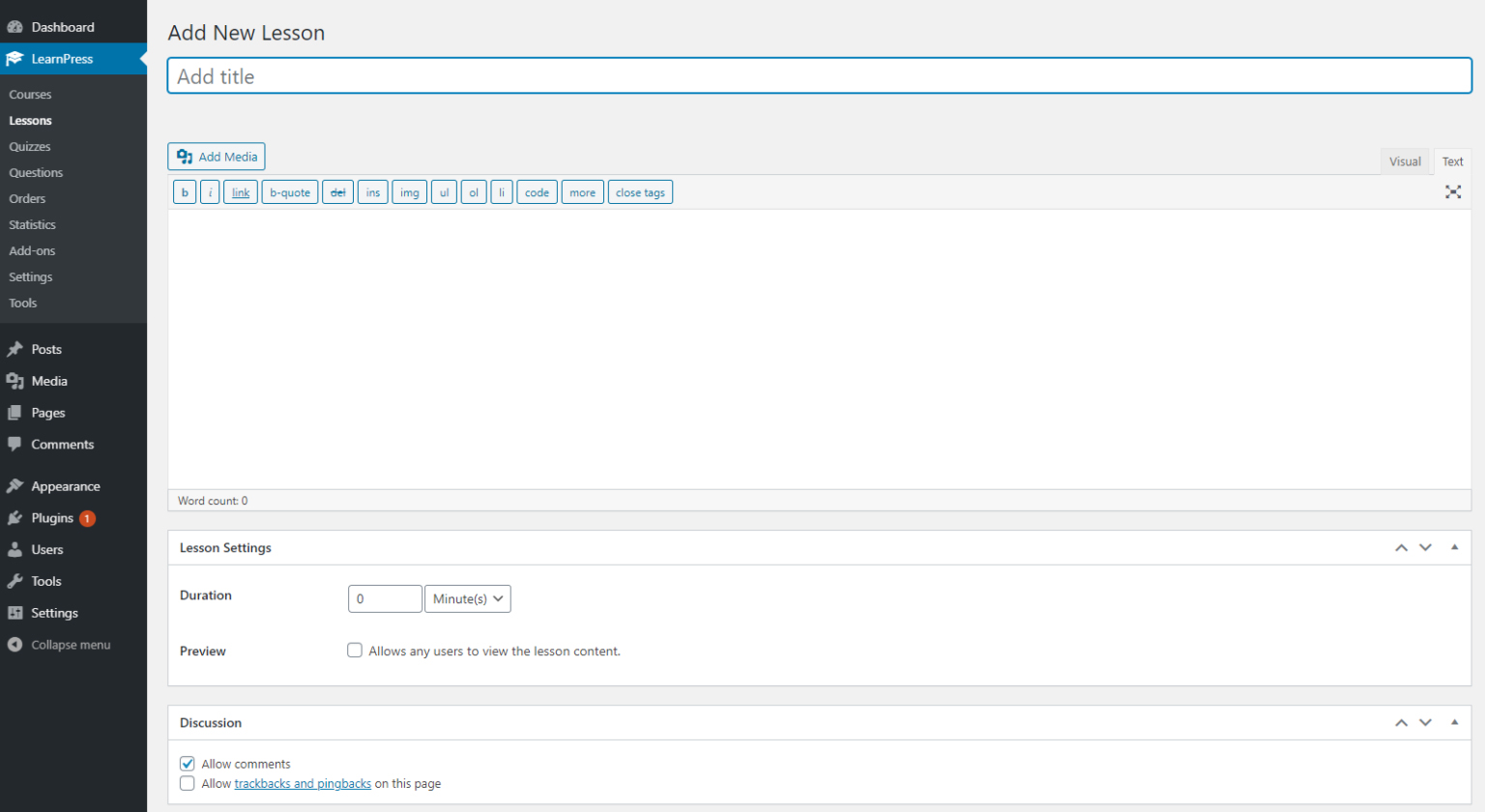
In the lesson creation page, there are four main sections.
Title
Content
Settings
Discussion
LESSON CONTENT
With Learnpress, we support lessons with text and media content.
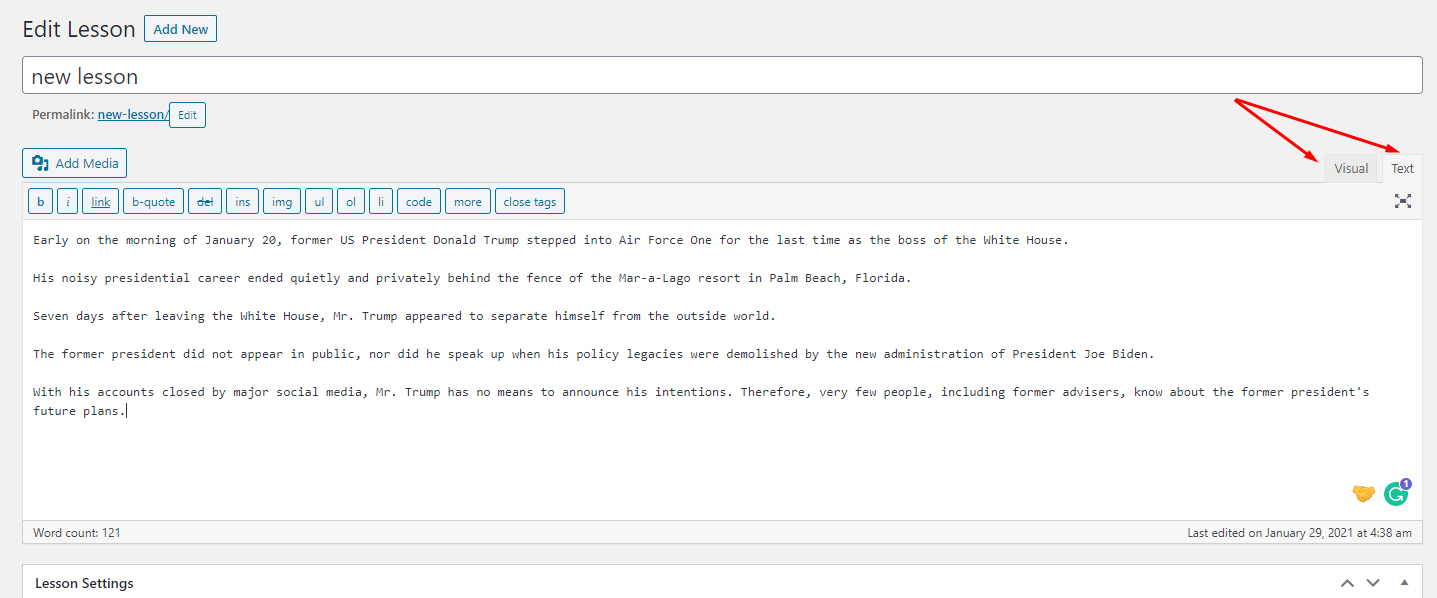
Text You can switch the editor type of the lesson here: Text and Visual.
2. Media
You can also add media to your lesson content.
You can add videos in two ways:
Way 1: Upload your video to the website’s media library. Then use the “Add Media” button to add the videos to the lesson content
Way 2: You can also add videos by pasting the video URL(from Youtube or some online platform) to the lesson content.
We recommend you follow the first way, it improves the load speed of your pages and the content will not disappear when the source of the content is deleted.
After adding a video to a lesson, if the video content is not displayed on the page, you should check whether your plugins have a lazy load setting and turn off lazy load on the iframe tag.
You can edit the lesson content with Elementor.
LESSON SETTINGS
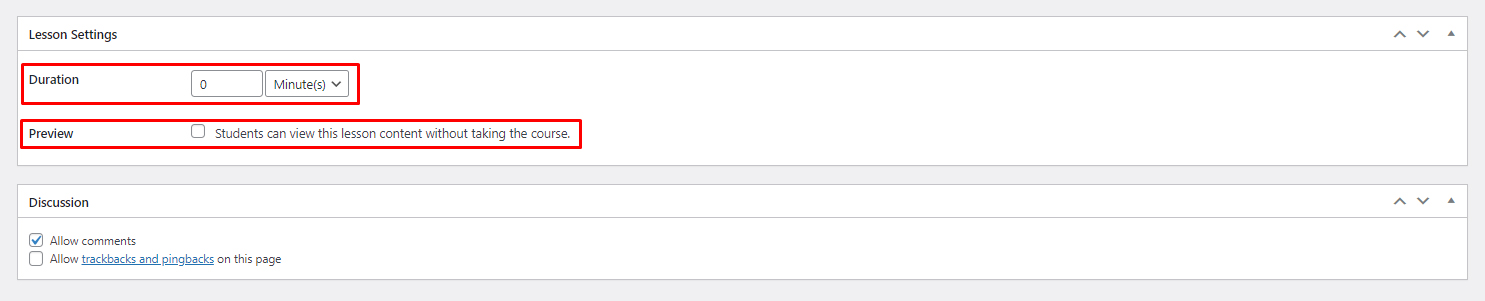
You can set the duration for a lesson, allowing customers to preview the lesson content before buying or allow users to add comments in that lesson.
Duration: You can set the duration for the lesson. If you set the duration to 0, the lesson will not display the duration, and if duration > 0, the lesson will display the duration you set.
Preview: If you enable the preview option, the users are able to view the lesson content without enrolling course.
ASSIGN LESSON TO COURSE
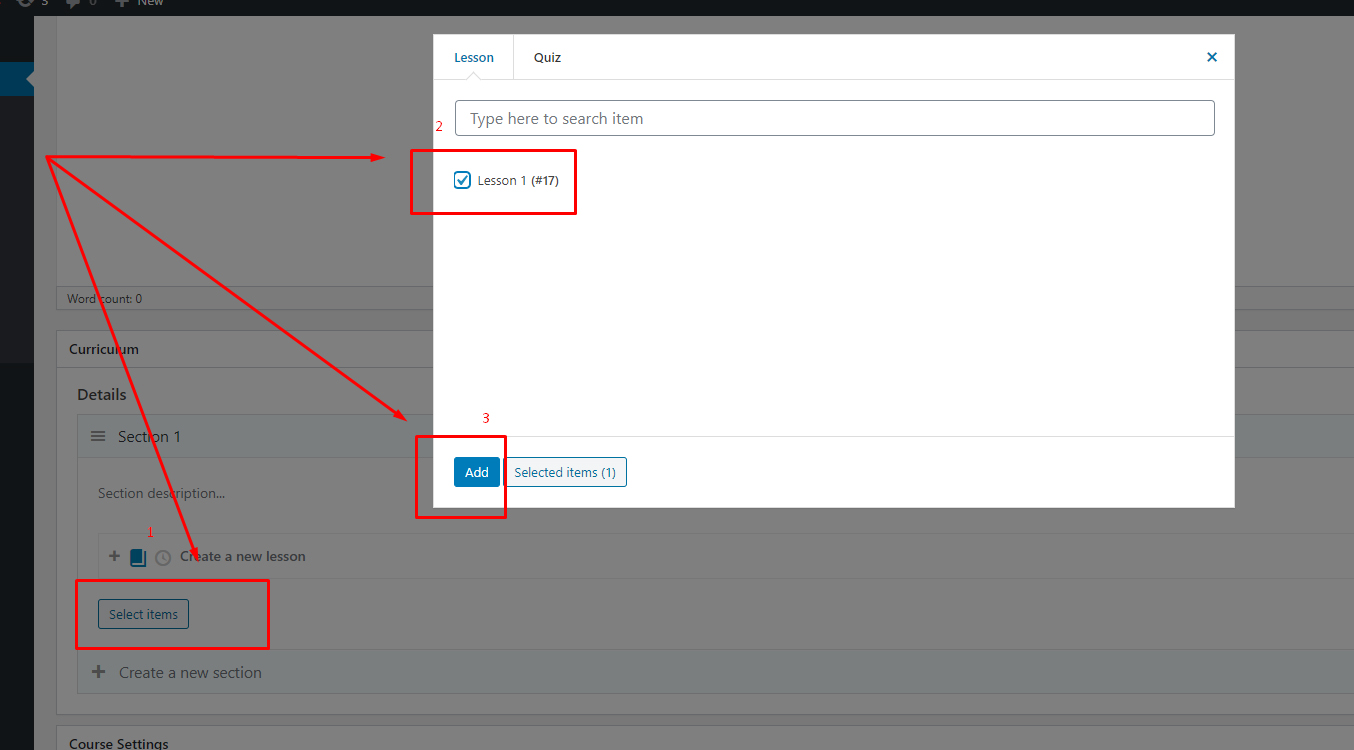
To assign a lesson to a course. You can edit the course, in the Curriculum section, click on the “Select items” button, then choose the lessons you want to add to the course (note that you only can add lessons created by you and not yet assigned to any courses ) and click “Add”.
QUIZ
In this section, we will guide you on how to create a quiz and configure quiz settings.
CREATE A QUIZ
You can add new quizzes while editing a course. When you edit a course, scroll to Curriculum, write the title for the quiz, and press Enter => Create a new quiz. You can see the below picture:
Then click on the edit icon (pencil icon) to edit the quiz in the new tab.
QUIZ INTERFACE
On the quiz creation page, there are three main sections:
Overview: This is what the students see before they start the quiz, you can introduce your quiz, content, mark rules, purposes, and anything you want.
Questions: These are all the questions students will do in the quiz
Settings: This section gives you the custom options for the quiz.
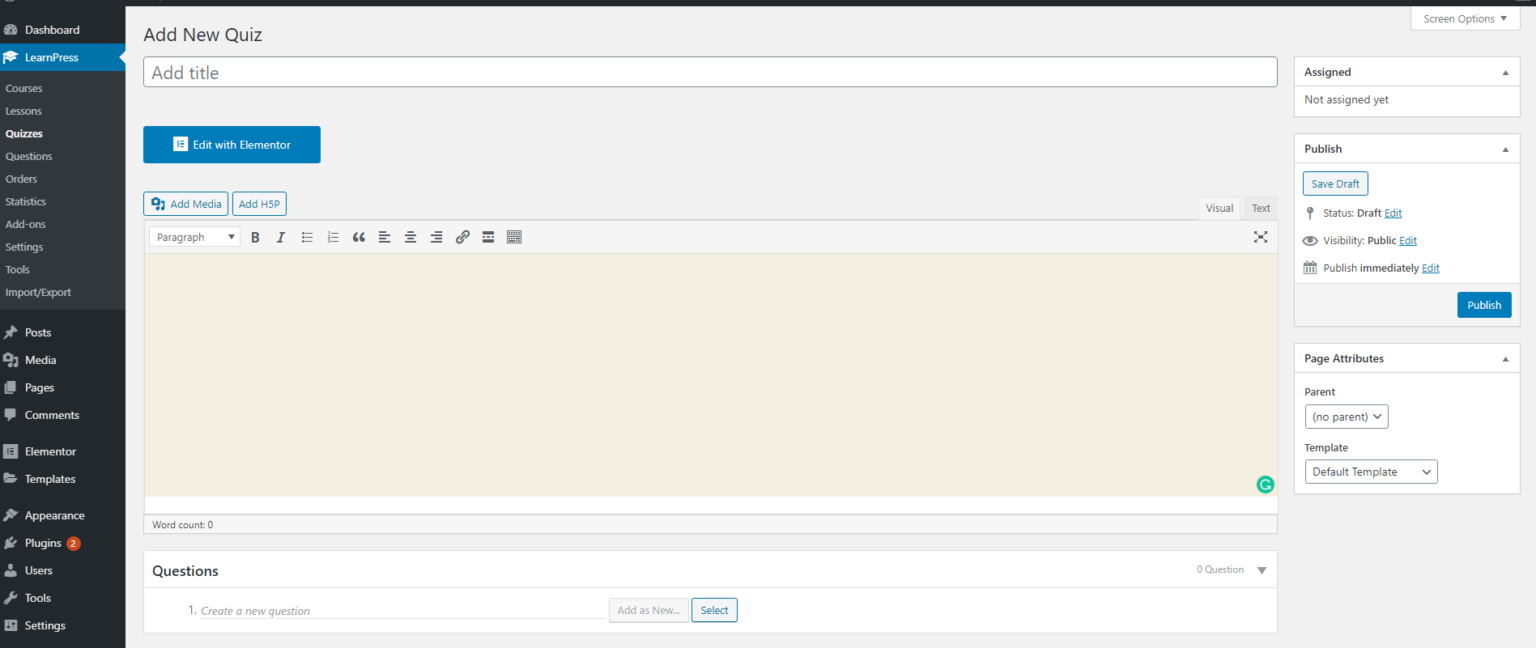
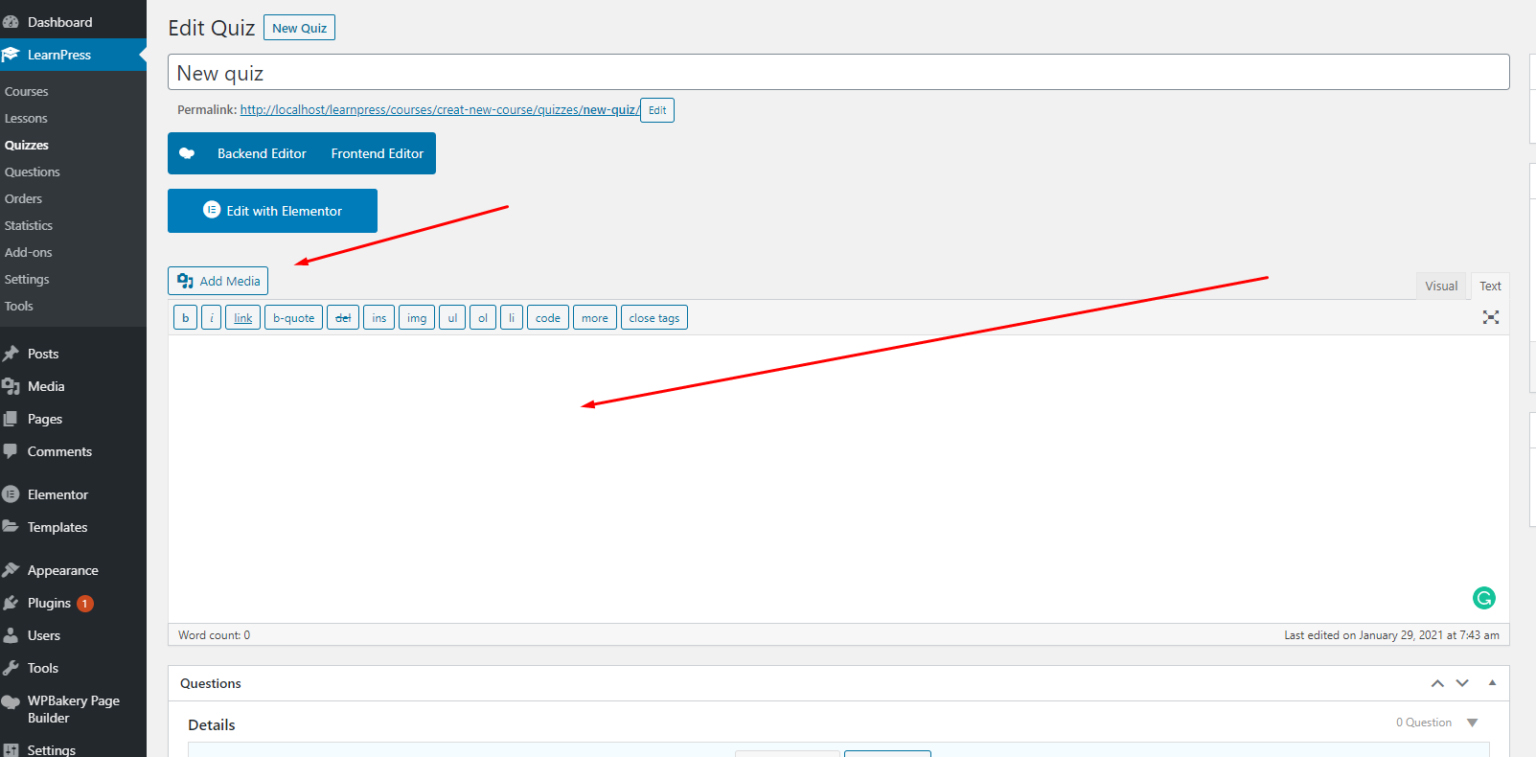
EDIT DESCRIPTION QUIZ
You can add texts and media to the description of a quiz.
You can also edit the quiz description by Elementor.
ASSIGN QUIZ TO A COURSE
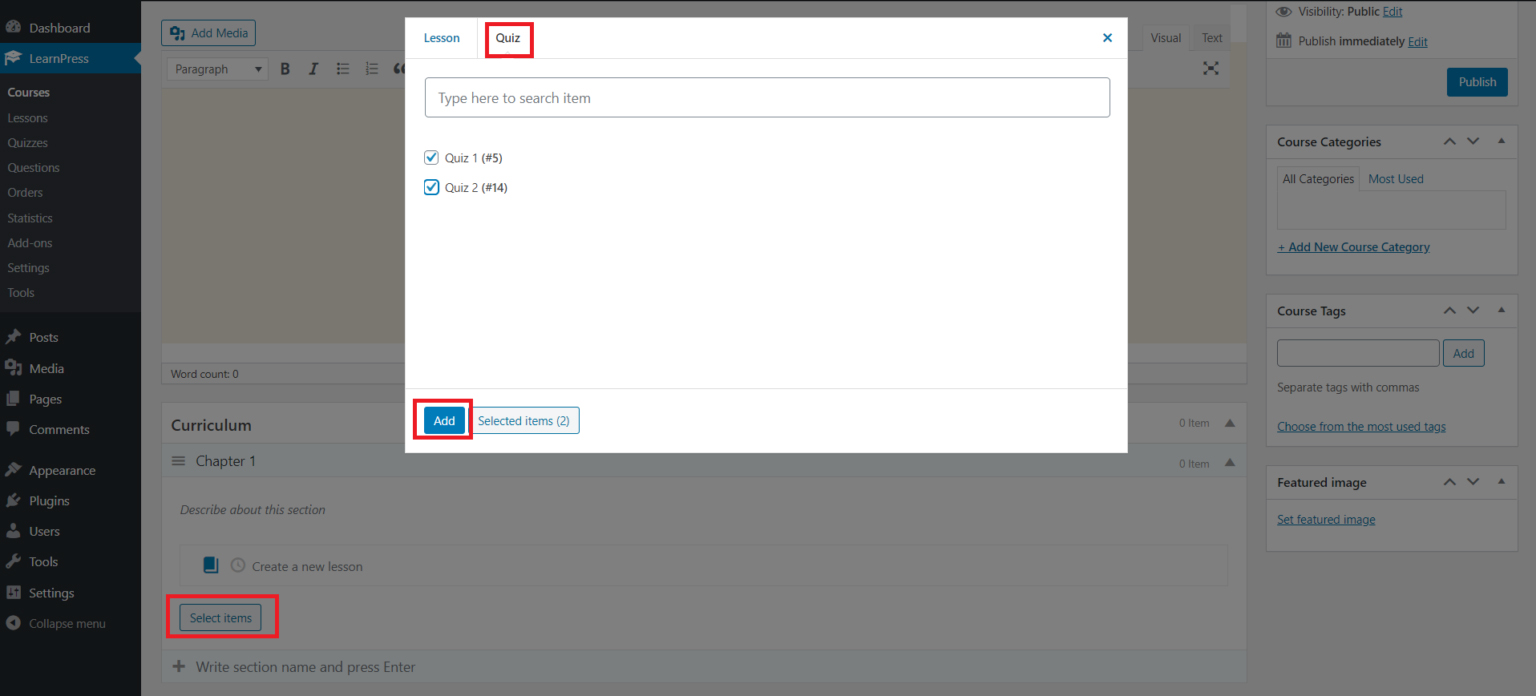
To assign a quiz to a course. You need to edit the course, in the Curriculum section, click to “Select items” button, then choose the quizzes you want to add to the course (note that you can add only the quizzes created by you) and click “Add”.
COURSE DATA
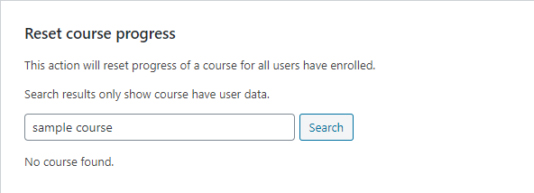
Reset course progress: Here, you can reset all the progress of the enrolling users and courses.
After reset, you can check it again by searching for the reset course. No course found will now be displayed.
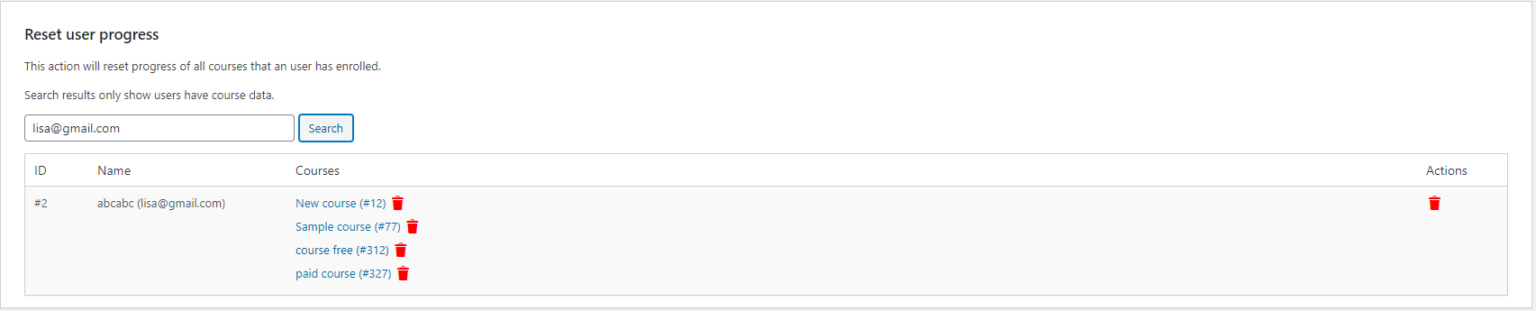
Reset user progress: This action will reset the progress of all courses that a user has enrolled in.
You can reset each course or all courses.
Reset item progress for a user: This action will reset the progress of a specific lesson or quiz
Please go to Dashboard => Learnpress => Tools => Course Data => Reset item progress for a user => Fill user ID or email and Item ID => Reset. You can see the below image:
After a successful reset will display Item progress deleted.
DATA BASE
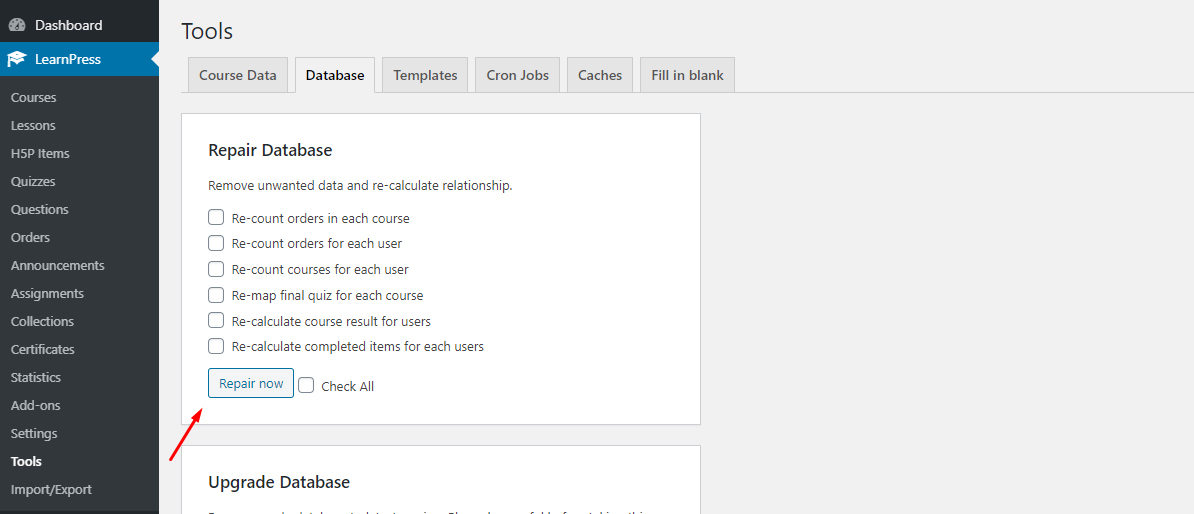
Repair Database: This tool will help you to remove unwanted data and recalculate the relationship.
Please go to Dashboard => Learnpress => Tools => Database => Repair Database => Check box you want => Repair now. You can see the below image:
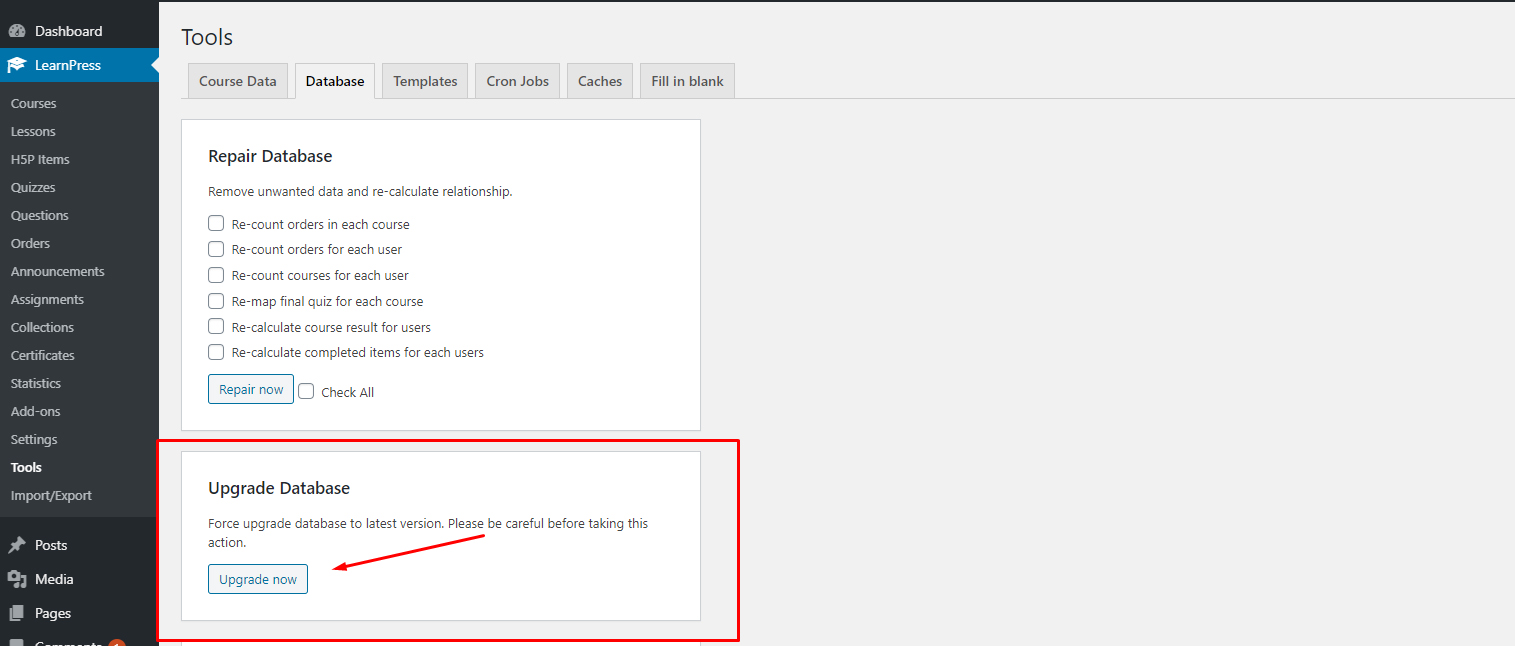
Upgrade Database: Force upgrade database to latest version. Please be careful before taking this action.
Please go to Dashboard => Learnpress => Tools => Database => Upgrade Database => Upgrade now. You can see the below image:
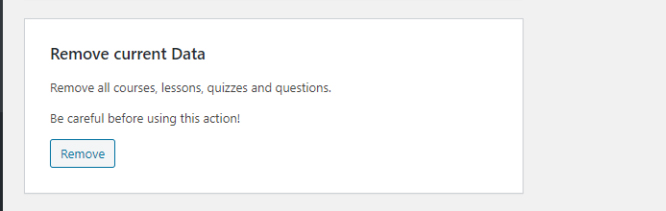
Remove current Data: This option allows deletion of all courses, lessons, quizzes, and questions.
Please go to Dashboard => Learnpress => Tools => Database => Remove curent Data => Remove. You can see the below image:
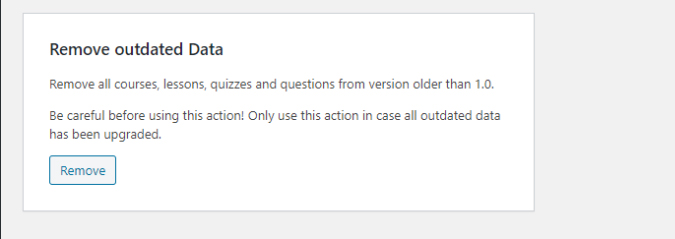
Remove outdated Data: Remove all courses, lessons, quizzes, and questions from versions older than 1.0.
Please go to Dashboard => Learnpress => Tools => Database => Remove outdated Data => Remove. You can see the below picture: