If you have additional Customer information then first add Custom fields and then begin the import. You’ll be asked to map the custom fields with your column headers.
When you are using Dropdown (select) custom fields in popCRM make sure that all values that are used in your file are present in the popCRM system. This will prevent errors of mismatch values. popCRM will ignore the case (capital case or small case) mismatch but if there are any spaces or character mismatch then you will encounter an error.
Make sure that all mandatory fields/columns are present in your CSV. Name and Email are mandatory fields.
Do not use comma-separated values for popCRM’s existing fields of contact information like email and phone number. If you have comma-separated values then add new custom fields to retain them.
Please remove extra spaces in the beginning or end of the words if any.
Date format to be used: YYYY/MM/DD OR MM/DD/YYYY
How can I upload CSV?
Customer importing is to facilitate uploading multiple contacts and their associated properties to a CRM system. Importing Customer to your popCRM workspace is a simple process –
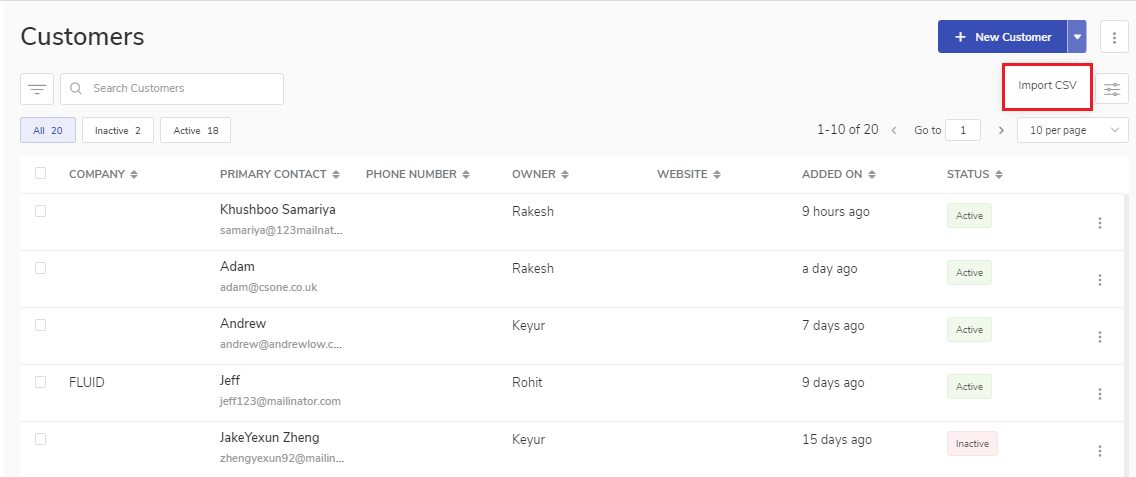
1. Navigate to the Customers module. 2. Click on the Import from the dropdown icon available at the top right corner beside the +New customer button.
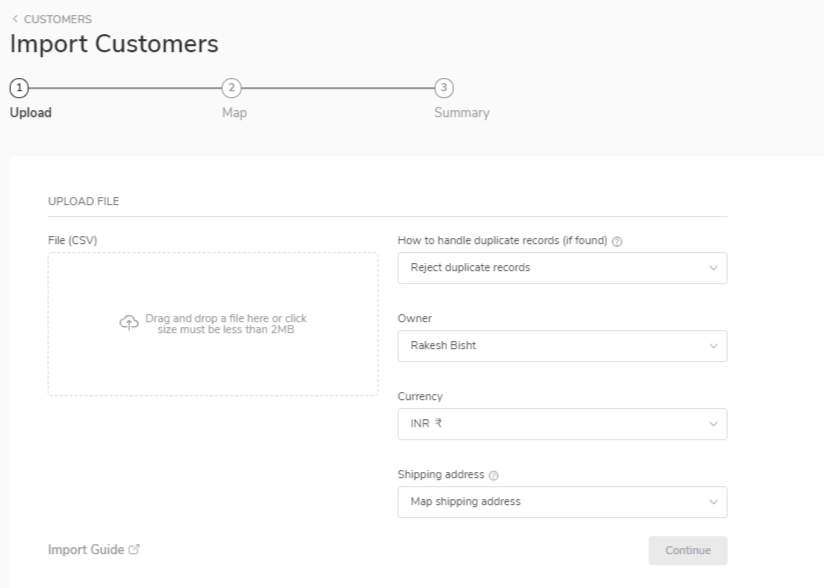
3. This will take you to the Import customers page.
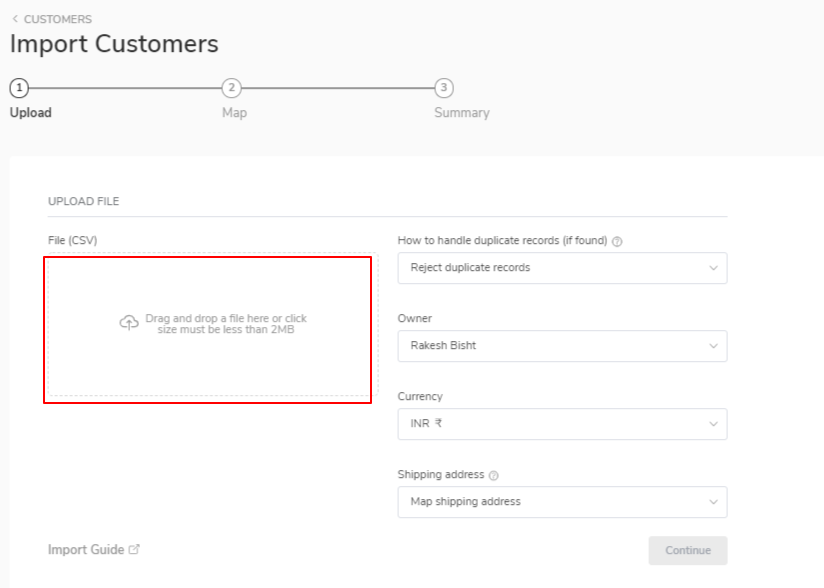
4. Under the upload, file section click on the File (CSV) to upload your CSV file.
Note :
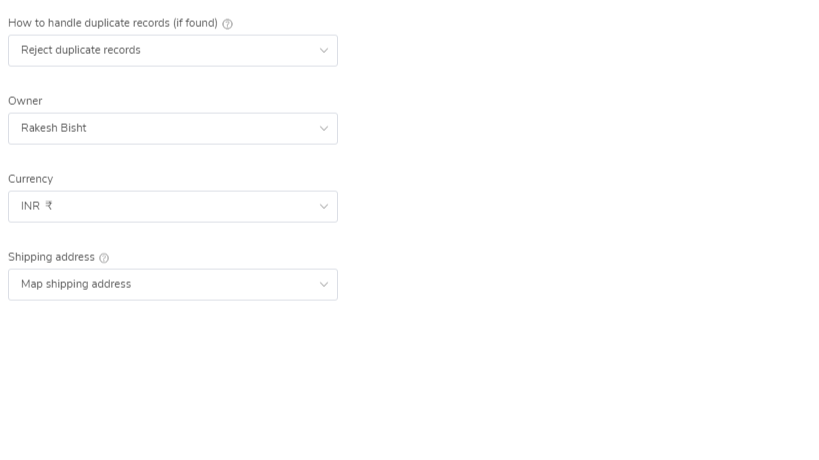
Please choose how you want duplicate records to be handled. Do you want to create a new Customer with a duplicate record or you want to reject the duplicate record? The duplicate record will be identified based on the email address only. Any other duplicate information will be ignored.
Choose the owner of these imported customers from the dropdown list.
Choose the correct currency for the imported Customer.
Choose the shipping address from the drop-down list.
Click On Continue
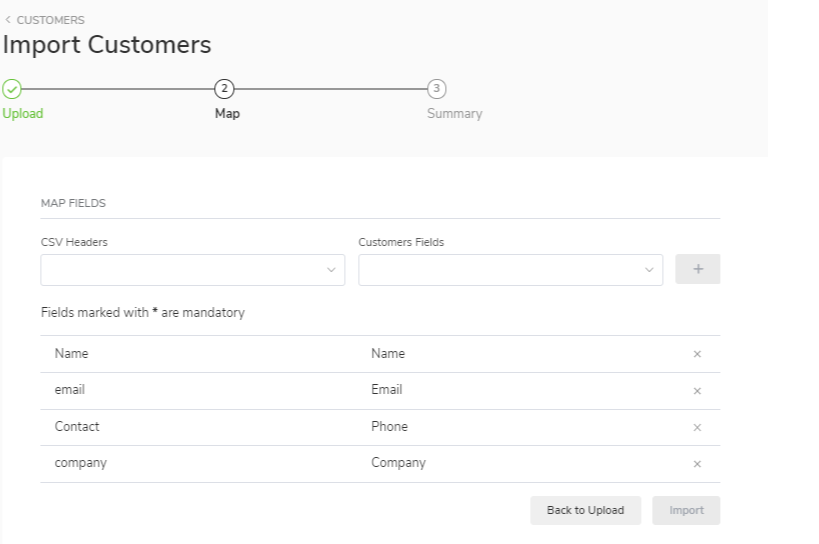
Map Fields
1. Once the upload is done the next is to map the columns of popCRM customer fields and imported file headers. Once the field selected click on the add mapping button.
Note: Fields marked with * are mandatory to map
2. Click on Done, import now.
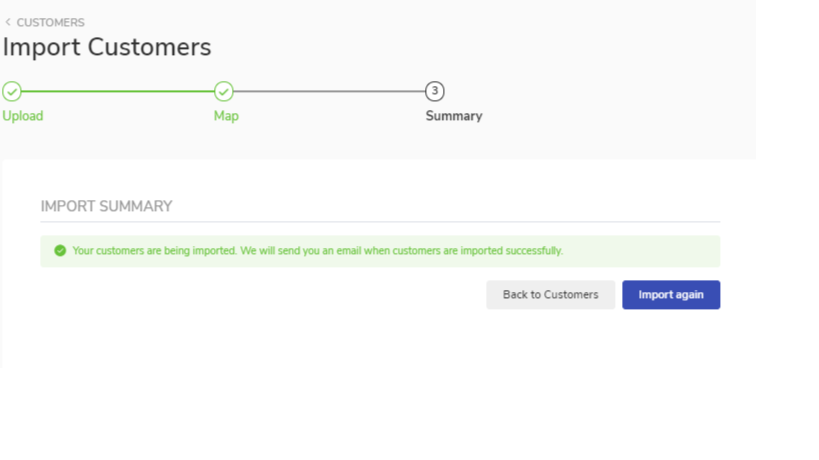
Import Summary
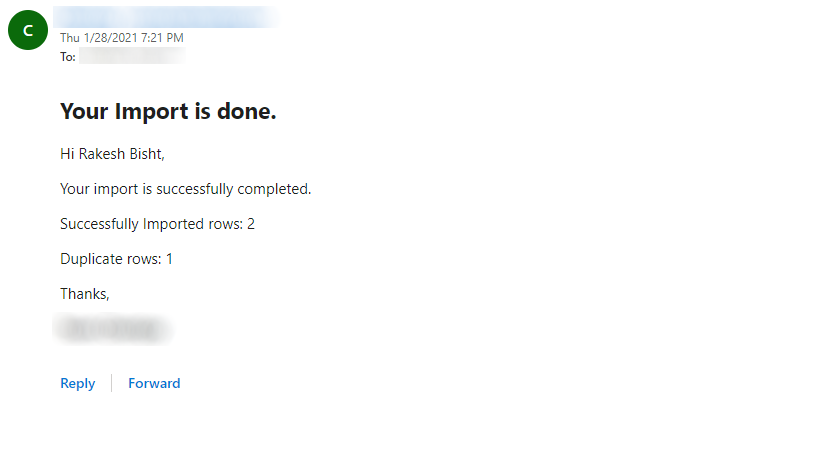
1. If the import is successful with exactly the same number of data you will receive the confirmation by email. Click on the back to customer button.
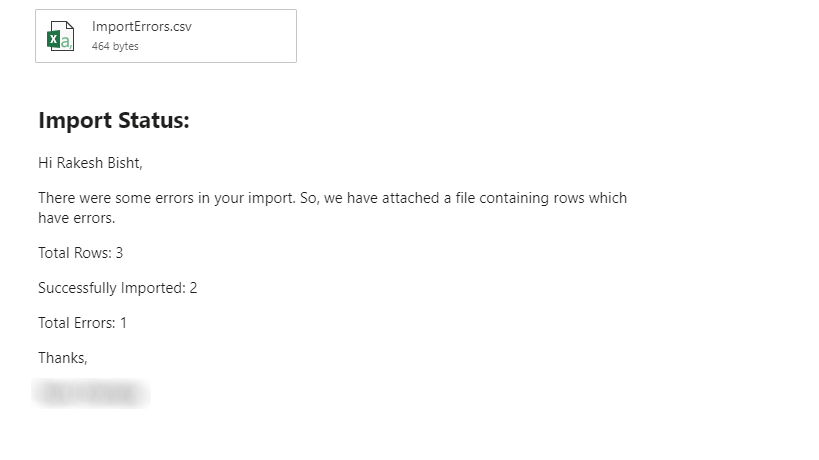
2. If import stopped due to some error. The error file will be sent to you by the system on your email. You can fix the error on the same file. Once the error on the file is fixed you can delete the error column from the file and save the file as CSV and start the process again by clicking on the import button.