It is very easy to create an activity in popCRM and help you understand your schedule for the day, week, and month and plan your next activities accordingly.
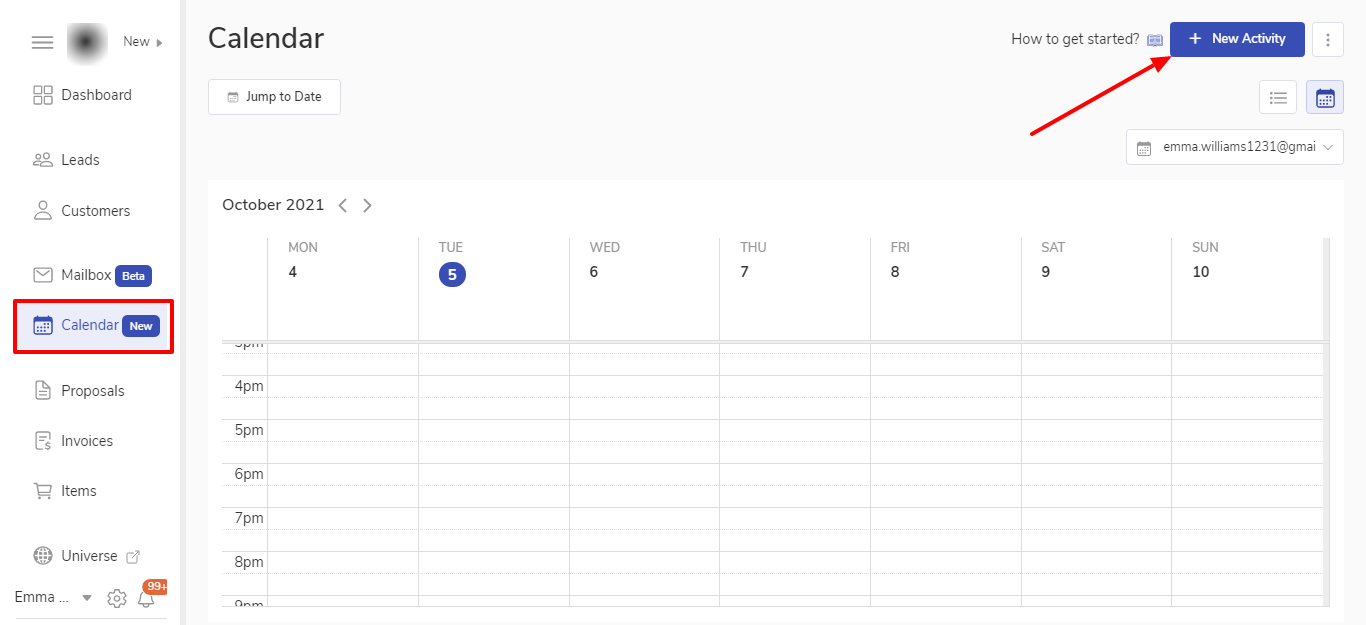
Go to the Calendar menu from the sidebar.
Click on Add new activity.
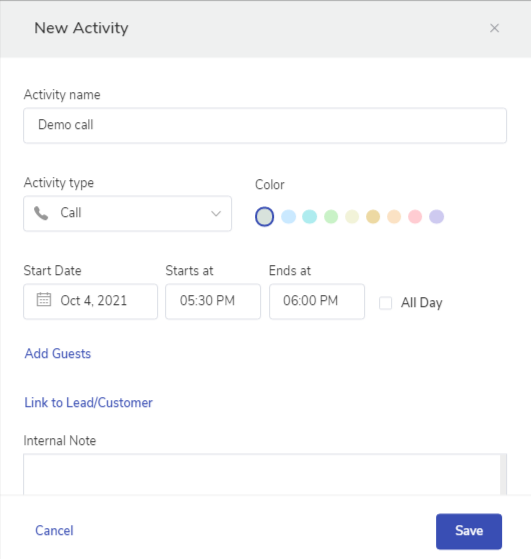
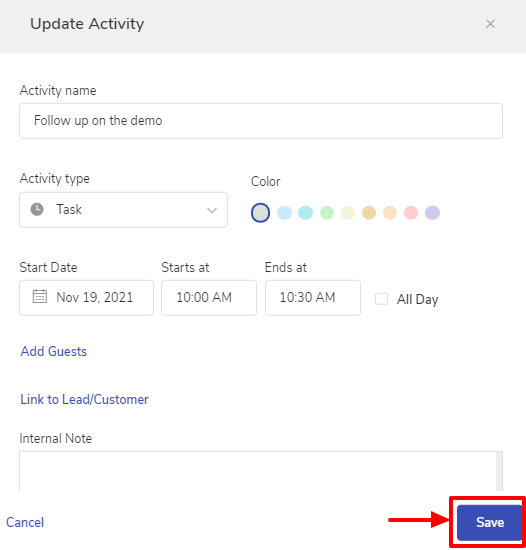
This will open a modal window where you can enter the activity details
Activity name – You can name your activity. This will be also be seen by the people whom you will invite for that activity/event.
Choose from theactivities like call 📲 , meeting 🤝, task ✔️, deadline ⏲️, email ✉️, and lunch 🥪
Pick the color to know the importance of the activity.
Select the start date and end date
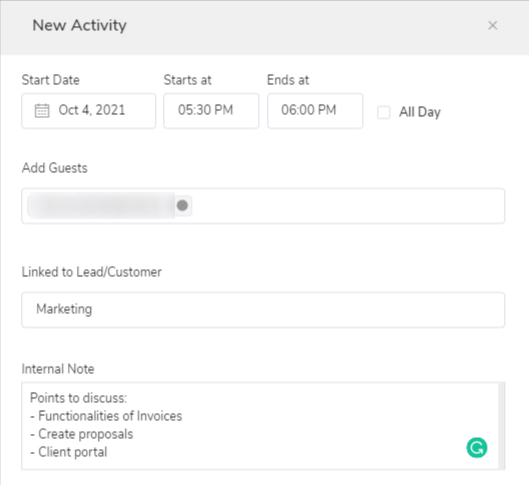
You can also add the below-mentioned details in your activity:
Invite an internal team member or an external guest to an activity
Link a lead/customer to an activity
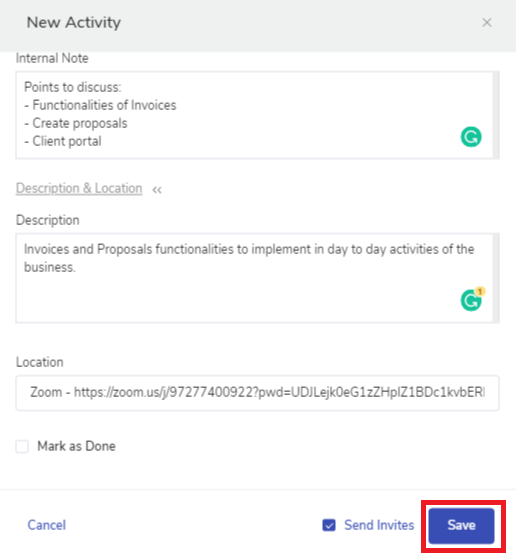
Add internal notes for you and your team members
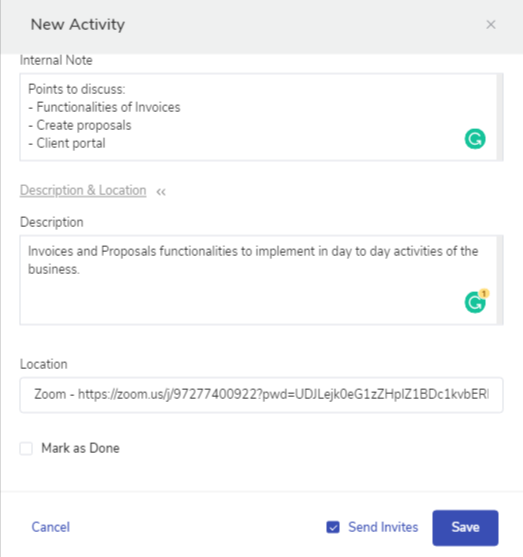
Add the description to an activity
Add a location where the activity will be conducted. You can also add online meeting URLs.
Click on Save
✍️ Note: The guest added to an activity will receive an email of the activity created. The owner of the activity will receive a notification 15mins before the event is scheduled.
That’s it 🙌 Your activity is created.
✍️ Note: Activities can also be created from
Activities tab in any Lead or Customer’s details by clicking on Add new activities button.
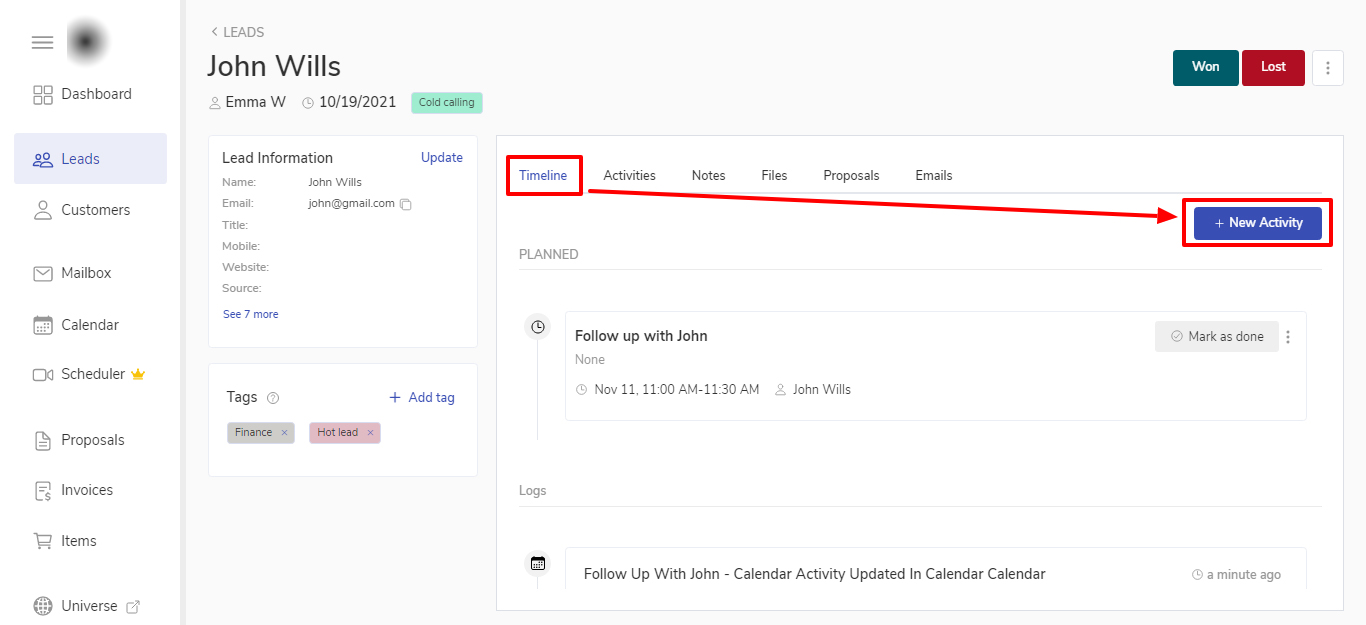
Timeline tab in any Lead or Customer’s details by clicking on Add new activities button.
Viewing and Managing Activities
1) Calendar module
To get the complete vision of your activities at one glance, go to the Calendar option from the sidebar. You can see all your activities in the Calendar view and the List view.
2) Lead/Customers details page
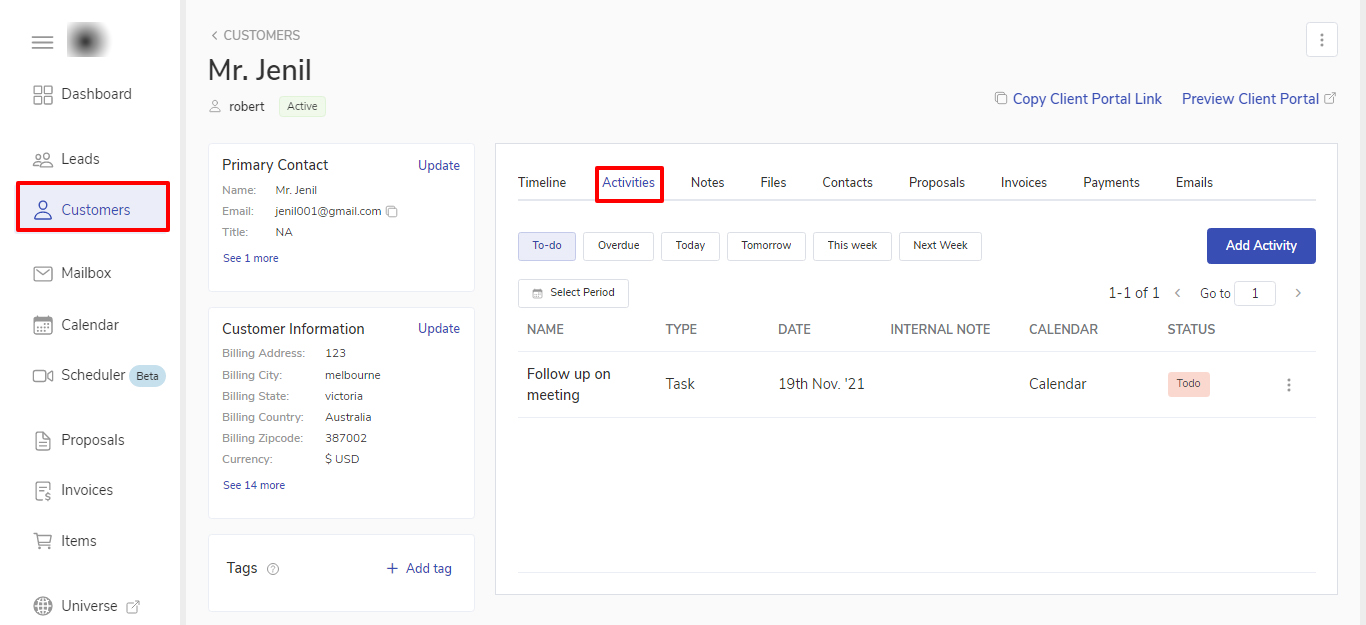
You can view the activities for a particular Lead/Customer by going to the Activities tab for a particular Lead/Customer’s page.
2) How to update a created activity?
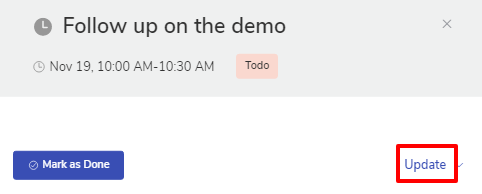
Click on the activity from the Calendar which you want to update.
Click on Update.
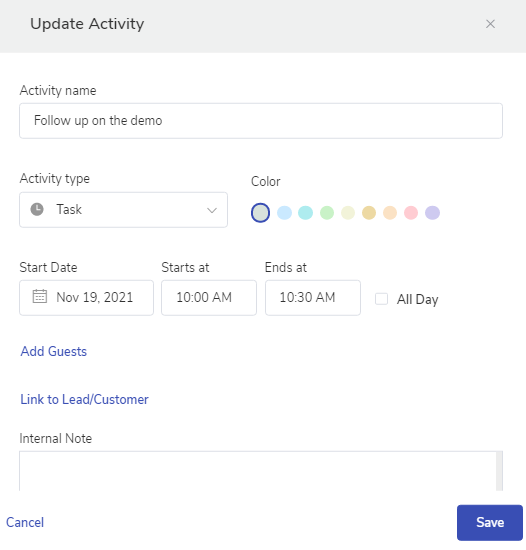
This will open up the modal window where you can update the details of the activity.
Once the activity is updated, click on Save.
✍️ Note: You can also update the activity created for a particular Lead/Customer by going to the Activities tab in the details of that Lead/Customer.
Click on the three ellipses icon of the activity you want to update and click on Update.
3) How to mark an activity as completed?
There are multiple ways to Mark the activity as done.
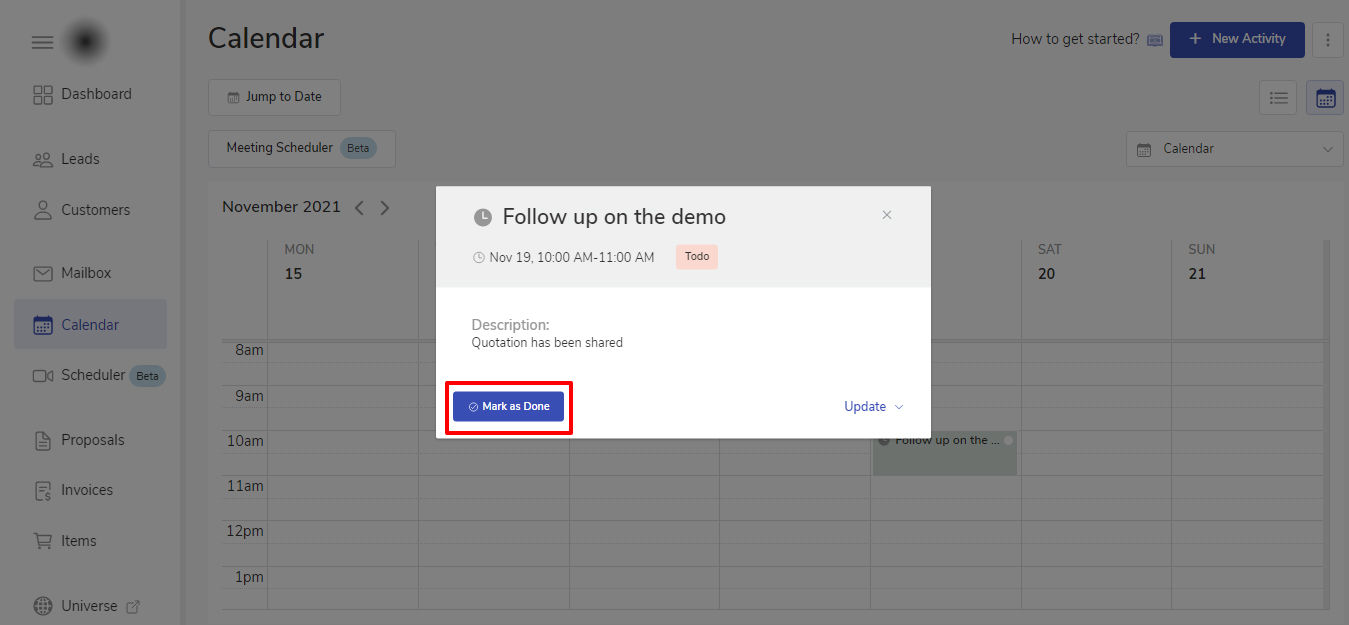
1) Click on the activity you want to mark as done and select Mark as done.
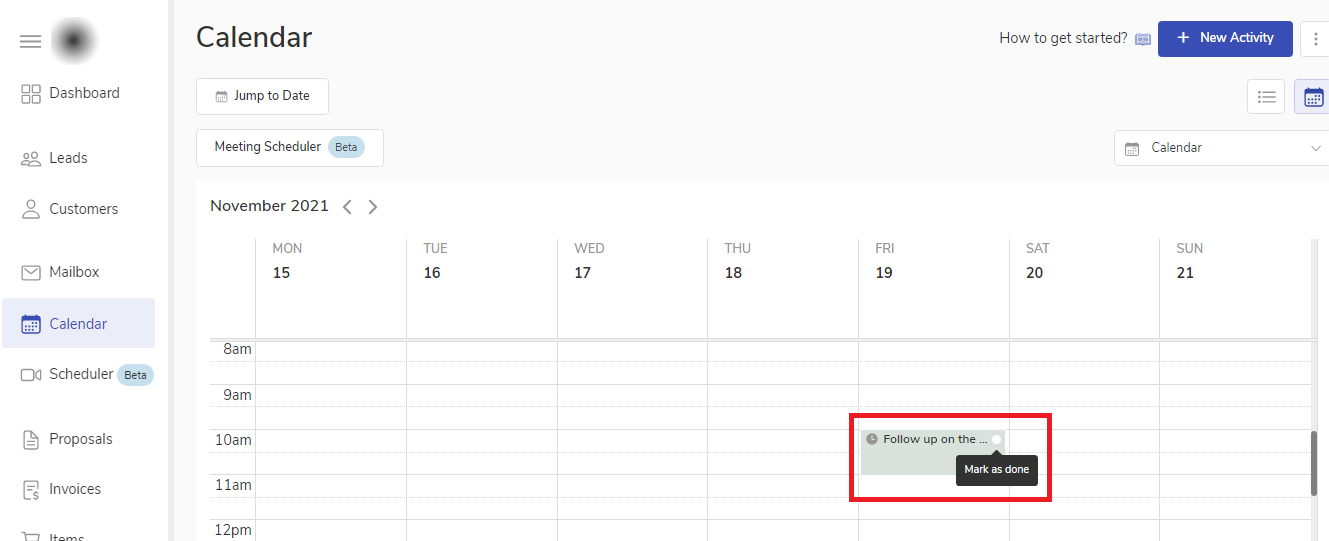
2) Hover over the activity and click on the circle to mark as done.
3) From the Lead/Customer’s details page.
4) How to cancel an activity?
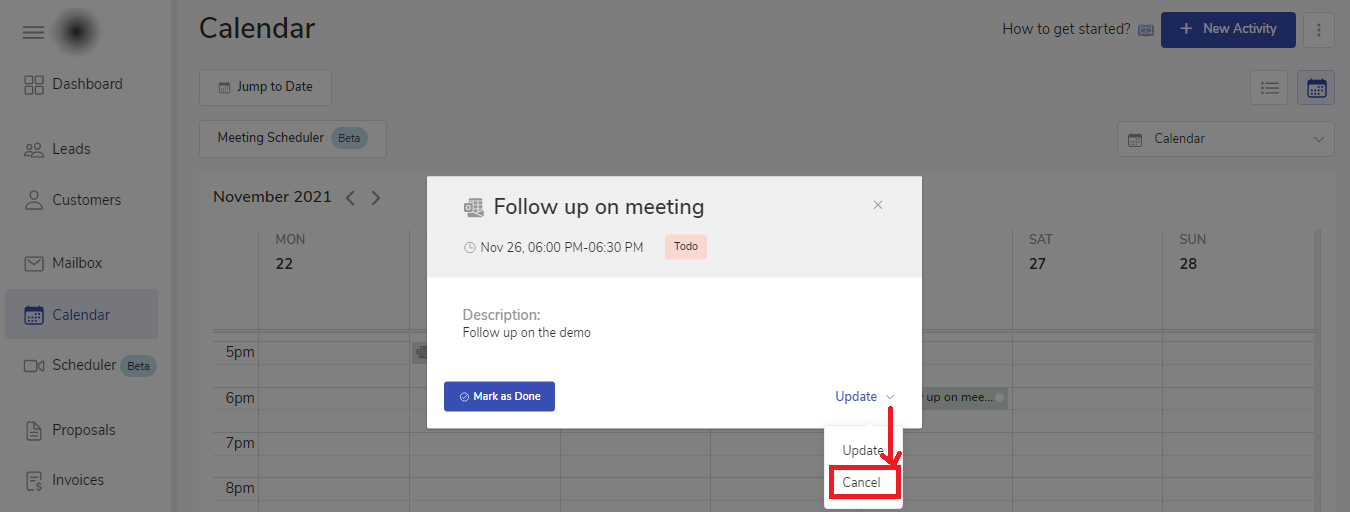
Click on the activity you want to cancel. This will open the modal window of that activity details.
Click on the dropdown option besides Update and click on Cancel.
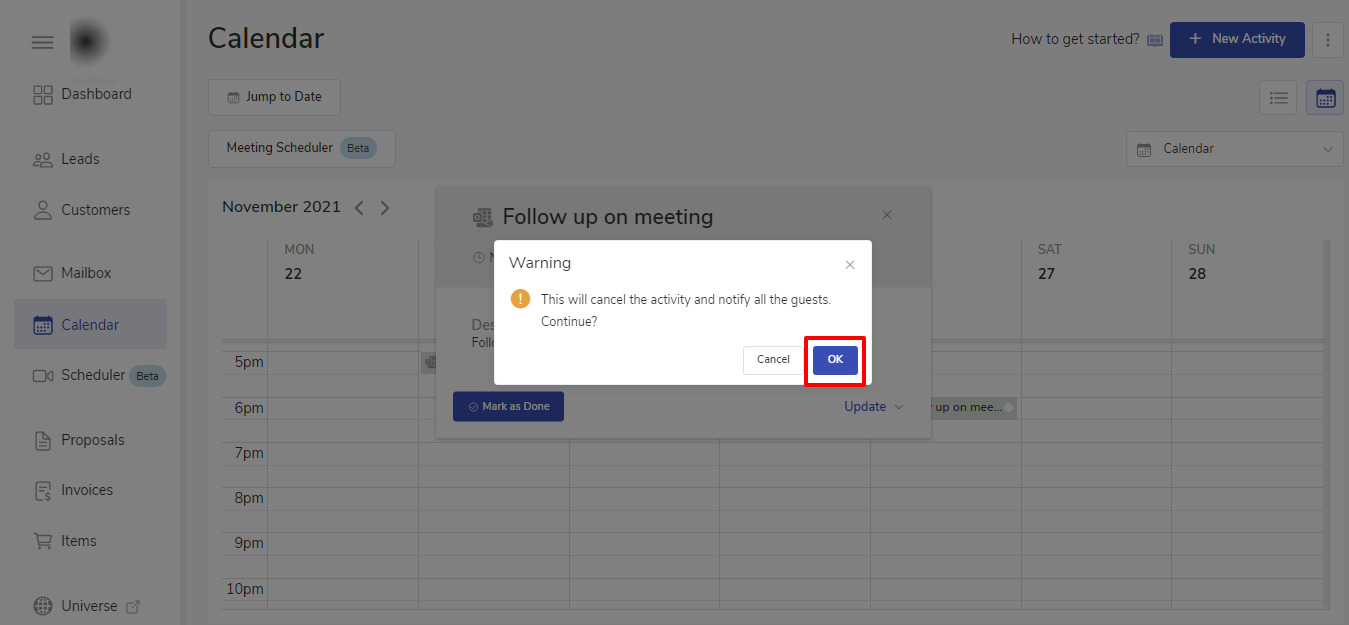
You will receive a confirmation message to cancel the activity and notify all the guests. Click on Ok.
Frequently Asked Questions
1) Can I invite my internal team members to an event?
Yes, you can add them as guests and invite them to an activity.
2) Will my leads/customers receive notifications if I link them to an activity?
No, they will not be notified if you link them to an activity.