Navigate the Inbox

Find out about the tiniest features of Inbox and how to use them.

Empty Inbox

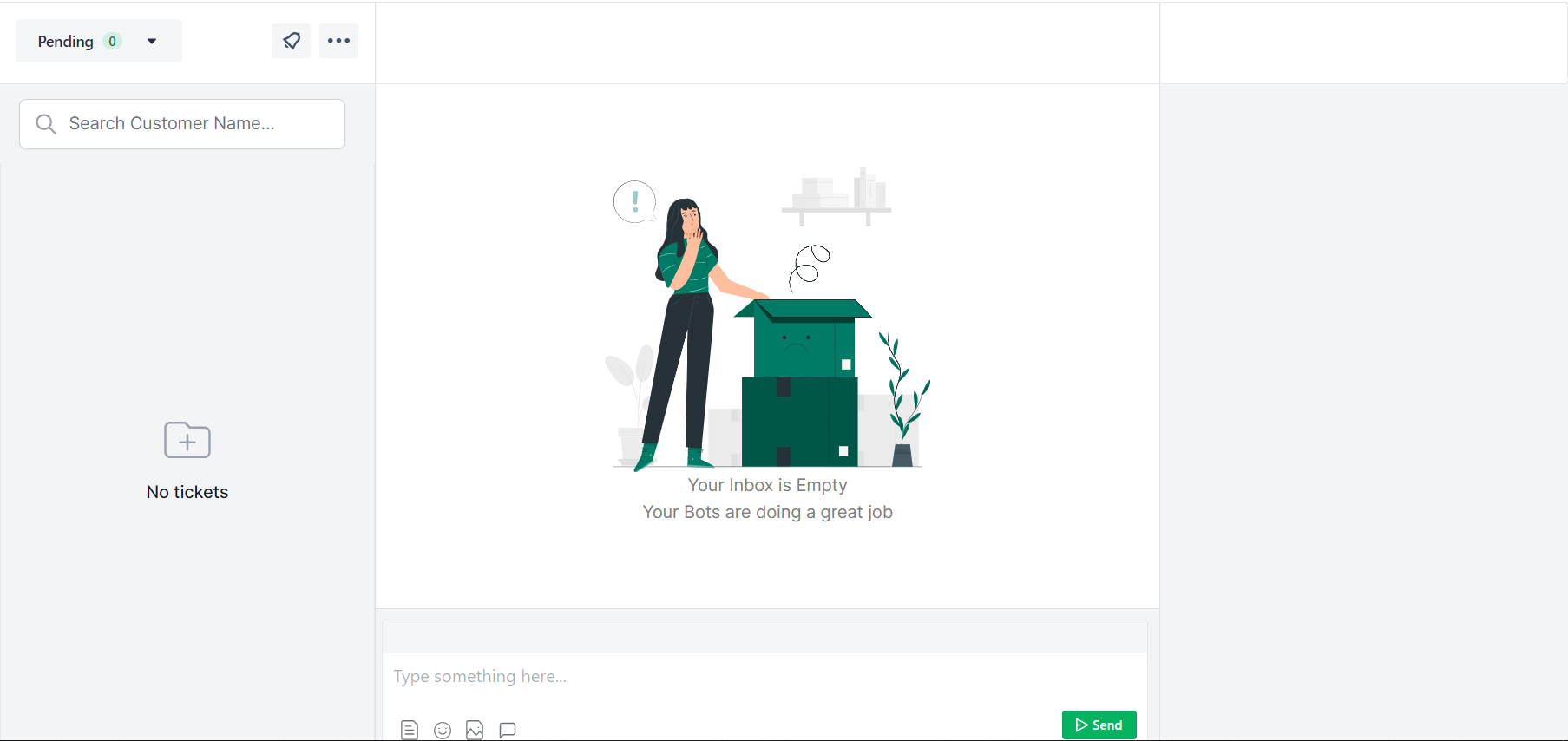
This is what an empty inbox looks like.

There are several reasons you might have an empty inbox.

  • You don’t have many visitors.
  • Your bots are doing a great job in resolving every query.
  • You forgot to add a Ticket Block in your user journey.

Be sure to revise your user journey once in a while.

Organize Tickets in Inbox

On the top-left corner of the inbox, you will see a drop-down menu, two icons, and a search bar.

Previously, you could toggle between Pending and Resolved Tickets. But now, you will see the pending tickets in your inbox by default.

To view the resolved tickets, click on the filter icon on top, select Resolved under Ticket Status and click on Save.

1. Ticket Queue

Next, you can select one of these three views from the drop-down menu.

2. Filter Your Tickets

You can also filter your tickets based on the following criteria.

  1. Ticket Status i.e., Pending or Resolved.
  2. Channels
  3. Time
  4. Assigned Agents or Group
  5. Tags

3. Sort Your Tickets

By default, the inbox view shows the latest ticket on top. You can click on the sort icon to toggle between the latest and the oldest view.

4. Search Your Tickets

This step is self-explanatory. Just put in your customer’s name, and the results will appear. Feel free to add filters and sort your search results to find your desired outcome.
Was this article helpful?

Leave a Reply

Your email address will not be published. Required fields are marked *